6 Best Tablets for Note Taking (October 2026)
The best tablets for taking notes include the Apple iPad 11-inch (A16 for mixed daily use, the Samsung Galaxy Tab S11 for meeting notes, and the Apple iPad Air 11-inch (M4) for creative coursework.
On this page (8 sections)
- Which tablet is best for note taking?
- How do you choose the best tablet for note taking?
- How should you set up a tablet for class or meeting notes?
- How do you keep digital notes useful after writing them?
- What mistakes should you avoid when buying a note-taking tablet?
- How should you care for a note-taking tablet and pen?
- Can a tablet replace a notebook for daily notes?
- Which tablet should you choose for note taking?
The best tablet for note taking for most people is the Apple iPad 11-inch (A16, 128GB), which combines Apple Pencil compatibility with iPadOS multitasking. Choose the Samsung Galaxy Tab S11 for an included pen and note-organizing tools, or the Lenovo Idea Tab Pro for more document space.
Start with the work you'll save: handwritten pages, marked-up PDFs, typed meeting minutes or a mix. Your note app and pen choice matter more than buying the most powerful tablet.
If you also plan to read on your tablet, compare the options in our guide to the best tablets for reading. For wider screen choices, see what size tablet to buy.
Our picks at a glance
-
1
-
2

-
3
Which tablet is best for note taking?
The A16 iPad is our first choice for mixed daily use, while the other picks solve more specific needs. Match the tablet to your main task rather than assuming the highest score makes it right for everyone.
These choices focus on compatible pens, writing space, note tools and the practical steps between capturing an idea and finding it later. A bundled pen helps you start, but app choice and file sharing determine whether the setup stays useful.
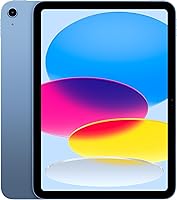
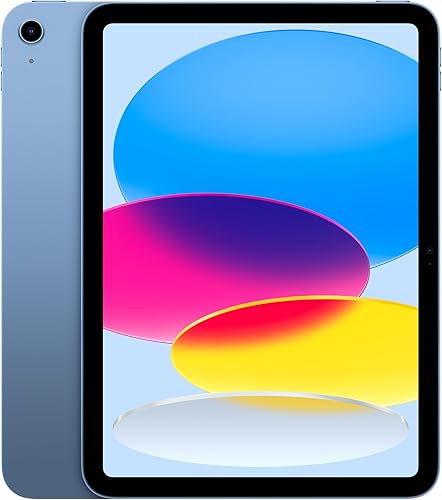
Apple iPad 11-inch (A16, 128GB)
- 11-inch Liquid Retina display
- 128GB storage
- Apple Pencil compatibility
- iPadOS multitasking
Our first choice for buyers who want handwritten notes, document scans, browsing and calls on one tablet.
Pros
- Compatible with 2 Apple Pencil models
- Runs multiple apps at once
- Back camera supports document scanning
Cons
- Needs a compatible Apple Pencil for handwriting
- Less document space than the larger Lenovo
The A16 iPad suits people who want one tablet for notes and daily tasks. Its 11-inch Liquid Retina display offers a useful middle ground for handwriting at a desk and carrying between rooms or classes.
It works with Apple Pencil (USB-C) and Apple Pencil (1st generation). Match the pen carefully before ordering, especially if you already have an Apple Pencil from another iPad.
Scribble lets you write in text fields, and iPadOS supports multiple apps at once. That suits a workflow where you move between a notebook, a browser and reference material rather than keeping every task inside one app.
The back camera supports document scanning, which helps bring paper handouts into your digital notes. Name those scans as you save them so they don't become a separate pile of files.
Choose this iPad if notes are part of a broader daily routine. Skip it if a confirmed pen bundle is your first requirement, or if you mainly annotate full-page documents and want more room.
Samsung Galaxy Tab S11
- Included S Pen
- Note Assist for Samsung Notes
- 11-inch Dynamic AMOLED 2X display
- Expandable microSD storage
Choose it for an included pen and Samsung Notes tools that can summarize and format eligible text.
Pros
- S Pen included
- Note Assist summarizes and formats eligible text
- Expandable storage
Cons
- Note Assist needs a Samsung account and internet connection
- Note Assist works with Samsung Notes text of 200 to 4,000 characters
The Galaxy Tab S11 is the strongest fit here for meeting notes you want to organize afterward. The included S Pen removes a separate pen-selection step, and Note Assist can summarize and format eligible text.
Those tools work with text in Samsung Notes, not every document or notebook app. They require a Samsung account, an internet connection and text between 200 and 4,000 characters.
That makes the S11 a clear choice if you're willing to keep your working notes in Samsung Notes. For a short meeting, record decisions and actions clearly, then use a summary to help review the text.
Its 12GB RAM suits moving between apps, while the 11-inch Dynamic AMOLED 2X display provides space for notes and reading. Expandable storage helps if your work includes many supporting files.
Skip it if your workplace requires a different note app or you expect automatic summaries without internet access. Treat AI output as a draft, and check names, dates and assigned tasks against the original notes.
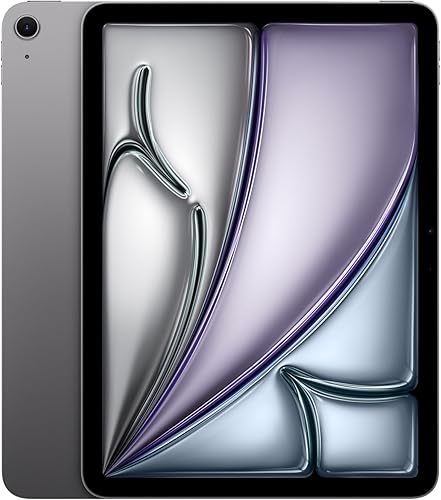
Apple iPad Air 11-inch (M4)
- M4 chip
- 11-inch Liquid Retina display
- Apple Pencil Pro and USB-C support
- Flexible iPadOS windowing
A better fit for people whose notes sit alongside drawing, creative apps and more involved iPad workflows.
Pros
- Supports Apple Pencil Pro
- M4 chip for demanding tasks
- Flexible iPadOS windowing
Cons
- More capability than basic notes require
- Same screen size as the A16 pick
The M4 iPad Air makes sense when note-taking sits alongside creative coursework or demanding apps. The reason to choose it over the A16 model is the wider workflow, rather than ordinary handwritten pages.
It supports Apple Pencil Pro and Apple Pencil (USB-C), giving buyers with a specific pen preference a clear reason to consider it. Check which pen your drawing or note workflow needs before building the rest of the setup.
The flexible iPadOS windowing system lets you arrange apps around your work. That can suit a project with reference documents, sketches and a written plan that you revisit throughout the day.
Its Liquid Retina display includes P3 wide color, True Tone and ultralow reflectivity. These features are relevant if visual work shares screen time with your notebooks.
Choose the Air when you can name tasks beyond notes that need its capabilities. Skip it for shopping lists, simple lecture notes or occasional journaling, where the A16 iPad already covers the core writing tools.
Samsung Galaxy Tab S10 Lite

- S Pen support
- 10.9-inch LCD display
- 128GB configuration
- microSD expansion up to 2TB
A practical Samsung choice for routine handwriting, reading and keeping a growing collection of study files.
Pros
- Supports S Pen writing and drawing
- Expandable storage
- Samsung Notes cleanup tools
Cons
- Note cleanup works in Samsung Notes only
- Fast charging requires a separate compatible charger
The Galaxy Tab S10 Lite suits routine handwriting within a Galaxy setup. Choose it for class notes, planning and reading when you want Samsung Notes tools without making advanced note summaries your main buying reason.
S Pen support covers writing and drawing, while note cleanup features work within Samsung Notes. If you prefer another app, judge that app's own tools rather than expecting Samsung's features to follow your files.
The 10.9-inch LCD is close in size to the smaller tablets in this group. It makes more sense for a regular notebook page than for keeping a dense document and a large writing area visible together.
This configuration has 128GB storage and supports microSD expansion up to 2TB. That flexibility is useful for course files and downloaded reference material, though it doesn't replace a backup.
Skip it if the Tab S11's AMOLED screen or confirmed included pen is central to your choice. Samsung's fast-charge setup also requires a separate compatible charger, so include charging accessories in your planning.
Lenovo Idea Tab Pro
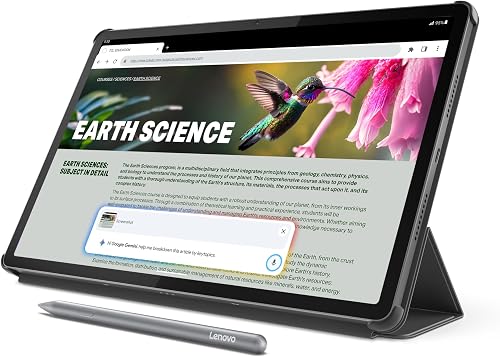
- 12.7-inch 3K LCD display
- Pen and folio case included
- 8GB memory and 128GB storage
- Mono and chromatic reading modes
The largest screen here gives students more room for document markup, with a pen and folio case included.
Pros
- Pen and folio case included
- More room for full-page documents
- Reading display modes
Cons
- Needs more desk and bag space
- Less convenient for writing while standing
The Idea Tab Pro is the pick for reading and marking up full-page documents at a desk. Its 12.7-inch 3K LCD gives you the largest screen in this group, with more space for margins, diagrams and handwritten comments.
The included Tab Pen Plus and folio case provide a clear starting bundle. Lenovo also supports creating long-scroll notes from browsers and documents, then saving them as PDF or JPG.
That can help students gather related material into a study file. Keep the original document too, so a cropped image or exported note doesn't become your only copy of an important source.
Mono and chromatic reading modes offer different ways to view material. Choose the mode that keeps diagrams, highlights and text easy to tell apart rather than assuming one setting suits every subject.
Buy this model if you usually write seated and carry full-size study materials. Skip it if you need to jot notes while standing or work on a small tray, where the larger body becomes a trade-off.
Lenovo Idea Tab 11 with Pen

- 11-inch 2.5K IPS display
- Pen included
- 8GB RAM and 128GB storage
- Replaceable pen battery
A straightforward option for shopping lists, journal entries and casual handwritten notes with an included pen.
Pros
- Pen included
- Pen supports pressure sensitivity and tilt
- 11-inch screen for everyday notes
Cons
- Pen needs a replaceable AAA battery
- Less writing room than the Idea Tab Pro
The Idea Tab 11 with Pen suits casual notes without a complex workflow. Think household lists, journal entries, short class notes and rough ideas rather than choosing it around advanced organizing features.
Its included Tab Pen supports pressure sensitivity and tilt, but those numbers shouldn't drive a handwriting decision on their own. For notes, readable strokes, sensible page sizing and a dependable saving routine matter more.
The pen uses a replaceable AAA battery. Keep a spare with your study supplies if you rely on handwriting away from home, and follow the pen's instructions when replacing it.
The 11-inch 2.5K IPS screen and 90Hz refresh rate describe the display, but they don't establish a pen response time. Don't use screen refresh rate alone to predict writing feel.
Choose it if a bundled pen and basic notebook use match your needs. Skip it if you want the Idea Tab Pro's larger document area or the Tab S11's specific Samsung Notes summary tools.
How do you choose the best tablet for note taking?
Choose around your note app, compatible pen and usual writing position, in that order. Storage and processor power matter, but neither fixes an app that can't share your work in the format you need.
Match the note-taking tablet to your main task
For lectures, prioritize opening course files, adding comments and keeping subjects separate. For meetings, focus on dated notes, action items and an easy way to send a clean copy afterward.
For math, diagrams and sketches, check how your chosen app handles page space and moving objects. A fixed page can suit printing, while an expanding canvas may suit rough planning.
For mostly typed notes, include a keyboard in the decision. Pen features deserve less weight if you'll use handwriting only for a few arrows or signatures.
Our guide to what to look for in a tablet computer covers the broader choices if notes are only one part of your daily use.
Does your note-taking tablet include a pen?
The Galaxy Tab S11 and both Lenovo picks include a pen. For the other choices, confirm the exact bundle and compatible accessory before you compare complete setups.
A basic touchscreen stylus and a tablet's supported writing pen aren't interchangeable choices. Check for the pen features your app needs, including palm rejection if you want to rest your hand on the screen.
Don't choose a pen by appearance or brand name alone. Similar tablet names can have different accessory support, and an existing pen may not fit your next device.
Will the note apps fit your workflow?
Choose an app that can export a readable copy of your notes and let you retrieve it on another device. Check handwriting, document markup, search and sharing separately, since an app may handle some tasks better than others.
Before moving a whole course or work project, create one sample notebook. Add handwriting, import a document, export the result and open it elsewhere to see what survives.
Check any subscription requirements and your school's or workplace's account rules. Keep confidential material out of AI tools unless your organization permits that use.
How large should the screen be?
An 11-inch tablet is a sensible starting size for ordinary notebook pages. Choose the larger Lenovo when full-page PDFs, diagrams or generous margins matter more than a compact setup.
Screen size affects the space available after toolbars and app controls appear. A page that looks large in a photo may feel cramped once you open a document beside your notes.
Consider your smallest regular workspace, such as a lecture desk or shared table. You can also compare other sizes in our tablet size guide.
Is storage important for handwritten notes?
Written notes need less space than media-heavy notebooks, so judge storage by the files attached to your writing. Scanned handouts, audio and downloaded lectures can change your needs much more than another page of text.
All 6 configurations here start with 128GB, though some of that space serves the system and apps. Leave working room instead of planning to fill every available bit.
Expandable storage can hold more files, but app support determines where notebooks can live. Our guide to tablet storage needs explains how to plan around your actual downloads.
How should you set up a tablet for class or meeting notes?
Set up one complete capture-and-backup routine before relying on the tablet for an important session. The goal is to write quickly, find the page later and recover your work if the device becomes unavailable.
Build a simple notebook structure
Start with one notebook per course, client or ongoing project. Give each session a dated title, such as “October 22: Biology, cell structure,” so related pages sort predictably.
Use a small set of tags only if they help you act on notes. “To review” and “Action needed” are easier to maintain than a long list of overlapping labels.
Adjust the page and pen
Choose a page template that matches the job: ruled pages for prose, a grid for calculations or blank space for diagrams. Set a pen width you can read at your normal viewing size.
Write a short paragraph and try erasing, undoing and moving a line. Learn those controls before a lecture so you don't spend the session searching menus.
Prepare for offline work
Download required documents and confirm your note app can open and save them without a connection. Then briefly disconnect Wi-Fi and check the exact files you'll need.
Writing offline and using online AI tools are separate tasks. Our guide to whether a tablet needs Wi-Fi explains how to plan for places with unreliable internet.
Check backups and exports
Enable your chosen backup method, then verify that a recent note appears where you expect it. A sync icon alone isn't as useful as opening the saved content on another device.
Keep an occasional export of important notebooks in a common format such as PDF, where supported. Sync helps keep devices current, while a separate copy can protect work you accidentally delete or change.
How do you keep digital notes useful after writing them?
Make a short review and filing pass part of each session. A tablet earns its place when you can find a decision or study topic later, not just collect more pages.
For lectures, add a few key points and mark anything you need to ask about. Keep source page numbers beside copied diagrams so you can return to the original context.
For meetings, separate decisions from discussion and give each action an owner and due date. Don't rely on a summary to infer details that weren't captured clearly.
When marking PDFs, leave enough room for comments and keep an unmarked original. Check a shared export on another device so missing annotations don't surprise the recipient.
Use a small, consistent set of highlight colors. If every line looks equally important, highlighting stops helping you review.
What mistakes should you avoid when buying a note-taking tablet?
Avoid buying around a single spec or AI feature before checking the whole workflow. The wrong accessory, export format or screen size can matter more than extra processing power.
- Assuming every stylus works: Match the exact tablet and pen model before ordering accessories.
- Confusing storage with memory: Storage holds files; RAM helps apps work with active tasks.
- Treating battery claims as writing time: Brightness, apps, wireless use and workload affect runtime, and video-playback claims don't predict a full day of notes.
- Buying the biggest screen automatically: More room helps documents, but it also needs more space on a desk and in a bag.
- Expecting every AI tool to work offline: Check account, app and connection requirements for the feature you plan to use.
- Relying only on summaries: Preserve the original notes and verify important facts before sharing an AI-generated version.
Include the pen, case, charger and any keyboard in your complete setup. A tablet-only comparison can hide the practical differences between a ready bundle and accessories you still need to choose.
How should you care for a note-taking tablet and pen?
Protect the screen, pen tip and charging gear with a simple routine. These are the parts you handle most often, especially when moving between classes or rooms.
Use a clean, soft cloth and follow the tablet's cleaning instructions. Remove grit before writing, and avoid pressing harder when a pen stops responding.
Check the pen tip for damage or wear, and replace it with a compatible part when needed. Store the pen where it won't be crushed or lost inside a bag.
A textured screen protector changes the writing surface and may change clarity or tip wear. Choose one for your preferred feel rather than assuming every tablet needs it.
Charge before long sessions and carry a suitable cable when outlets are uncertain. Keep chargers and devices out of excessive heat, and replace damaged cables instead of working around them.
Can a tablet replace a notebook for daily notes?
Yes, a tablet can replace a paper notebook if digital handwriting and file management fit your routine. It is especially useful when your notes need to stay beside documents, scans or shared project files.
Paper still has a place when you need instant access without charging or account access. Keep a small backup notebook available for sessions where a device problem would leave you without a way to write.
A keyboard helps with long typed passages, but a tablet's app and file controls may differ from your computer. Our guide to whether a tablet can replace a laptop covers those broader trade-offs.
Try a full day of your normal workflow before moving every notebook. Check how you capture notes, find old pages, share a document and recover a saved copy.
For more general work, our guide to tablets that can replace laptops explains where a tablet fits and where a laptop may remain more practical.
Which tablet should you choose for note taking?
The best tablet for note taking is the one that fits your complete routine, including the pen, app and files you'll share. Use these decision rules to narrow the choice.
- Choose the A16 iPad for notes alongside browsing, scans and calls, with a compatible Apple Pencil selected for the setup.
- Choose the Galaxy Tab S11 for an included pen and Samsung Notes organizing tools you plan to use.
- Choose the M4 iPad Air when creative work and demanding apps give you a clear reason to move beyond basic notes.
- Choose the Galaxy Tab S10 Lite for routine Samsung Notes use and a growing collection of files.
- Choose the Idea Tab Pro for desk-based study with full-page documents and room for annotations.
- Choose the Idea Tab 11 with Pen for casual writing with a bundled pen and a simple notebook routine.
Before ordering, confirm your app's export options and the exact pen you need. If long reading sessions are part of the same routine, use our best tablets for reading guide to weigh that part of the decision.
Our top 3 picks at a glance
-
1
-
2
-
3
Frequently asked questions
Which tablet is best for handwritten notes?
The Apple iPad 11-inch (A16, 128GB) is our top choice for handwritten notes alongside browsing, document scans and other daily tasks. Choose a compatible Apple Pencil for writing.
The Samsung Galaxy Tab S11 is the stronger fit if you want an included pen and Samsung Notes organizing tools.
Do tablets come with a pen for note-taking?
Some do: the Samsung Galaxy Tab S11, Lenovo Idea Tab Pro and Lenovo Idea Tab 11 with Pen include a stylus. Pen support alone doesn't mean a pen comes in the box.
Match the exact tablet model to its compatible pen, and include accessories when comparing your complete setup.
Is an 11-inch tablet big enough for notes?
An 11-inch tablet is a sensible size for notebook pages, lists and lecture notes, especially if you carry it daily. A larger screen helps when you need to see a full document while adding comments.
Choose around your usual desk space and how often you'll write away from it.
How much storage do I need for notes?
128GB is a useful starting point for written notes, apps and a modest document collection. Audio, scanned pages and downloaded videos need more room than plain text.
Our tablet storage guide explains how to allow space for the other files you'll keep alongside your notebooks.