What to Look For in a Tablet Computer
What to look for in a tablet starts with your everyday tasks and must-have apps. Then choose a comfortable screen, enough storage, suitable charging and the accessories you need.
On this page (12 sections)
- What to look for in a tablet before comparing specs
- What should you look for in a tablet screen?
- How much storage and memory do you need?
- Does a tablet need Wi-Fi or cellular service?
- Which battery and charging details matter?
- What camera and audio features help with calls?
- Which operating system and apps should you check?
- How should a tablet feel in your hands?
- Which tablet features help with writing and multitasking?
- How should you set up a new tablet?
- How do you care for a tablet and avoid buying mistakes?
- How do you choose the right tablet for your routine?
What to look for in a tablet starts with your everyday tasks and must-have apps. Choose a screen you can read comfortably, enough storage for your downloads and a device you can hold or support without strain.
For calls and books, put comfort and app access first. For writing, drawing or replacing some computer tasks, check keyboard, pen and software support before choosing a model.
Write down your 3 main uses before comparing devices. Our complete guide to tablets for older adults and home use gives a broader view of choosing a device and making it easier to use.
What to look for in a tablet before comparing specs
Start with the jobs the tablet must handle, then separate essential features from extras. A tablet for library books needs a different checklist from one used for handwritten notes or shared family games.
Name the exact apps you need, including your library service, calling app and any work tools. Check that each has a suitable tablet version and that the features you use are available.
Next, decide where the tablet will spend most of its time. Reading in bed puts more weight on grip, while calls at a table make a stable stand and camera position more useful.
What should you look for in a tablet for your routine?
Use your most demanding regular task to set the requirements. Occasional email does not call for the same setup as editing documents while referring to another app.
- Books and websites: Readable text, comfortable weight and easy brightness controls.
- Family calls: Your preferred calling app, clear sound and a supported screen.
- Reading and trips: Download space, offline access and a practical charging plan.
- Notes and documents: Suitable apps, compatible input tools and useful multitasking.
- Shared use: Account privacy, purchase controls and suitable child settings.
Set a budget for the whole setup, including a case, stand, charger or input tools. An appealing tablet becomes a poor fit if the accessories needed for your main task stretch that budget.
What should you look for in a tablet screen?
Choose readable text and a comfortable viewing size before chasing a display label. Screen size is measured diagonally, so it does not tell you the width of a page or the reach needed to tap controls.
An 11-inch screen gives room for websites, photos and documents around the house. For long reading sessions, balance that space against the effort of holding the device.
Resolution affects text detail, while refresh rate affects how scrolling and motion appear. Neither replaces checking whether your usual app lets you enlarge text without making the page awkward to use.
Our guide on how to make text bigger on a tablet explains useful adjustments. Also consider glare from windows and lamps where you normally sit.
Samsung Galaxy Tab A11+: for mixed family use
The Galaxy Tab A11+ suits a household that wants browsing, games and room for files in one device. This configuration has 6GB RAM and 128GB storage, with microSD expansion for supported files.
Its screen refreshes at up to 90Hz, and quad speakers support Dolby Atmos. Consider those features alongside your plans for scrolling, games and family calls, while the memory and storage combination makes sense for several everyday activities.
Choose it when your household's apps fit and you want flexibility for downloads. Skip it if your main task requires iPad-only software or a particular pen feature you have not confirmed.
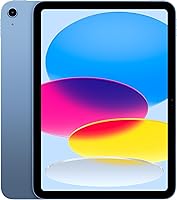
Apple iPad: for iPad apps and supported input tools
The iPad suits someone who wants iPadOS apps, document work or compatible drawing tools. This model pairs the A16 chip with 128GB storage, and iPadOS supports using multiple apps at once.
True Tone adjusts the display to the room's color temperature. Treat that as a display feature, then set brightness and text size for your own reading comfort.
Choose it if the apps you need work well on iPadOS and you plan to use compatible Apple accessories. Skip it if adding storage through a memory card is a requirement, or if your essential task depends on desktop software.
How much storage and memory do you need?
Choose internal storage for apps and offline content, and consider RAM separately. Storage holds saved items; RAM helps the tablet keep active tasks available as you move between them.
Email and light browsing need less saved space than large games or a growing photo collection. Some capacity is used by the system and existing content, so the advertised total is not all free space.
For mixed home use, 128GB is a useful starting point when you want fewer decisions about what to delete. Smaller capacities can work if you keep few large apps and regularly remove downloads.
A memory card adds room for supported files, but some apps and their content must stay in internal storage. Read our guide to how much storage you need on a tablet before relying on expansion.
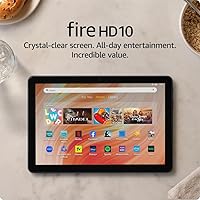
Amazon Fire HD 10: for a reading and browsing routine
The Fire HD 10 suits someone whose main plans are reading, browsing websites and using supported game apps. The configuration here has 4GB RAM, 32GB storage and a 10.1-inch Full HD display.
Alexa is useful if you want voice help with tasks such as recipes or reading. Amazon Kids provides parental controls, while Amazon Kids+ is a separate subscription for additional content.
Choose it after confirming your preferred book, game and calling apps are available. Skip it for a large collection of apps that need internal space, or if you need software that is unavailable through its supported app options.
Does a tablet need Wi-Fi or cellular service?
Choose Wi-Fi for home use, and consider cellular only when you need a direct connection away from wireless networks. A Wi-Fi tablet can also use a suitable phone hotspot, subject to your phone plan and coverage.
The iPad model here supports Wi-Fi 6. That connection standard does not replace a good home network, and it cannot correct weak coverage in the chair where you make calls.
Confirm connectivity on the exact configuration before ordering. A model family's name does not mean every version has cellular service or a place for a SIM.
For occasional travel, download books and save recipes while connected at home. Open them once with Wi-Fi switched off so you know what is available before leaving.
Our guide to whether a tablet needs Wi-Fi to work explains which tasks need a connection. Live calls, new downloads and most online services still need internet access.
Which battery and charging details matter?
Look for a charging routine that fits your day, rather than choosing solely by an advertised runtime. Video calls, games, screen brightness and network use all affect how often you need to charge.
Amazon states up to 13 hours of battery life for the Fire HD 10, while Apple describes the iPad as having all-day battery life. These are brand estimates, not directly comparable promises for your daily routine.
The Galaxy Tab A11+ supports fast charging with a 25W wall charger sold separately. Samsung directs users to use an approved charger and USB-C cable, so include suitable charging equipment in your plan.
Check the box contents instead of assuming a wall adapter is included. A connector that fits is only part of the requirement; the charger and cable also need to suit the device.
Put the charging point within easy reach of a table or shelf. Avoid arranging it where a cable crosses a walkway or pulls against the port while the tablet is on a stand.
What camera and audio features help with calls?
Prioritize calling-app support, sound and screen position before camera resolution. A capable camera still needs light on your face and a stable connection.
The A11+ and Fire HD 10 each have a 5MP front camera. The iPad has a 12MP Center Stage front camera, making it a clear option to consider when calls are a main use.
Check where the camera sits when the tablet is turned sideways in a case. A cover, hand or stand should not block it during your usual call position.
Sit facing a window or lamp rather than placing bright light behind you. Keep the microphone clear, and move away from appliances or other background sound.
If privacy matters, check headphone compatibility too. Our guide to making a video call on a tablet covers the basic setup and app steps.
Which operating system and apps should you check?
Choose the platform that supports your existing routine, including the person who may help with setup. Familiar app names, accounts and settings can matter more than an extra feature you rarely use.
Check your book library, subscriptions, saved documents and messaging services. Buying a tablet does not guarantee that content bought through another service will appear automatically.
For work or study, check the specific task inside the app. Opening a document is different from editing its layout, using a required add-on or submitting it through a particular system.
Read iPad vs Android tablet for older adults for a platform comparison. For Apple's interface, see whether an iPad is easy to use for seniors.
Also check the brand's software support policy before buying, especially for an older model. Security updates matter if you plan to use email, shopping accounts or other personal services.
How should a tablet feel in your hands?
Choose comfortable support for your usual session length, rather than judging portability by screen size alone. A tablet that feels manageable briefly may become tiring during a full book chapter.
The iPad weighs 1.05 lb, compared with 1.1 lb for the A11+. That small difference should sit alongside case weight, grip and where the device will rest.
A folding cover can support reading on a table, while an adjustable stand offers more control over height and angle. Check that it stays steady when you tap near the top of the screen.
For use in bed or on a sofa, think about how you will support your arms. A larger screen is most useful when you can position it without gripping its edges throughout the session.
Our guide to what size tablet to buy for reading and calls helps connect screen size with everyday use.
Which tablet features help with writing and multitasking?
For writing, look for the right app and compatible input tools before processor claims. A faster device cannot supply a desktop feature that its tablet app lacks.
The iPad supports Apple Pencil USB-C, Apple Pencil 1st generation and Magic Keyboard Folio accessories. Check the exact accessory version and connection requirements, since similar names do not mean every Apple pen or keyboard fits.
The Fire HD 10 supports the separately sold Made for Amazon Stylus Pen, with 4,096 pressure levels. If handwriting is central to your plans, confirm that your chosen note app supports the pen features you need.
Samsung Galaxy Tab A9+: for reference beside everyday tasks
The Galaxy Tab A9+ suits someone who wants supported apps side by side, such as a reference page beside notes. The configuration here has 4GB RAM and 64GB storage, with expansion up to 1TB.
Choose it for light multitasking, browsing and games when its smaller internal capacity meets your needs. Skip it if you expect to keep many large apps or your main app does not support its multi-window feature.
Before treating any tablet as your main computer, list your required tasks. Our guide to whether a tablet can replace a laptop helps you check document work, accessories and software needs.
How should you set up a new tablet?
Set up accounts, security and your main apps first, then adjust comfort settings. This gives you a useful everyday device before you spend time adding optional apps.
- Connect to your home network and install available system updates.
- Sign in with the intended user's account and set recovery details they can access.
- Add a screen lock and keep recovery information in a safe place.
- Install the main reading, calling and messaging apps.
- Adjust text size, brightness, sound and screen timeout.
- Arrange the home screen around the few tasks used most.
For an older adult, involve them in each choice instead of filling the screen with shortcuts they do not recognize. Keep the layout predictable and remove unnecessary notifications.
On a shared family device, review saved payment details, purchase permissions and access to messages or photos. Set child controls before handing it over rather than after an unwanted purchase.
Finish by opening a book, making a call and saving a file. These simple tasks reveal missing passwords, permissions or downloads while help is still nearby.
How do you care for a tablet and avoid buying mistakes?
Protect the screen, charging port and saved files with a few regular habits. Use a case that fits the exact model and supports the way you normally position it.
Turn the tablet off before cleaning, and follow the brand's care instructions. Use a soft cloth, avoid spraying liquid directly onto the device and keep moisture away from openings.
Keep it away from sinks, hot surfaces and direct heat. Do not assume a case makes a tablet water-resistant, and replace damaged cables instead of continuing to bend them into position.
Back up important photos and documents, then confirm you can find the copies. Before a trip, check free space and remove downloads you no longer need.
Avoid these common buying mistakes:
- Choosing by screen size alone: Check weight, text settings and the supported viewing angle.
- Confusing RAM with storage: They serve different purposes, and a memory card does not add RAM.
- Assuming apps are identical everywhere: Confirm the features needed for your actual task.
- Buying accessories by brand name: Match the exact tablet model and accessory generation.
- Relying only on battery claims: Plan around charging access and your mix of activities.
- Paying for unused extras: Give priority to the features you will use each week.
How do you choose the right tablet for your routine?
Decide what to look for in a tablet by ruling out app and comfort problems first. Then use storage, input tools and charging requirements to choose among the devices that remain.
Pick the Galaxy Tab A11+ for mixed family activities with more internal room than the A9+ configuration here. Pick the iPad when iPadOS apps, supported Apple input tools or its front-camera features match your plans.
Choose the Fire HD 10 for a reading and browsing routine after confirming your services and apps. Choose the Galaxy Tab A9+ for light everyday tasks and supported multi-window use when its internal storage is enough.
Before ordering, write one sentence explaining why the model fits your main task. If that sentence depends on an unconfirmed app or accessory, resolve it first.
For help planning a device around daily comfort and support, use our guide to tablets for older adults.
Frequently asked questions
What should I look for first when buying a tablet?
Start with your main tasks and must-have apps, then choose a screen you can use comfortably. Check storage for downloads, charging requirements and accessory compatibility next.
If a tablet cannot run the app you need for calls, books or work, its other features should not decide the purchase.
Is a bigger screen better on a tablet?
A bigger screen helps when you enlarge text, view documents or place apps side by side, but it takes more effort to hold. Choose around where you use the tablet: a supported screen can suit desk use, while long reading sessions call for close attention to weight and grip.
How much tablet storage should I choose?
Choose storage for what you keep offline, especially books, large games and photos. For mixed everyday use, 128GB gives more room than 32GB or 64GB, though your needs may be smaller.
Expandable storage helps with supported files, but it does not replace internal storage for every app.
Do I need a tablet with cellular service?
You need cellular service only if you want a direct mobile internet connection away from Wi-Fi. Home use usually suits a Wi-Fi tablet, and a phone hotspot can cover occasional trips.
Confirm cellular support on the exact model, plus carrier compatibility and plan requirements, before choosing it.
Which tablet features help with video calls?
Prioritize support for your calling app, a steady connection and a front camera you can position at eye level. Clear sound and an adjustable stand also matter.
Camera resolution alone cannot solve poor lighting, background noise or weak Wi-Fi, so plan where you will sit during calls.