Tablets for Older Adults and Home Use: The Complete Guide
The right tablet for seniors is one that's comfortable to read and simple to use for the tasks that matter most. Compare screen size, text controls, video calls, Wi-Fi needs and storage before choosing a model.
On this page (10 sections)
- What should you look for in a tablet for seniors?
- Which tablet types suit different home routines?
- How should you choose a screen size?
- How can you make a tablet easier to read?
- What helps with video calls at home?
- Does a tablet need Wi-Fi at home?
- How much storage does a senior need?
- How do you set up a tablet for an older adult?
- Can a tablet replace a laptop for home use?
- Which tablet is the right fit for home use?
A tablet for seniors should be easy to read, comfortable to hold and suited to the person's daily routine. Start with the activities they care about, such as reading, video calls, browsing, following recipes or keeping in touch with family.
A larger screen can make content easier to see, while accessibility settings can increase text size and adjust contrast. The right choice also depends on the apps and devices the user already knows.
This guide covers how to compare tablets for older adults, set one up for home use and choose between common options. For a shorter shortlist, see our best tablets for seniors.
What should you look for in a tablet for seniors?
Look for a clear screen, accessible text settings and familiar software. Then check the camera, connection, storage and controls against the person’s actual needs.
A tablet that can do everything may still be hard to use if its menus feel unfamiliar. A simpler routine, with a few useful apps on the home screen, can matter more than a long feature list.
| Need | What to compare | Why it matters |
|---|---|---|
| Reading and browsing | Screen size, display clarity and text controls | Larger text can reduce the need to zoom in and out |
| Video calls | Front camera and the app used by family | Everyone needs a compatible way to call |
| Home use | Wi-Fi support and where the tablet will be used | A home connection may cover most daily tasks |
| Photos and downloads | Built-in storage and expandable storage options | Saved files and apps use space over time |
| Ease of handling | Weight, case, stand and charging setup | A stand can help during long reading or call sessions |
| Familiarity | Operating system and available apps | Existing phones or family devices may guide the choice |
If possible, let the person try the screen and basic controls before buying. Check whether they can comfortably hold it, tap the right buttons and read a page without repeated zooming.
What features matter most in a tablet for seniors?
The most useful features are those that make the intended tasks easier. A 10- or 11-inch screen, adjustable text and a front camera can support reading and calls, but the person's comfort should decide the final choice.
If the tablet will sit on a table for video calls, a case with a stand may matter more than a very light design. If it will be carried from room to room, weight and grip deserve more attention.
For help with visibility, follow our guide on how to make text bigger on a tablet. Larger text can change how much content fits on the screen, so check that the layout still feels clear.
Which tablet types suit different home routines?
Choose the tablet family that fits the user’s familiar apps, devices and support network. Apple iPad, Android tablets and Amazon Fire tablets each offer different app environments and setup choices.
Consider who will help with updates, passwords and troubleshooting. A relative who already uses the same system may be able to guide setup and answer questions more easily.
When does an iPad make sense?
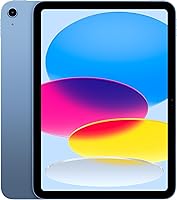
An iPad can suit a user who already uses Apple devices or whose family can help with Apple accounts and apps. The Apple iPad 11-inch (A16, 128GB) has a Liquid Retina display, Touch ID, a 12MP front camera and 128GB of storage.
iPadOS supports running multiple apps at once, and this iPad works with Apple Pencil (USB-C), Apple Pencil (1st generation) and the Magic Keyboard Folio. Those options can help when the user wants to write, draw or add a keyboard.
The user still needs to learn where settings, apps and account controls are. Read is an iPad easy to use for seniors? for a closer look at the learning curve and setup.
When does an Android tablet make sense?
An Android tablet can suit someone who already uses an Android phone, provided it supports their preferred apps. The Samsung Galaxy Tab A11+ has an 11-inch screen, a 5MP front camera, 6GB RAM and 128GB of storage in this configuration.
The A11+ supports a refresh rate up to 90Hz, quad speakers with Dolby Atmos and expandable storage. Samsung specifies a 25W wall charger for fast charging, sold separately.
The Samsung Galaxy Tab A9+ is another 11-inch Android option. It has quad speakers, supports multiple apps on screen and includes 64GB of storage in this configuration.
Compare models in our best Android tablets guide or read Samsung tablet versus iPad if the user is choosing between those systems.
When does an Amazon Fire tablet make sense?
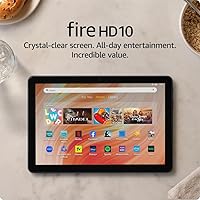
An Amazon Fire tablet can suit someone whose main activities are reading and web browsing, especially if their household already uses Amazon services. The Amazon Fire HD 10 has a 10.1-inch Full HD screen, a 5MP front camera and 32GB of storage in this configuration.
The Fire HD 10 supports expandable storage through a microSD card sold separately. The compatible Made for Amazon Stylus Pen is also sold separately, so count that as an extra if handwriting or drawing is part of the plan.
Before choosing, check that the apps the user wants are available for the device. Our guide to whether a Fire tablet is good for seniors covers the trade-offs in more detail.
How should you choose a screen size?
Choose a screen that makes text and controls comfortable to see without making the tablet awkward to handle. Models around 10 or 11 inches offer a useful starting point for reading, calls and photos.
A larger display can show more of a page at once, but it may be heavier or less convenient to carry. A smaller tablet may be easier to hold, yet require more scrolling or zooming for some readers.
Use these questions to compare sizes:
- Will the tablet usually rest on a table, lap or stand?
- Can the user hold it for the length of a typical reading session?
- Does the screen leave enough room for larger text and clear buttons?
- Will it fit in the place where it will be stored or charged?
If possible, try the device with a familiar book, website or video call. A product’s diagonal screen measurement does not tell you whether its menus and text will feel comfortable.
How can you make a tablet easier to read?
Increase text size and use the display settings that feel comfortable to the person. A few small setup changes can reduce repeated pinching and zooming during reading and browsing.
Many tablets offer settings for text size, display size, brightness and contrast. The names and locations of these controls differ by device, so use the settings search or the manufacturer’s accessibility help if a control is hard to find.
Start with the person using the tablet:
- Open a familiar webpage or message.
- Increase text size a little at a time.
- Check that buttons and menus still fit on screen.
- Adjust brightness for the room.
- Try the change in both a reading app and a video call.
Avoid setting everything to its maximum without checking. Very large text can cause more scrolling or hide parts of an app, while high brightness may feel uncomfortable in a dim room.
Follow our step-by-step guide on making tablet text bigger. If reading is the main activity, see the best tablets for reading for more focused options.
What helps with video calls at home?
A clear front camera, a stable connection and a simple call routine help make tablet video calls easier. Set up the calling app and practice the steps with the user before relying on it for an important conversation.
The tablets in this guide include front cameras, but the camera alone does not decide call quality. The user also needs the right app, an internet connection and a way to prop up the device.
Set a simple routine:
- Keep the tablet charged and in a familiar spot.
- Add important contacts in the calling app.
- Place the app where it is easy to find.
- Use a stand or case so the camera stays steady.
- Practice answering and ending a call together.
For more detail, read how to video call on a tablet. If calls are a priority, our best tablets for video calls guide compares models for that use.
Does a tablet need Wi-Fi at home?
A tablet needs internet access for online tasks such as video calls, browsing and email, but many tablets can still do some tasks offline. Home Wi-Fi is often enough when the device stays in a connected home.
Downloaded books, saved photos and some apps can work without a connection, depending on the app and what was saved in advance. Email, live calls and new web pages generally need internet access.
Check the Wi-Fi password and router location during setup. If the user travels or spends time away from home, compare cellular options and data plans before assuming a Wi-Fi-only tablet will meet every need.
Read our guide to whether a tablet needs Wi-Fi for more examples of online and offline use.
How much storage does a senior need?
Choose storage based on how many apps, photos, games and downloaded books the user plans to keep. People who mostly browse the web may need less space than those who save many files for offline use.
The configurations in this guide range from 32GB on the Fire HD 10 to 128GB on the iPad and Galaxy Tab A11+. Both Samsung tablets and the Fire HD 10 support expandable storage, with a microSD card sold separately.
Storage needs can grow gradually as photos and downloads collect. Consider whether the user or a family member will be comfortable removing old files or managing cloud storage.
See how much storage you need on a tablet for a practical way to estimate space before you buy.
How do you set up a tablet for an older adult?
Set up the tablet around the person’s needs, then leave only the most useful apps and contacts easy to find. A short practice session can help the user build confidence with common tasks.
Before handing it over, charge the device, connect it to Wi-Fi and install available updates. Add the accounts and apps the user wants, with their consent, and agree on who can help with passwords or confusing settings.
A simple setup checklist:
- Set text and display size while the user is present.
- Put the most-used apps on the home screen.
- Add close contacts and test a call.
- Choose a protective case or stand if it will help with handling.
- Show how to charge the tablet and check battery level.
- Write down support steps without recording passwords in an unsafe place.
Keep the first session short. Practice one or two tasks, such as opening a book or answering a call, then add more only when the user is ready.
Can a tablet replace a laptop for home use?
A tablet can cover reading, browsing, note taking and video calls, but it may not replace a laptop for every task. The answer depends on the apps, typing and file work the user needs to do.
A tablet with a keyboard can help with longer messages and documents. Even so, tasks that depend on desktop software, detailed file organization or several windows may be easier on a laptop.
List the 3 most important computer tasks before deciding. Compare how each one works on a tablet, including whether an app is available and whether the screen and keyboard feel manageable.
Our guide to whether a tablet can replace a laptop walks through common tasks and the limits to consider.
Which tablet is the right fit for home use?
Choose a tablet for seniors that matches the person’s routine, comfort and support needs. Familiarity with the operating system, readable text and easy access to calls usually matter more than extra features they will not use.
Pick the iPad if Apple apps and family support make it the most familiar option. Consider the Samsung Galaxy Tab A11+ or A9+ if Android apps and an 11-inch screen suit the household.
Choose the Fire HD 10 if its Amazon-centered features cover the user’s main activities. Confirm that the needed apps are available and plan who can help with setup.
Before buying, let the intended user try the screen and controls. For a model-by-model shortlist, start with our best tablets for seniors.
Frequently asked questions
What is the easiest tablet for seniors to use?
The easiest tablet is usually the one with familiar menus, apps and account controls. Compare the devices family members already use, then check whether the screen size and text controls suit the reader; a store visit or setup help from someone trusted can make the choice clearer.
Is a 10-inch tablet big enough for an older adult?
A screen around 10 or 11 inches gives room for reading, video calls and common apps while remaining smaller than many laptops. Screen size alone doesn't decide comfort, so check text size, how the tablet feels to hold, and whether a stand or case will be used.
Does a tablet for seniors need cellular service?
A tablet doesn't need cellular service if it will mostly be used where trusted Wi-Fi is available. Cellular access can help away from home but may involve an extra plan; see our guide to whether a tablet needs Wi-Fi for offline and online tasks.
Can a tablet replace a computer for an older adult?
A tablet can handle reading, video calls, email, browsing and many everyday tasks. A computer may still be easier for long documents, file management or software that needs a desktop interface, so compare the actual tasks in our tablet versus laptop guide before replacing a computer.
How much storage should a senior get in a tablet?
Choose storage based on downloaded books, photos, games and apps. Someone who browses the web and keeps few files may need less room than a person who saves many photos or downloads books for travel; our guide to tablet storage needs explains what to count.