How to Video Call on a Tablet
To video call on a tablet, connect to the internet, open a compatible calling app, allow camera and microphone access, then choose a contact and tap the video button. Both people need access to the same calling service or a supported invitation link.
On this page (7 sections)
- How to video call on a tablet step by step
- Which video calling app should you use?
- Which tablet should you choose for video calls?
- How can you make video calls easier to see and hear?
- Why does a tablet video call freeze or lose sound?
- What mistakes should you avoid before and during calls?
- How to video call on a tablet: which setup should you pick?
To video call on a tablet, connect to the internet, open a compatible calling app, allow camera and microphone access, and tap the video button beside your contact. If someone sends an invitation link, open it and follow the joining steps instead.
You don't need a new tablet if yours already supports the app you want. Start with a short practice call, then decide whether a stand, a different setup, or a replacement tablet would help.
How to video call on a tablet step by step
Set up the app before the call, then choose your contact or open their invitation. Button names vary, but the basic steps are similar across calling services.
- Connect to Wi-Fi or another working internet connection.
- Install the calling app from your tablet's app store, if needed.
- Open it and create an account or sign in when required.
- Allow access to the camera and microphone.
- Find your contact using the phone number, email address, or account name the service accepts.
- Tap the video camera button and wait for an answer.
- Use the end-call button when you're finished.
An invitation link may let you join through an app or browser, depending on the service. Open it early so you have time to handle any installation, sign-in, or permission prompts.
How do you answer a video call on a tablet?
Tap the answer control shown on the screen, then enable video if the app asks. Keep the tablet connected and check notification permissions if incoming calls don't appear.
For someone new to tablets, save key contacts and put the calling app on the home screen. Practice answering, muting, switching the camera, and ending a call before relying on it for regular conversations.
Which video calling app should you use?
Choose the service your contacts already use, provided it supports your tablet. Familiar contacts and clear joining steps matter more than extra effects or background options.
Check the exact device and software requirements in the tablet's app store. Don't assume an app available on a phone also supports every tablet from the same brand.
For appointments or group meetings, ask the organizer which service and joining method they require. Some services allow guests through a link, while others need an account.
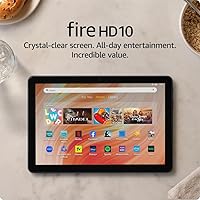
Can you video call on a Fire tablet?
A Fire tablet can make video calls with a supported calling app. Confirm availability on the device before making plans around a particular service.
Our guide to whether a Fire tablet is good for seniors covers other everyday considerations. App compatibility should come before screen size or accessories when choosing a tablet for someone else.
Which tablet should you choose for video calls?
Choose app compatibility first, then screen comfort and placement. A larger camera number alone doesn't settle the decision because lighting, sound, and connection quality also affect calls.
Before replacing a working tablet, check its permissions and try a call near the router. For broader buying priorities, read what to look for in a tablet computer.
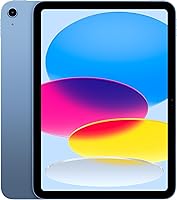
Apple iPad: for people who prefer iPad apps
The Apple iPad 11-inch (A16, 128GB) suits someone who already uses iPad apps or wants that system for everyday tasks. Its 12MP Center Stage front camera, 11-inch Liquid Retina display, and Wi-Fi 6 support make it a useful option for calls.
Choose it if your preferred calling service supports iPad and you'll also use the tablet for reading, photos, or other apps. Skip replacing a working Android tablet solely for the camera specification if your calls already look and sound clear.
The A16 chip and 128GB storage serve wider tablet use, but video calls alone aren't a reason to choose more storage. Confirm the calling service first, especially when setting it up for a relative.
Samsung Galaxy Tab A11+: for a shared family tablet
The Samsung Galaxy Tab A11+ suits a household that wants calls alongside reading, web browsing, and other daily tasks. This version has 6GB RAM and 128GB storage, with expandable storage for files.
Its 11-inch screen gives you room to see callers, while quad speakers provide audio for calls and games. A quiet room still matters, and turning the volume too high can contribute to echo.
Choose it if Android supports the services your family uses. Skip it if an essential app requires a different system, and remember that expandable storage doesn't improve call quality.
Samsung's fast-charging setup requires a compatible 25W wall charger sold separately. Plan the charging spot before a long call rather than stretching a cable across a walkway.
Lamicall stand: for calls at a table
The Lamicall iPad Stand suits someone whose tablet works well but becomes tiring to hold. It adjusts for portrait or landscape viewing and supports compatible devices from 4.7 to 13 inches.
Check that the tablet and case together fit the 18mm hook limit. Rubber pads and feet help protect against scratches and sliding, but the stand still needs a level, firm surface.
Skip it if you need height adjustment or a folding travel stand, since this model provides neither. Angle adjustment can improve framing, but it won't raise a low table to eye level.
How can you make video calls easier to see and hear?
Put light in front of your face and position the camera near eye level. Face a window or lamp instead of sitting with a bright window behind you.
Use the preview to check framing before joining. Keep your face visible, and place the tablet where you can reach mute and end-call controls without knocking it over.
Mute game sounds and notification alerts, and close the door if nearby noise makes speech hard to follow. If you use headphones, confirm the app is sending sound to them before the conversation starts.
For group calls, landscape view may give faces more room, depending on the app. See what size tablet you should buy for reading and calls if faces still feel too small at a comfortable viewing distance.
If app labels are hard to read, follow how to make text bigger on a tablet. Check the app afterward because some controls may not follow the system text setting.
Why does a tablet video call freeze or lose sound?
Start by checking the connection, mute controls, and app permissions. Match the fix to the symptom instead of changing several settings at once.
| Problem | First step |
|---|---|
| Video pauses or turns blurry | Move closer to the router and pause downloads or photo uploads. |
| The other person can't see you | Enable video, check camera permission, and uncover the lens. |
| The other person can't hear you | Unmute, check microphone permission, and uncover microphone openings. |
| You can't hear the caller | Raise media volume and check whether sound is going to headphones. |
| You hear echo | Lower speaker volume or move another connected device out of the room. |
| The app won't join | Check the link, account, app version, and internet connection. |
If the call remains stuck, leave and rejoin. Restart the app or tablet if reconnecting doesn't help, and ask whether the other person is having connection trouble too.
A connected Wi-Fi symbol doesn't guarantee working internet access. Open a webpage to check, and see whether a tablet needs Wi-Fi to work for connection options.
What mistakes should you avoid before and during calls?
Avoid blocked cameras, low batteries, and last-minute setup. Open the app early enough to handle updates or sign-in prompts before an important appointment.
Wipe camera smudges with a clean, soft cloth, following the tablet maker's care instructions. Keep liquids out of openings and check that a case or your hand isn't covering the microphone.
Charge beforehand and keep the cable clear of the stand's base. Choose a firm surface instead of bedding, which can cover openings and leave the tablet at an awkward angle.
Check the background for private mail or documents before enabling video. When helping a relative, let them enter their own password and show them how to recognize expected calls.
How to video call on a tablet: which setup should you pick?
Keep your current tablet if it supports the service and gives you clear calls after setup. Add the Lamicall stand when holding the screen is the main problem and its fit and fixed height suit your table.
Choose the iPad for supported iPad apps and broader use in that system. Choose the Galaxy Tab A11+ for a shared Android tablet, after confirming your family's calling service.
Before buying, compare our best tablets for video calls. For help choosing and setting up a device for an older relative, start with tablets for older adults and home use.
Frequently asked questions
Can you make video calls on any tablet?
You can make video calls on most tablets with a front camera, microphone, internet connection, and a supported calling app. Check app support for the exact tablet and software version before buying.
Older tablets may still browse the web but no longer support the calling service your family uses.
Do you need Wi-Fi to video call on a tablet?
You need an internet connection, but it doesn't have to be Wi-Fi. A tablet with mobile data service or a connection through a phone hotspot can also work.
Check your data allowance before long calls, and remember that a Wi-Fi-only tablet cannot use a mobile plan by itself.
How do you make a video call from an iPad?
Connect your iPad to the internet, open a supported calling app, and sign in if required. Allow camera and microphone access, choose a contact or open an invitation link, then select the video option.
Confirm that the other person can use the same service before arranging your first call.
How do you make a video call on a Fire tablet?
Use a calling app supported by your Fire tablet's software version and available through its app store. Sign in, allow camera and microphone access, and choose a contact or supported invitation link.
Check compatibility on the device before scheduling an important call, since apps available on other tablets may differ.