Is a Fire Tablet Good for Seniors?
A Fire tablet is good for seniors whose main needs are reading, email, and web browsing, provided their preferred apps are available. Choose around screen comfort, familiar calling services, and setup help.
On this page (9 sections)
- Is a Fire tablet good for seniors who want simple everyday use?
- What should seniors check before choosing a Fire tablet?
- Which Fire tablet may suit an older adult?
- When might another tablet be a better fit?
- Can seniors use a Fire tablet for video calls?
- Can seniors read books on a Fire tablet?
- How should you set up and care for a senior's tablet?
- What mistakes should you avoid when buying?
- Is a Fire tablet a good choice for seniors?
A Fire tablet is good for seniors who mainly want books, email, web browsing, and compatible video calls. The deciding factors are the apps you need, how comfortably you can see the screen, and how easily you can repeat everyday tasks.
The Amazon Fire HD 10 suits home reading and family calls, while the Lenovo Tab One favors carrying comfort and the Samsung Galaxy Tab A9+ offers more room for multiple apps. Choose for the person's routine rather than assuming one tablet suits everyone of a certain age.
Is a Fire tablet good for seniors who want simple everyday use?
A Fire tablet fits best when you have a few clear uses, such as reading after breakfast, checking email, and joining family calls. It becomes a weaker choice if an essential app or service isn't available.
Before shopping, write down the 3 tasks you'll use most, including the names of any reading, messaging, or calling services. “Video calls” is too broad if your family expects everyone to use one particular app.
Someone already comfortable with a phone may prefer a tablet with familiar controls and services. Someone starting fresh may benefit more from a consistent setup and a nearby person who can help.
For a broader comparison of daily needs, see our guide to tablets for older adults and home use.
What should seniors check before choosing a Fire tablet?
Check app access, readable controls, and holding comfort before comparing processor details. A tablet needs to support your routine without making each task feel like a new lesson.
When is a Fire tablet good for a senior's apps?
A Fire tablet is a good fit when your essential services work through an available app or a usable website. Don't assume an app will be available just because it works on another tablet.
Check the exact service name, sign-in requirements, and any subscription you already use. If you plan to use a website instead of an app, make sure it supports the task you need.
Avoid buying a tablet that depends on unofficial app workarounds for daily use. Extra setup steps also mean extra problems for the person providing help later.
Can you read and tap comfortably?
Choose a screen that remains useful after you enlarge the text. Bigger letters help only if buttons, menus, and page layouts are still comfortable to use.
Try opening a page, scrolling, and selecting a small link. Look at menus as well as book text, since individual apps may offer different size controls.
Our guide explains how to make text bigger on a tablet. Adjust brightness in the room where you'll normally sit, rather than judging the screen under store lighting alone.
Will you hold it or use a stand?
Choose around your usual position: a tablet for handheld reading has different needs from one that stays on a table. A stand reduces the need to grip a device through a long reading session or call.
Check that a case leaves the charging port and buttons easy to reach. If you have trouble with small connectors, practice plugging in the cable before settling on a charging spot.
Which Fire tablet may suit an older adult?
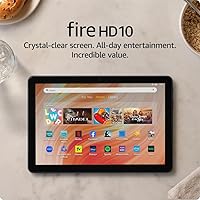
The Amazon Fire HD 10 suits seniors who want a roomy screen for reading and family calls and whose preferred services work on it. Its 10.1-inch 1080p Full HD display gives books, photos, and web pages more space than a compact tablet.
This version has 4 GB of RAM and 32 GB of storage. A separately sold microSD card can expand storage by up to 1 TB, which is useful if you plan to keep a large collection of supported downloads.
Amazon states up to 13 hours of battery life; plan charging around your own use rather than expecting every activity to reach that figure. Alexa can also help with tasks such as recipes and reading, though voice commands should supplement controls you know how to use.
Choose it for a simple reading and browsing routine. Skip it if an essential app is unavailable or if you want a smaller device to hold for long stretches.
Our Amazon Fire HD 10 review covers the model in more detail.
When might another tablet be a better fit?
Choose another tablet when carrying comfort or working across apps matters more than the Fire's fit for your reading and browsing routine. These alternatives solve different problems.
Lenovo Tab One: for carrying and handheld use
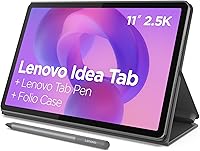
The Lenovo Tab One suits someone who carries a tablet between rooms or takes it on outings. It has an 8.7-inch HD display, weighs 11.2 oz, and includes a folio case with a built-in stand.
Its 4 GB of memory and 64 GB of storage support a basic browsing and reading routine. Lenovo states up to 12.5 hours of rated battery life, which should not be expected for every possible use.
Choose it for portability and the included stand. Skip it if you need large text while keeping plenty of the page visible, since a smaller screen means less room around enlarged content.
It runs Android 14, and Lenovo promises 2 years of security patches. Check how much of that support period remains before buying.
Samsung Galaxy Tab A9+: for roomy home use
The Samsung Galaxy Tab A9+ suits someone who wants a larger workspace for email, browsing, and photos. Its 11-inch display and quad Dolby Atmos speakers make it worth considering for table or stand use.
Multi Window can show multiple apps together, although some apps don't support it. That helps someone who wants to refer to a message while browsing, but it adds little for a person who prefers one task at a time.
Choose it for screen space and multiple-app use. Skip it if compact size is your priority or the extra features would go unused.
For help choosing a familiar system, see iPad vs Android tablet: which is easier for seniors?.
Can seniors use a Fire tablet for video calls?
Yes, the Fire HD 10 has a 5 MP front-facing camera for Zoom calls. Confirm the calling service with family first, then arrange a practice call before the tablet becomes part of a weekly routine.
Place the tablet on a stable surface near eye level, with light facing you rather than a bright window behind you. Check speaker volume and practice finding mute, camera, and end-call controls.
Save a short note with the steps for joining a call. Our guide to how to video call on a tablet explains the process.
Can seniors read books on a Fire tablet?
Yes, a Fire tablet can suit regular reading when your book source works and the screen feels comfortable. Check any library or subscription service you rely on before buying.
Read a sample chapter at your preferred text size and line spacing. Turn the tablet slightly if room lights reflect on the screen, and use a stand if holding it becomes tiring.
Where your reading service allows it, download books before traveling and open them once without an internet connection. See whether you can read books on a tablet for more reading guidance.
How should you set up and care for a senior's tablet?
Set up the daily essentials first, with the person who will use the tablet making the choices. A short, familiar routine is easier to remember than a tour of every feature.
- Secure the account. Set recovery details, choose a screen lock the person can manage, and keep account information in a safe place.
- Open the essential apps. Sign in, confirm subscriptions, and put frequently used apps where they're easy to find.
- Adjust comfort settings. Set text size, brightness, volume, and screen timeout where supported.
- Reduce interruptions. Review notifications and payment settings so casual taps don't lead to unwanted alerts or orders.
- Practice the basics. Open a book, return home, join a call, and connect the charger without prompting.
Leave a large-print note for those few tasks, using the same words and icons shown on screen. Arrange a follow-up after several days so you can fix the problems that appear during normal use.
For care, wipe the screen with a soft, dry microfiber cloth and keep liquids away from ports. Give the charger a fixed spot, keep cables out of walking paths, and avoid leaving the tablet in direct sun or a hot vehicle.
What mistakes should you avoid when buying?
Avoid choosing by age, screen size, or brand alone. Ask the person to try the tasks they'll actually do, rather than judging ease of use from a home screen.
Don't assume more storage will solve a missing-app problem. For a first tablet, a realistic download plan helps more than buying capacity without knowing what you'll save.
Don't confuse battery life with internet access, either. Read whether a tablet needs Wi-Fi to work if you expect to read, browse, or call away from home.
Finally, don't leave the person dependent on someone else for every step. Let them practice, keep instructions short, and add new features only when they want them.
Is a Fire tablet a good choice for seniors?
A Fire tablet is a good choice for seniors when the required apps work and daily use feels comfortable. Choose the Fire HD 10 for home reading and family calls, the Lenovo Tab One for carrying comfort, or the Galaxy Tab A9+ for a roomier workspace.
If you're still unsure, settle app compatibility first, then compare the controls and holding position. Use our guide to tablets for older adults and home use to narrow the remaining choices.
Frequently asked questions
Is a Fire tablet easy for seniors to use?
A Fire tablet can be easy for seniors with a short list of familiar tasks and a clear setup. Confirm essential apps before buying, enlarge text where supported, and practice opening an app, returning home, and charging the device; age alone doesn't determine which tablet will feel easiest.
Can seniors make video calls on a Fire tablet?
Yes, the Amazon Fire HD 10 supports Zoom calls through its 5 MP front-facing camera. Confirm that family members use a compatible calling service, then sign in and make a practice call together; a stable stand, light facing the caller, and a quiet room can make calls easier.
Is a Fire tablet good for reading books?
A Fire tablet is good for reading when your preferred book service is available and the screen feels comfortable. Try a sample chapter with larger text, check glare in your usual chair, and compare holding it with using a stand; the right position matters during longer reading sessions.
Should seniors choose a 10-inch or smaller tablet?
Choose a larger screen for roomier pages and video calls, or a smaller tablet when carrying and holding comfort matter more. Compare both at the text size you'll actually use; a compact device may require more scrolling, while a larger one may work better resting on a stand.