iPad vs Android Tablet: Which Is Easier for Seniors? (October 2026)
For an iPad vs tablet choice, pick the iPad for familiar Apple apps and fingerprint access or a Samsung for expandable storage. Start with your daily tasks and the system your helper knows.
On this page (10 sections)
- iPad vs Android tablet: which is easier to learn?
- Which tablet should you buy or skip?
- Which tablet is easier to read?
- Which one is better for video calls?
- How much storage do you need?
- Which tablet fits notes, games and everyday work?
- How should you set up a tablet for a simpler first week?
- What charging and care habits help?
- What mistakes should you avoid before ordering?
- Which is the easier tablet for seniors?
Choose the iPad for familiar Apple apps or a Samsung tablet for expandable storage. In this iPad vs tablet comparison, the easiest choice for a senior is the one that fits their daily tasks and the help available.
An iPad is a tablet, too. Here, the choice is between Apple's iPadOS and the Android experience on 2 Samsung Galaxy Tabs.
Start with what you want to do: read, call family, browse, view photos or write notes. Then choose a device you can use comfortably, rather than buying extra features you'll rarely open.

iPad vs Android tablet: which is easier to learn?
Choose the system you already recognize, especially if you want to get started with little help. Switching systems makes more sense when it solves a clear problem, such as needing different apps or more room for downloaded files.
The iPad includes Safari, Messages and Keynote. If those names and controls already feel familiar, you have fewer new habits to learn.
Samsung is a sensible starting point if you already know Android or have someone nearby who can explain its menus. Your helper should be able to show you a task and let you repeat it.
Someone buying a first tablet should focus on a short routine. Opening a call, reading a message and finding the home screen matter more than learning every menu.
What should you check before choosing an iPad or tablet?
Check your essential apps and support person first. Write down the services you use for email, calls, books, photos and any other task you cannot do without.
Confirm that each service works on the exact device before ordering. An app with a similar name may require a different account or may not include the function you need.
If possible, try these steps on a display model:
- Open a web page and make the text comfortable to read.
- Find an app after returning to the home screen.
- Adjust the volume without opening several menus.
- Type a short message and correct a mistake.
- Hold the tablet, then place it on a stand.
Our guide to whether an iPad is easy to use for seniors explains the Apple choice further. For broader advice on comfort and support, read our complete tablet guide for older adults.
Which tablet should you buy or skip?
Buy the iPad for Apple familiarity, the A11+ for a growing photo and book library, or the A9+ for lighter use. Each serves a different routine, so choose around the work it will do.
Apple iPad: choose it for Apple apps and handwritten notes
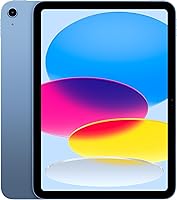
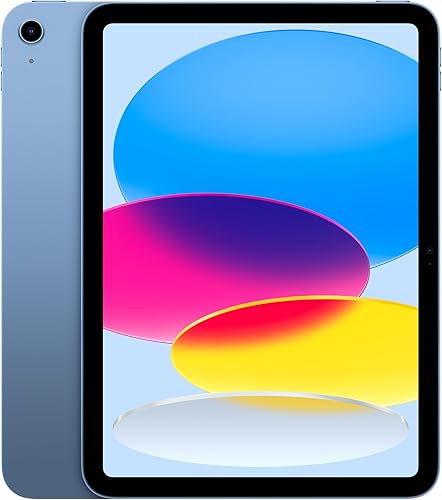
The iPad suits someone who wants familiar Apple software, fingerprint access or a clear path to handwritten notes. Touch ID sits in the top button and supports access to the tablet, app sign-in and payments through Apple Pay.
Its A16 chip supports activities such as games and photo editing. For someone who only reads email, those broader abilities are a bonus rather than the main reason to buy.
For notes and drawing, it supports Apple Pencil (USB-C) and Apple Pencil (1st generation). The compatible Magic Keyboard Folio has a detachable keyboard and protective back panel.
Skip it if you're happy with Android and your main reason to switch is simply that someone called iPads easier. Also check the exact accessory match before buying a pen, keyboard or case.
Galaxy Tab A11+: choose it for saved photos and books
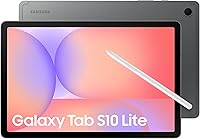
The A11+ suits someone who keeps photos, books and saved recipes on the tablet. This configuration pairs 6GB RAM with built-in space and the option to add a microSD card.
It also includes Google Gemini and Circle to Search. Treat these as optional tools, since you can build a simple daily routine around calls, reading and browsing.
Gemini requires internet access and has account, language and country restrictions. Check its answers for accuracy, and don't make it the deciding feature if you only want basic tablet tasks.
Skip the A11+ if Apple apps are central to your routine or you don't want to learn another system. Storage expansion is useful only if you're comfortable choosing where files go.
Galaxy Tab A9+: choose it for browsing and email
The A9+ suits someone who mainly reads websites, checks email and looks up recipes. It's easier to live within its smaller built-in capacity when you save few large files.
Multi Window lets supported apps share the screen. That can help when reading instructions beside another app, though a single full-screen app is often easier to follow at first.
Skip this configuration if you want to install many large apps or keep a large photo library without managing space. A storage card helps with files, but it doesn't make every storage task automatic.
Which tablet is easier to read?
Choose the tablet that keeps text readable in your usual position. All 3 have an 11-inch display, so text settings, glare and how you support the device deserve close attention.
The iPad has a Liquid Retina display with True Tone, which adjusts to the room's color temperature. Both Samsung models use LCD screens with refresh rates up to 90Hz.
For reading, start with a familiar article rather than a bright home screen. Increase the text size until you can read without leaning forward, then check whether buttons and menus remain comfortable to use.
Book apps, websites and system menus can have separate text controls. Enlarging one does not guarantee that every other app will look right.
Use our guide to making text bigger on a tablet for the adjustments to check. Our best tablets for reading guide helps if books are your main use.
Holding comfort matters, too. The iPad weighs 1.05 pounds and the A11+ weighs 1.1 pounds; a stand can matter more than that small difference during a long reading session.
Try the tablet at a table and in your usual chair. A case with a secure grip or stable stand can reduce the need to hold it for every task.
Which one is better for video calls?
Choose the calling app your family uses first, then compare camera features. A camera upgrade is useful only if you can start and answer calls with confidence.
The iPad has a 12MP Center Stage front camera, while the A11+ has a 5MP front camera. The A9+ also has a front camera, but don't assume its call quality matches either model from screen size alone.
Place the tablet on a stable stand near eye level. Face a window or lamp rather than sitting with a bright window behind you.
Before the first important call, practice finding the contact, starting the call and ending it. Learn where the microphone and camera controls sit so an accidental tap is easy to fix.
If you cannot hear someone, check both the app's call controls and the tablet's volume. If they cannot hear you, check whether the microphone is muted and whether the app has permission to use it.
Our guide to video calling on a tablet covers the steps. For a device chosen mainly around calls, compare our tablet picks for video calls.
How much storage do you need?
Choose 128GB for more breathing room, or consider 64GB if you mostly browse and keep few downloads. The iPad and A11+ here have 128GB built in; the A9+ has 64GB.
Usable space is lower after system software and existing content. Leave room for app updates instead of planning to fill the tablet to its full stated capacity.
Both Samsung models support expandable storage through a separately sold card. The A9+ supports expansion up to 1TB.
A card is helpful for supported files, but don't assume every app can move onto it. Check the app's storage options before relying on expansion to solve a space problem.
Think about offline use separately from web browsing. Saving books, photos and recipes for a trip takes local space, while browsing over an internet connection avoids keeping every file on the tablet.
Read how much storage to get on a tablet if you need help estimating your library. Our guide to whether a tablet needs Wi-Fi explains which tasks to plan before leaving home.
Which tablet fits notes, games and everyday work?
Choose around one main job, then check the extras you need. A reading tablet, a family-call device and a tool for lengthy writing can need very different accessories.
For handwritten notes, confirm pen compatibility before buying. A general touchscreen stylus is not automatically a substitute for the writing features of a supported pen.
For games, both Samsung models have quad speakers powered by Dolby Atmos. Headphones can still be useful in shared rooms, so check how your preferred pair will connect.
For email and short forms, an on-screen keyboard may be enough. If you write long messages, try a physical keyboard and make sure its layout feels comfortable.
A tablet also needs to run your essential work tools. Before replacing a computer, read whether a tablet can replace a laptop and check the exact files and tasks you handle.
For more Android choices, see the best Android tablets for everyday use. Our iPad vs Samsung tablet guide offers another comparison focused on home routines.
How should you set up a tablet for a simpler first week?
Set up a few useful apps and clear account access before adding extras. A tidy first week gives you time to learn where things are.
Secure the account and keep recovery details accessible
Use an account you control and record its recovery details somewhere secure. A helper can guide setup, but you should know which account holds your purchases, photos and backups.
Choose a device passcode you can remember without leaving it exposed beside the tablet. If you use fingerprint access, learn the passcode too, since you will still need it at times.
Turn on available backup options and understand what they cover. Saving a file on the tablet or a storage card is not the same as keeping another copy elsewhere.
Make the home screen match your routine
Keep your most useful apps together: perhaps calls, email, reading, photos and the browser. Remove unnecessary shortcuts from the main screen so familiar buttons are easier to find.
Adjust text size, brightness and volume while sitting where you'll use the tablet. Then open each main app to check that the settings work for real tasks.
Reduce notifications that interrupt reading or cause confusion. Keep useful call and message alerts, and review new permission requests rather than approving them without reading.
Practice a complete task
Repeat one task from start to finish, such as opening email, replying and returning home. Short practice sessions are easier to remember than a tour of every feature.
Write a brief guide in the user's own words if that helps. Use the names visible on their screen, and include the step for getting back to a familiar starting point.
What charging and care habits help?
Use compatible charging gear and a stable place to store the tablet. Set up a charging spot that's easy to reach without leaving a cable across a walkway.
The A11+ requires a separately sold 25W wall charger for its fast-charging feature. Use Samsung-approved charging equipment, and replace worn or damaged cables.
Apple describes the iPad's battery life as all-day, while Samsung describes the A11+'s as long-lasting. Your charging routine should account for brightness, calls, games and how long you use the screen.
Keep drinks away from the tablet and avoid leaving it in strong heat. For cleaning, follow the manufacturer's instructions and avoid spraying liquid directly onto the screen or ports.
Review downloads occasionally and keep important photos backed up. Before deleting files, check whether you're removing only a local copy or also deleting a synced copy elsewhere.
What mistakes should you avoid before ordering?
Avoid buying for specs without checking daily use. The wrong account, app or accessory can create more trouble than a small difference in hardware.
- Choosing for age alone: Familiarity, eyesight, grip and available help are more useful guides.
- Buying accessories by screen size: Cases and keyboards need to match the exact model.
- Assuming a storage card fixes everything: Some apps still need built-in space.
- Starting with too many apps: Learn the essentials before filling the home screen.
- Letting a helper control every password: Keep access and recovery details available to the user.
- Ignoring the support plan: Agree on who can help and how to contact them.
If you're buying a gift, ask which tasks the recipient actually wants to do. Let them try the controls and choose a setup they can continue using when you leave.
Which is the easier tablet for seniors?
For your iPad vs Android tablet decision, buy the iPad when Apple familiarity, fingerprint access or supported pen use solves a daily need. Choose the A11+ for a growing photo and book library, or the A9+ for lighter browsing and email.
If 2 models still seem equally suitable, choose the system your trusted helper knows and confirm your essential apps before ordering. Then set up readable text, a stable stand and a short home-screen routine.
Compare the best tablets for seniors for more options. The iPad and Android tablet guide also brings together related comparisons.
Frequently asked questions
Is an iPad or Android tablet easier for seniors?
The easier choice is usually the system you already know, supported by someone who can help. Choose the iPad for familiar Apple apps, or consider Samsung if Android feels familiar.
Before buying, check your main calling, reading and email apps, then try opening them and returning to the home screen.
Is the iPad easier to use than a Samsung tablet?
An iPad can be easier if you know Apple apps and want Touch ID for fingerprint access. A Samsung can be easier if its menus match your habits or your helper knows Samsung.
Keep the home screen simple on either device, with only your most useful apps in clear view.
Which tablet is better for video calls?
Choose the iPad if its 12MP Center Stage front camera is a priority; the A11+ offers a 5MP front camera for calls. First confirm your family's calling app works on the tablet.
A stable stand, light facing you and a reliable connection also matter for comfortable conversations.
Can you make text bigger on an iPad or Android tablet?
Yes, both systems offer text-size settings, though individual apps can respond differently. Increase text size, then check a message, a web page and your reading app rather than judging the settings screen alone.
Our guide to making text bigger on a tablet explains what to adjust and check.
Should seniors choose a tablet with expandable storage?
Choose expandable storage if you expect to save many photos, books or recipes and feel comfortable managing a storage card. Both Samsung models here support expansion.
If you prefer fewer file-management steps, prioritize enough built-in space instead, and remember that storage cards do not replace a separate backup.