6 Best Android Tablets for Everyday Use (October 2026)
The best Android tablets for everyday use include the Samsung Galaxy Tab A11+ for shared home use, the Samsung Galaxy Tab S10 Lite for handwritten notes, and the Lenovo Idea Tab 11 for study routines.
On this page (9 sections)
- Which is the best Android tablet for your daily routine?
- How these Android tablets were selected
- How do you choose the right screen size?
- How much storage and memory do you need?
- When are a pen and keyboard worth choosing?
- How should you set up an Android tablet for daily use?
- Which buying mistakes should you avoid?
- How do you keep a tablet useful and in good condition?
- Which Android tablet should you choose?
The Samsung Galaxy Tab A11+ is the best Android tablet for most everyday home use because it balances a roomy screen, expandable storage and speakers for family calls. Choose a pen-focused model for handwriting, a larger tablet for documents, or a compact one for reading on the move.
Start with the job you'll do most often. A tablet that stays on a kitchen counter needs different strengths from one you hold through a whole book or carry to class.
If you're weighing Android against Apple, see our iPad vs Android tablet comparison. For a closer platform comparison, the Galaxy Tab A11+ vs iPad A16 guide covers two everyday options.
Our picks at a glance
-
1

-
2

-
3
Which is the best Android tablet for your daily routine?
The Galaxy Tab A11+ is the default choice for browsing, reading and family calls. Move to another pick when you have a clear reason, such as regular handwriting, full-page documents or a smaller bag.
The differences below matter more than choosing the tablet with the longest feature list. Match the device to the tasks you'll repeat each week, including how you'll hold it and where your files will live.
Samsung Galaxy Tab A11+
- 11 in screen
- 6GB RAM
- 128GB storage
- Quad speakers
- 5 MP front camera
The most balanced choice for a household that wants one tablet for browsing, reading and family calls.
Pros
- Screen refresh rate up to 90Hz
- Expandable storage
- 5 MP front camera
Cons
- 25W charger sold separately for fast charging
- microSD card sold separately
Samsung Galaxy Tab A11+: the best Android tablet for mixed home use
The Galaxy Tab A11+ fits a household that wants one screen for recipes, reading, shopping and calls. Its 11 in display offers room to read without making the tablet as large as the Idea Tab Plus.
The screen has a 1920 x 1200 resolution and refreshes at up to 90Hz. Quad Dolby Atmos speakers make it a sensible choice when several people join a family call together without headphones.
This configuration pairs 6GB RAM with 128GB storage. MicroSD support gives you another place for compatible photos and files, while the 5 MP front camera covers the hardware side of family video calls.
Samsung supports fast charging with a compatible 25W wall charger, sold separately. Include that accessory in your plans if quick top-ups matter, rather than assuming an older charger will provide the same charging speed.
Buy it for a broad home routine that doesn't center on handwriting. Skip it if pen input is the main reason you're buying a tablet, or if you want a small device to hold in one hand for long periods.
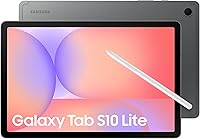
Samsung Galaxy Tab S10 Lite
- 10.9 in LCD
- S Pen support
- 6GB RAM
- 128GB storage configuration
- microSD expansion up to 2TB
A fit for people who want to write, sketch and organize their work around Samsung Notes.
Pros
- S Pen support
- Expandable storage
- Circle to Search and note tools
Cons
- 45W charger sold separately for Super Fast Charging
- Some note features work only in Samsung Notes
Samsung Galaxy Tab S10 Lite: choose it for a writing routine
The Galaxy Tab S10 Lite is the better Samsung choice here if your day includes handwritten plans, sketches or study notes. Its S Pen support and Samsung Notes tools give it a clearer writing role than the A11+.
The 10.9 in LCD has a 2112 x 1320 resolution and a 90Hz refresh rate. Vision Booster adjusts brightness to your surroundings, which is useful when you move between rooms with different lighting.
Choose the 128GB, 6GB RAM configuration described here, rather than assuming every version has the same storage. MicroSD expansion supports up to 2TB for compatible files, but that doesn't replace checking your app storage needs.
Some note features work only within Samsung Notes. If you already keep years of notes in another app, check its pen tools and export options before changing your routine.
Buy this model when handwriting is a regular task and Samsung Notes suits your workflow. Skip it if you mainly want a screen for browsing, or compare the Lenovo bundles if you want a pen and stand case included together.
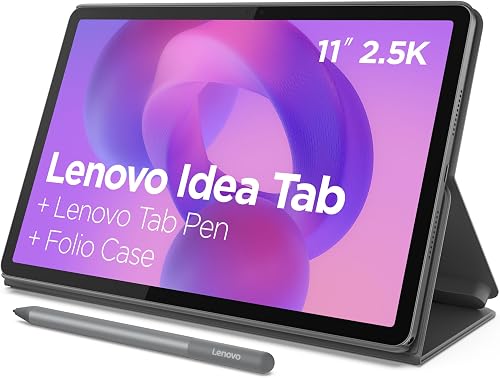
Lenovo Idea Tab 11
- 11 in 2.5K IPS display
- 90Hz refresh rate
- 8GB memory
- 256GB storage
- Tab Pen and folio case included
The included pen, stand case and generous built-in storage suit students who keep notes and course files together.
Pros
- Tab Pen and folio case included
- 256GB storage
- Quad Dolby Atmos-tuned speakers
Cons
- 1.1 lb weight adds up during handheld reading
- Less screen space than the Lenovo Idea Tab Plus
Lenovo Idea Tab 11: choose it for notes and course files
The Lenovo Idea Tab 11 suits students and home learners who want to start with a pen and folio case already included. The case doubles as a stand, so the bundle covers writing and reading course materials.
Its 11 in IPS display has a 2560 x 1600 resolution and a 90Hz refresh rate. That makes it a useful fit for detailed pages, diagrams and notes that benefit from a sharper screen.
This version combines 8GB memory and 256GB storage, the most built-in storage among these configurations. That extra room is useful when course materials, scanned documents and family photos share the same device.
Writing and learning tools include Squid, Nebo and MyScript Calculator. Choose an app around how you organize and export your work, rather than spreading one subject across several apps just because they're available.
Buy it for a study setup with fewer accessories to choose separately. Skip it if you want the largest page view or the lightest reading device, and see our Lenovo Idea Tab 11 review for a closer look.
Samsung Galaxy Tab A9+

- 11 in screen
- Quad speakers
- Multi-window display
- 64GB storage configuration
- microSD expansion up to 1TB
A focused option for keeping supported apps visible together, provided you can work within its smaller built-in storage.
Pros
- Multi-window display
- Quad Dolby Atmos speakers
- Expandable storage
Cons
- 64GB configuration leaves less room for apps and downloads
- Some apps do not support Multi Window
Samsung Galaxy Tab A9+: choose it for paired app tasks
The Galaxy Tab A9+ makes sense when you regularly need two supported apps visible together. Multi Window can help you refer to a web page while drafting an email or checking information in another app.
That benefit depends on your actual apps, since some don't support Multi Window. Decide which two tasks you want to pair before making this feature the reason you buy.
Its 11 in, 1920 x 1200 display refreshes at 90Hz, and quad Dolby Atmos speakers provide sound for family calls. This is the 64GB configuration, so it leaves less built-in room for apps and downloads than the options above.
MicroSD expansion supports up to 1TB for compatible content. Use that for files and supported downloads, rather than assuming it removes every storage limit.
Buy it for light app use with a specific split-screen routine. Skip this configuration if you keep many large apps or want a digital handwriting setup, and read our Samsung Galaxy Tab A9+ review before choosing it over the A11+.
Lenovo Idea Tab Plus

- 12.1 in 2.5K IPS display
- 90Hz refresh rate
- 8GB memory
- 128GB storage
- Tab Pen and folio case included
The largest screen here suits documents, annotations and photos when the tablet usually rests on a table.
Pros
- Largest screen among these picks
- Tab Pen and folio case included
- Quad Dolby Atmos-tuned speakers
Cons
- 1.2 lb weight is less suited to long handheld sessions
- Less built-in storage than the Lenovo Idea Tab 11
Lenovo Idea Tab Plus: choose it for documents on a stand
The Lenovo Idea Tab Plus suits people who read documents or annotate pages at a desk. Its 12.1 in screen gives a full page more physical room than the smaller picks.
The IPS display has a 2560 x 1600 resolution and a 90Hz refresh rate. It shares the Idea Tab 11's pixel dimensions, so the reason to choose it is the larger view rather than a higher pixel count.
A Lenovo Tab Pen and folio case are included. The stand is especially useful here because the tablet weighs 1.2 lb, making supported use a better match than prolonged one-handed reading.
This configuration has 8GB memory and 128GB storage, with microSD support. Choose it for screen space rather than assuming the Plus name means more built-in storage than the smaller Idea Tab.
Buy it for PDFs, written work and photos at a table. Skip it if the tablet will spend most of its time in your hand, or if easy packing matters more than a larger document view.
Lenovo Tab One
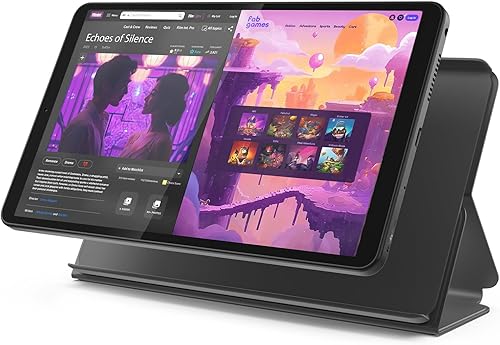
- 8.7 in HD display
- 4GB memory
- 64GB storage
- Folio case included
- 11.2 oz weight
A compact companion for books, quick browsing and saved photos when easy carrying matters most.
Pros
- 11.2 oz weight
- Folio case with stand included
- microSD support
Cons
- Smallest screen and lowest resolution here
- 60Hz refresh rate
Lenovo Tab One: choose it for carrying and casual reading
The Lenovo Tab One is the pick for someone who wants a tablet that takes up less bag space. Its 8.7 in display and 11.2 oz weight make portability its main advantage.
The HD screen has a 1340 x 800 resolution and a 60Hz refresh rate. It's better suited to books, casual browsing and photos than dense full-page documents or two apps squeezed beside each other.
This model has 4GB memory and 64GB storage, plus microSD support. The included folio case provides a stand for reading recipes without holding the tablet.
Buy it if you want a compact second screen for trips, bedtime reading or quick checks around the house. Skip it if you need large text and lots of content visible together, since enlarging text on a small display means more scrolling.
For a device that will also handle regular family calls, compare the priorities in our best tablets for video calls guide. Small size helps with carrying, but a stable position matters more once a call starts.
How these Android tablets were selected
We compared screen space, storage, input tools and included accessories against everyday jobs. The order favors broad home use first, followed by models that solve more specific needs.
The A11+ leads because its features fit several common tasks without requiring a writing-focused routine. The lower-ranked Tab One still makes more sense for a frequent traveler who values compact size above document space.
Battery claims also need context. Rated battery life reaches up to 16 hours for the S10 Lite, while Lenovo gives figures of up to 12 hours for Idea Tab 11, 13 for Idea Tab Plus and 12.5 for Tab One.
Those figures describe different conditions and aren't a direct endurance ranking. Calls, games, brightness and background activity can change how often you need to charge.
How do you choose the right screen size?
Choose screen size around your main content and holding position. A novel adjusts to a small display more easily than a fixed-page PDF, and a stand makes a larger tablet easier to use for long sessions.
Match the screen to books, web pages or documents
For novels, adjustable text size and line spacing often matter more than a large screen. A compact tablet can work well because the words rearrange to fit the display.
Scanned pages, recipe cards, forms and many PDFs keep a fixed layout. A larger screen can reduce zooming, especially when you need to read captions or write in the margins.
Our tablet size guide for reading and calls explains how to match screen space to your routine. Think about the page you use most, rather than choosing by diagonal size alone.
Include the case and your usual posture
A tablet's bare weight doesn't include its case or other accessories. If you read in bed, consider how long you'll hold the whole package rather than judging it by a quick lift.
For counter or desk use, a stable stand lets you keep your neck and arms in a more comfortable position. Leave room around the tablet so the charging cable doesn't pull it toward an edge.
Distinguish resolution from refresh rate
Resolution describes the number of pixels available for text and images. Refresh rate describes how often the screen updates, which affects the appearance of scrolling and motion.
A smoother refresh rate doesn't make small text larger or give a compact screen more room. Prioritize a readable layout first, then use resolution and refresh rate to compare otherwise suitable options.
How much storage and memory do you need?
Choose built-in storage for apps and working files, then use microSD as extra room for compatible content. Memory, also called RAM, serves a different purpose and doesn't increase how many photos you can save.
For mostly online browsing, email and occasional downloads, a smaller storage configuration can be enough. Large photo collections, large games and several users' files make extra built-in space more useful.
Plan around what stays on the tablet
Make a short list of what must be available without an internet connection. Include course PDFs, saved recipes, books, photos and any apps needed for a trip.
Saved files can accumulate quietly, especially when an app keeps old downloads. Review download settings and remove content you no longer need before assuming the tablet needs replacing.
Our tablet storage guide helps you estimate a suitable starting capacity. Remember that system software and existing content use part of the advertised storage.
Treat microSD as storage, not a speed upgrade
A card can provide room for supported photos and documents, but each app controls what it can store there. Some content may need to stay in internal storage.
Adding a card also doesn't add RAM. If you want to switch among several apps, consider memory separately from the capacity used to keep files.
Keep another copy of important documents, even when they live on a card. Removable storage is convenient for carrying files, but it shouldn't be the only place your notes or photos exist.
When are a pen and keyboard worth choosing?
A pen earns its place through regular handwriting or drawing, while a keyboard helps with longer text entry. For reading, browsing and calls, a useful stand may improve daily use more than either accessory.
Choose the note app before building the routine
Check how your preferred app handles folders, page sizes, search and export. A tidy notebook is less useful if you can't easily send a readable copy to a teacher, colleague or another device.
Try a simple workflow: create a note, add a page, export it and reopen the result. Do this before moving a whole class or project into the app.
Our best tablets for note taking guide covers writing-focused choices. For these picks, the S10 Lite suits a Samsung Notes routine, while the Idea Tab bundles include the pen and case.
Check the work before adding a keyboard
A keyboard makes typing easier, but it doesn't change which apps the tablet can run. Confirm that your school or work tools support the tasks you need, including file uploads and document formatting.
Long spreadsheets, specialist programs and complex file handling may still favor a computer. A tablet works best as a laptop replacement when your actual workflow fits its apps and screen.
How should you set up an Android tablet for daily use?
Start with updates, account security and readable controls, then add the apps you need. A short setup session helps prevent a cluttered home screen and missing files later.
Install available software updates. Connect to Wi-Fi and power, then check system and app updates before settling into daily use.
Set a screen lock and recovery details. Use account information you can access again, and store recovery details somewhere separate from the tablet.
Adjust text and display size. Open a familiar article and your email app to check that labels, messages and controls are comfortable to read.
Install your essential apps first. Add calling, reading and note apps before extras, then sign in and check that your files appear.
Set up backup and downloads. Confirm where important work is saved and download a small sample of anything you need offline.
Arrange the home screen around daily jobs. Keep frequently used apps visible and remove shortcuts that make the screen harder to scan.
Our guide to making text bigger on a tablet explains the display adjustments. Check both system settings and individual reading apps, since their controls can work differently.
For a shared device, review saved payment details, account access and notification previews. Use child controls where appropriate, and confirm what a child can open or buy before handing over the tablet.
Before a first family call, place the tablet on its stand and check the camera view. Face a light source, reduce background noise and learn where the microphone and camera controls appear.
Which buying mistakes should you avoid?
Avoid choosing from one headline feature without checking the complete routine. Storage, accessories, apps and physical size can change how useful the same tablet feels from day to day.
Buying a bigger screen for every reader
A larger tablet helps with fixed pages and bigger controls, but it adds bulk. Someone who reads adjustable-text novels while holding the device may prefer a smaller model.
For an older family member, set up familiar apps and clear controls as part of the buying decision. Our complete guide to tablets for older adults and home use covers those practical choices.
Assuming a charger or accessory is included
Check the exact configuration and box contents once before ordering. Similar product names can cover different storage amounts and accessory bundles.
The A11+ fast-charging setup needs the separately sold 25W charger, while S10 Lite Super Fast Charging requires a separately sold 45W charger. Choose a compatible charger and cable rather than relying on the connector shape alone.
Treating rated battery life as a promise for every task
A rated battery life estimate doesn't tell you how long a tablet will last during calls or gaming. Plan charging around your busiest use, especially before travel or a long lesson.
Keep needed content downloaded and open it before leaving home. An offline download is only useful if the app allows you to access it when you need it.
Buying around an AI feature alone
Search and note assistance can be useful, but check important answers and calculations. Choose the tablet for its screen, apps and input tools before treating automated help as the deciding feature.
How do you keep a tablet useful and in good condition?
Use a case, sensible charging habits and regular file cleanup to keep daily use straightforward. Small care steps also reduce avoidable cable damage and lost work.
Wipe the screen with a clean microfiber cloth, following the brand's cleaning guidance. Keep liquid away from ports and avoid spraying cleaner directly onto the device.
Charge on a firm, open surface and keep the tablet out of direct heat. Replace worn cables, and avoid bending a plugged-in connector while using the tablet on your lap.
Review downloads and unused apps occasionally, then confirm your important files are backed up. Leave enough free storage for new work and software updates instead of filling every available space.
Keep the pen with the tablet if handwriting is part of your routine. A ready-to-use writing setup is more useful than an accessory left in another room when a class or meeting begins.
Which Android tablet should you choose?
Choose the best Android tablet for your main weekly task. The A11+ is the balanced home choice, while the S10 Lite makes sense when Samsung Notes and pen input are central to your plans.
Pick the Idea Tab 11 for its study bundle and larger built-in storage. Choose the A9+ for a specific supported split-screen routine, Idea Tab Plus for documents on a stand, or Tab One for easy carrying.
Before buying, confirm your essential apps, preferred configuration and needed accessories. If platform choice remains the deciding issue, our Samsung tablet vs iPad guide helps you match the device to your household.
Our top 3 picks at a glance
-
1
-
2
-
3
Frequently asked questions
What size Android tablet is best for everyday use?
An 11 in tablet is a useful middle ground for browsing, reading and calls. Choose a compact model for frequent carrying, or a larger screen for documents on a stand.
Check the tablet's width and weight too, since a case adds bulk and changes how it feels to hold.
How much storage should an Android tablet have?
128GB is a practical starting point for mixed everyday use. Choose more built-in space for many apps, games or offline downloads, and less for a tablet used mainly online.
All six picks support microSD, but apps vary in what they let you move or save to a card.
Is an Android tablet good for video calls?
Yes, if it supports your calling app and has a suitable front camera. The Samsung Galaxy Tab A11+ has a 5 MP front camera, but call quality also depends on lighting, connection quality and placement.
Set the tablet near eye level and face a light source for a clearer picture.
Can an Android tablet replace a laptop?
An Android tablet can replace a laptop for simple tasks, including browsing, reading and some writing. Check your required apps, file handling and keyboard needs before switching, especially for school or work.
Our tablet versus laptop guide helps you compare those daily needs and spot tasks that still require a computer.