Tablet vs Laptop: Which Fits Everyday Home Use? (October 2026)
For tablet vs laptop, choose a tablet for reading, video calls and browsing, or a laptop for regular typing, file work and desktop apps. Check your essential apps before choosing a tablet as your only computer.
On this page (10 sections)
- Tablet vs laptop: which fits everyday home use?
- Which is easier for reading, browsing and photos?
- Which is better for typing and handling files?
- Which device works better for video calls?
- Do you need a keyboard with a tablet?
- Which tablet or accessory fits your routine?
- How should you set up and care for either device?
- What mistakes should you avoid when choosing?
- When should you choose a laptop instead?
- Tablet vs laptop: make the final choice
Choose a tablet for reading, video calls and browsing; choose a laptop for regular typing, file work and desktop apps. The tablet vs laptop decision should start with your weekly tasks, especially the ones you can't skip.
A tablet suits someone who wants to pick up a screen, tap an app and sit comfortably around the home. A laptop suits someone who regularly needs to write, organize documents or work across several windows.
Adding a keyboard can close the typing gap, but it doesn't change a tablet's operating system. Check your essential apps before deciding that a tablet will be your only computer.

Tablet vs laptop: which fits everyday home use?
A tablet fits touch-based home use, while a laptop fits tasks built around a keyboard and desktop software. Choose for the job you do repeatedly, rather than an occasional feature you might use.
For a household that mainly reads news, views photos, shops and calls family, a tablet can cover the daily routine. It also makes sense as a second device when a computer already handles paperwork.
A laptop is the stronger choice if home use includes job applications, detailed spreadsheets, school assignments or regular document editing. Those tasks often involve typing while checking instructions, moving attachments and switching between windows.
If this will be your only device, give extra weight to essential tasks that happen less often. A monthly form that requires specific software matters more than several daily activities that either device handles easily.
A tablet vs laptop check before you buy
Write down your 3 most common tasks and your hardest recurring task. For each one, name the app or website, the files involved and whether you need a printer or another device.
“Email” might mean reading messages and sending short replies, or it might mean editing attachments and returning them in a required format. Those are different buying needs, even though they share the same label.
Which is easier for reading, browsing and photos?
A tablet is usually more convenient for reading and viewing photos away from a desk. You can hold it upright for a book, turn it sideways for a photo and scroll directly on the screen.
Touch controls also suit recipes, photo viewing and casual shopping. For long reading sessions, use a stand or rest the device on a cushion so your hands don't carry its weight throughout.
Screen size affects comfort as much as portability. Our guide to choosing a tablet size for reading and calls helps you weigh readable text against a device that's comfortable to hold.
If text looks small, adjust the font or display settings before replacing the device. Follow our guide on how to make text bigger on a tablet rather than relying on repeated pinch-to-zoom gestures.
A laptop makes more sense when browsing involves comparing many pages, entering detailed information or keeping reference material beside a form. Its keyboard base also provides a ready support for the screen.
Is a tablet easier to carry from room to room?
A tablet is generally easier to carry and hold because it has no attached keyboard base. The iPad here weighs 1.05 pounds, while the Galaxy Tab A11+ weighs 1.1 pounds, before adding accessories.
A case, stand and keyboard change what you'll carry. If portability is the main reason for buying a tablet, consider the complete setup rather than the bare device.
Which is better for typing and handling files?
A laptop is usually the better tool for frequent writing and file management. Its keyboard and trackpad are ready when you open it, and desktop file tools suit repeated folder and document work.
A touchscreen keyboard is enough for searches, brief messages and short notes. It becomes less convenient when it covers part of a document or you need to select text and make repeated edits.
A tablet keyboard helps with writing, but software compatibility remains the deciding factor. Check the exact app features you need, including comments, document formatting, spreadsheet tools and the file formats you must send.
Before committing to a tablet-only setup, walk through a complete task: download an attachment, edit it, save a separate copy and attach that copy to a reply. Knowing each step is more useful than knowing an app can open the file.
For printing, check support for your particular printer and the app you'll use. Treat a scanner, external drive or work system the same way, since having a connector doesn't guarantee the required workflow.
Can a tablet handle everyday home tasks like a laptop?
A tablet can handle many laptop tasks through compatible apps and websites. It works best when those tools cover the full job without repeated workarounds.
Storage also needs planning if you save documents, photos and large attachments locally. See how much storage to get on a tablet to separate what you need on the device from what you can keep elsewhere.
Which device works better for video calls?
A tablet suits calls around the home, while a laptop suits calls alongside desk work. Choose based on how you'll position the screen and whether you need to read or edit something during the conversation.
For a social call, place the device on a steady stand near eye level. Face a window or lamp rather than sitting with a bright light behind you, and keep the camera clear of fingers or case edges.
For meetings that involve documents, consider how often you'll switch between the call and other apps. A device that handles the call well may still feel awkward when you need notes and reference material visible.
Camera resolution alone doesn't decide how clear a call looks. Lighting, connection quality and the calling app all affect the result.
Follow our guide to video calling on a tablet for setup help. If an older family member will use it, our guide to tablets for older adults and home use covers accessibility and everyday comfort.
Do you need a keyboard with a tablet?
Buy a keyboard when typing is a regular need, and skip it when most use involves reading, browsing or tapping. Start with the tablet alone if you're unsure how often you'll write.
Consider where the keyboard will sit. A tablet and separate support need enough surface depth, so a setup that works at a dining table may be awkward on a narrow tray or your lap.
A trackpad can help with selecting text and placing a cursor, but it won't add missing app features. Confirm the software first, then choose the accessory that makes those apps easier to use.
For a wider look at the tradeoffs, read can a tablet replace a laptop?. It can help you decide whether typing is the only gap in your routine.
Which tablet or accessory fits your routine?
Choose the iPad for varied app-based tasks, the Galaxy Tab A11+ for shared home use, or the Magic Keyboard Folio to support regular iPad typing. These are 2 tablets and an accessory, so the keyboard is an addition to a device.
Apple iPad: for calls, reading and creative apps
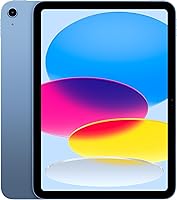
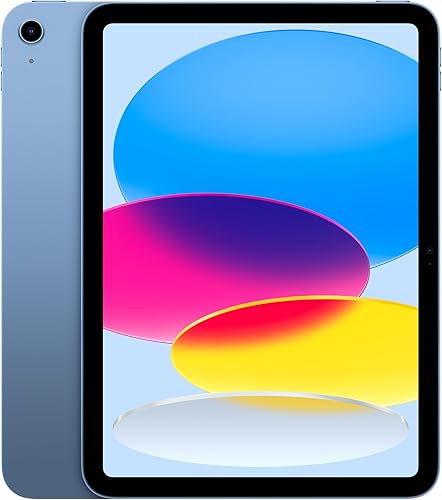
The iPad combines an A16 chip, 11-inch Liquid Retina display and 128GB storage. Its 12MP Center Stage front camera supports calls, and iPadOS lets you run multiple apps at once.
It suits someone who wants a home screen for reading and browsing, with room to add drawing or writing. Support for Apple Pencil USB-C and Apple Pencil 1st generation gives you options if handwritten notes are part of that plan.
Skip it as your only computer if a required task depends on desktop software. Also avoid buying a keyboard and Pencil automatically; choose the accessories that match work you already expect to do.
Galaxy Tab A11+: for shared reading and photos
The Galaxy Tab A11+ suits a household that wants reading, browsing and saved photos on an Android tablet. This version has 6GB RAM and 128GB storage, with microSD expansion for more space.
Its 11-inch LCD supports a refresh rate up to 90Hz, and it has quad speakers with Dolby Atmos. The 5MP front camera also covers family calls.
Skip it if your main need is long document work that would have you adding accessories and changing your routine immediately. For fast charging, Samsung requires a separately sold 25W wall charger and an approved cable.
Magic Keyboard Folio: for established iPad writing needs
The Magic Keyboard Folio suits someone whose compatible iPad already runs the needed apps, but who wants physical keys. It fits iPad A16 and 10th generation, so check the model before ordering.
The magnetic two-piece design includes a detachable keyboard, protective back panel and adjustable stand. Its built-in trackpad and 14-key function row support desk-based use, with no charging or pairing required.
Skip this accessory for occasional searches or brief replies. It also won't solve a software mismatch, so choose a laptop if the missing piece is a desktop program.
How should you set up and care for either device?
Set up security, backups and a comfortable position before daily use. These steps help protect your files and keep the device ready for the person using it.
Install system and app updates, set a passcode and save account recovery details somewhere secure. Enable a suitable backup method, then confirm where your photos and documents are being saved.
Put frequently used apps where they're easy to find, and remove unnecessary notifications. On a shared device, check how each app handles saved passwords, private messages and payment details before handing it around.
Download books, documents or recipes ahead of time when their apps allow offline use. Our guide to whether a tablet needs Wi-Fi explains which tasks still need a connection.
Use the charging equipment specified for your device, and replace damaged cables. Keep ventilation areas clear, avoid leaving electronics in a hot car and keep drinks away from the keyboard or charging port.
For cleaning, follow the device maker's instructions and use a soft cloth without spraying liquid directly onto the screen. Store detachable parts together so the keyboard or charger is available when needed.
What mistakes should you avoid when choosing?
Avoid choosing by appearance, storage or accessory options alone. A useful device must fit your essential tasks and the place where you'll use it.
- Assuming an app name means identical features: check the tablet version for the specific tools your work requires.
- Buying every accessory at once: add a keyboard, stand or stylus to solve a clear need.
- Ignoring the full setup: include the space, weight and charging needs of the accessories you'll actually carry.
- Choosing expandable storage to solve every storage need: check whether your intended apps and files can use a memory card.
- Forgetting occasional paperwork: account for applications, forms and attachments that may require more than casual browsing.
- Relying on battery promises alone: brightness, calls and other activities affect how often you'll need to charge.
When should you choose a laptop instead?
Choose a laptop when regular work depends on desktop software, detailed documents or frequent file transfers. It is also the more direct choice when you want a keyboard available every time you open the screen.
Students and home workers should check required programs before considering a tablet replacement. A browser version may cover the basics while leaving out a feature needed for an assignment or job.
Skip a laptop if you mainly want a screen to hold for books, photos and calls, and another computer already covers demanding tasks. Buying desktop capability you rarely use can leave you with a less convenient device for your daily routine.
Tablet vs laptop: make the final choice
For tablet vs laptop, pick the device that completes your hardest essential task comfortably. Then use your most frequent activities to decide which shape and controls you'll enjoy using each day.
Choose a tablet alone for reading, games, calls and short messages. Choose a tablet with a keyboard when compatible apps already cover your work and physical typing is the missing piece.
Choose a laptop when desktop tools, long writing sessions and document handling lead your list. If you already have a capable computer, a tablet can serve a different role around the home without replacing it.
Use our guide to what to look for in a tablet computer to check the practical details. If you've settled on a tablet, see how an iPad compares with an Android tablet before choosing the platform.
Frequently asked questions
Is a tablet or laptop better for everyday home use?
A tablet suits reading, games, browsing and calls; a laptop suits regular typing, file management and desktop software. Choose around your most demanding recurring task, especially if this will be your only computer.
Short messages rarely justify a keyboard, but frequent document editing often does.
Can a tablet replace a laptop at home?
A tablet can replace a laptop when your essential apps, websites and document tasks work on its operating system. Check attachments, printing and any required work or school software before switching.
Our guide to whether a tablet can replace a laptop explains where a tablet-only setup makes sense.
Does a tablet need a keyboard for home use?
A tablet doesn't need a keyboard for books, photos, calls or short messages. Add one when writing becomes a regular task, rather than buying it just in case.
A keyboard helps with text entry, but it doesn't add desktop software or change what your tablet apps can do.
Which is easier for video calls, a tablet or laptop?
A tablet suits calls around the home, while a laptop suits calls alongside documents or desk work. Either needs a steady position, clear lighting and a reliable connection.
Our tablet video call guide covers setup, including getting the camera positioned before the call starts.
Is an iPad a laptop?
An iPad is a tablet that runs iPadOS, including when a keyboard is attached. It can handle many laptop tasks through compatible apps, but a keyboard doesn't change its operating system.
Read our iPad and Android tablet comparison if you've chosen a tablet and need help choosing a platform.