Can a Tablet Replace a Laptop?
A tablet can replace a laptop for browsing, email, video calls, reading, and light writing. Switch only if your essential apps, files, and accessories work with it.
On this page (7 sections)
- Can a tablet replace a laptop for everyday tasks?
- Which tasks should you try before giving up your laptop?
- When does a laptop still make more sense?
- Which tablet suits your laptop replacement plan?
- How should you set up a tablet as your main computer?
- What mistakes make a tablet a poor laptop replacement?
- Should you replace your laptop with a tablet?
A tablet can replace a laptop if your daily work fits tablet apps and browser tools. Browsing, email, reading, video calls, and short documents are good matches.
The deciding factor is your hardest essential task, not your easiest one. Before buying, check whether you can complete that task, save the result, and share it in the format someone else needs.
Can a tablet replace a laptop for everyday tasks?
Yes, a tablet can replace a laptop for common home tasks, especially when you spend more time reading and watching than typing. Touch controls suit books, photos, recipes, and short messages.
Routine household jobs can fit too, such as checking appointments, filling out simple forms, and joining family calls. Check any website you depend on, including its document upload and download steps.
A touchscreen becomes less convenient when you repeatedly copy information between windows or edit dense pages. A keyboard helps with typing, but screen space and app controls still shape the experience.
Our tablet vs laptop guide for everyday home use explains how those differences affect daily use. Start there if you're choosing your only computer.
Which tasks should you try before giving up your laptop?
Try a complete task from start to finish, including the awkward steps. Opening a document doesn't prove you can edit it, attach it to an email, and find it again next week.
Use this short checklist with your own files:
- Open an email attachment, change it, and send back a copy.
- Fill out a form that requires a file upload.
- Join a call while opening notes or a shared document.
- Download a file and move it into a named folder.
- Print or connect an accessory you regularly need.
For calls, place the tablet on a stable surface at eye level and check the microphone and camera permissions. Our guide to how to video call on a tablet covers the setup.
For reading, check text size and how comfortable the device feels during a longer session. See whether you can read books on a tablet for help choosing a reading setup.
If one of these tasks needs a workaround, consider how often you'll repeat it. A monthly inconvenience matters less than a slow process you face every morning.
When does a laptop still make more sense?
Keep a laptop if an essential job needs desktop software or features missing from the tablet version. A familiar app name doesn't mean its tablet and desktop versions have the same tools.
Detailed spreadsheets, coding tools, specialized design programs, and large folder projects deserve particular attention. Check the exact functions you use rather than assuming the whole category will work or fail.
Work and school can add requirements beyond the app itself. Confirm support for exam tools, secure logins, remote access, and required peripherals.
Long typing sessions also favor a laptop when you work on your lap or move between small tables. A tablet with a separate stand needs enough space behind the screen and in front of it.
Can a tablet replace a laptop for long typing sessions?
A tablet can replace a laptop for long writing sessions when the keyboard, desk setup, and writing app suit you. Check document formatting and export options as carefully as key comfort.
The Apple Magic Keyboard Folio fits the iPad A16 and 10th-generation iPad. Its detachable keyboard, built-in trackpad, and adjustable back stand support writing and cursor work at a table.
Choose it if you use a compatible iPad and regularly write email or documents. It attaches magnetically and needs no charging or pairing, which removes a separate accessory battery from your routine.
Skip it if you mostly read or send brief replies, or if you need an accessory for an iPad Air. A keyboard changes how you enter text; it doesn't add desktop software.
Which tablet suits your laptop replacement plan?
Choose by app fit first, then workload and storage. More processing power won't solve an unsupported program, and extra storage won't fix a cramped writing setup.
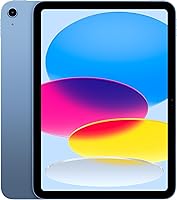
Apple iPad A16: for everyday documents and home use
The Apple iPad 11-inch A16 suits people who want browsing, calls, and light document work in one device. It runs iPadOS, supports multiple apps at once, and includes Safari, Messages, and Keynote.
The 128GB configuration is a starting point for apps and local files, while its USB-C connector is relevant when planning accessories. Check compatibility with any storage device or adapter you intend to use.
Choose it when your routine fits iPad apps and you want the option of adding the Folio. Skip it if a required desktop program is central to your work.
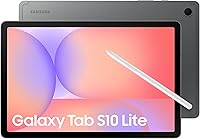
Samsung Galaxy Tab A11+: for shared home tasks and local files
The Samsung Galaxy Tab A11+ suits a household that wants browsing, school reading, entertainment, and occasional writing. This configuration has 6GB of RAM, 128GB of storage, and microSD support.
Expandable storage helps if you want to keep more photos, downloads, or other supported files locally. A microSD card is sold separately, and adding one doesn't increase RAM or ensure that every app can move onto it.
Choose it when everyday tablet tasks and extra file space matter most. Skip it as your only work computer if your required apps lack the editing or file tools you need.
Samsung's fast-charging setup requires a separate 25W wall charger. Include the right charger and any typing accessories in your buying plan.
Apple iPad Air M4: for demanding work in compatible apps
The Apple iPad Air 11-inch M4 suits people whose heavier tasks already work in iPad apps. Its flexible windowing system helps organize app windows, and Apple positions the M4 chip for demanding multitasking.
It supports Magic Keyboard for iPad Air, a different accessory from the Folio above. Plan the tablet and keyboard together if writing is a major reason for buying.
Choose it for a known iPad workflow that needs more processing headroom. Skip it if your tasks are mostly reading and email, or if you're hoping a stronger chip will remove software limits.
How should you set up a tablet as your main computer?
Set up accounts, files, backups, and typing tools before retiring your laptop. Keep access to the old computer until you've completed a normal week of tasks on the tablet.
Install essential apps and sign in to each service. Confirm that you can approve login requests and recover an account without relying on the computer you're replacing.
Create a simple folder system for documents and downloads. Choose where your main copies live, then make sure you know which files are stored locally and which require internet access.
For travel or unreliable connections, download needed files and open them while offline. Set up a backup method too, since syncing changes between devices doesn't always protect against accidental deletion.
Use a stand for longer calls and writing sessions, and position the screen to limit glare. Keep drinks away from the keyboard and use a soft cloth for routine screen care, following the device's cleaning guidance.
Our complete guide to tablets for older adults and home use offers more help building a comfortable everyday setup.
What mistakes make a tablet a poor laptop replacement?
The biggest mistake is buying before checking the whole workflow. A tablet can feel convenient for browsing while still making your weekly paperwork harder.
Avoid these common buying errors:
- Choosing by processor alone: required app features matter more than unused power.
- Forgetting accessories: account for a keyboard, stand, charger, adapters, or storage card you actually need.
- Assuming cloud files are always available: prepare offline copies before leaving Wi-Fi.
- Buying the wrong keyboard: match the exact tablet model and generation.
- Treating expandable storage as extra memory: file capacity and multitasking memory serve different jobs.
Storage also fills with apps, downloaded media, and duplicate files. Our guide to how much storage you need on a tablet helps you plan around what you'll keep.
Should you replace your laptop with a tablet?
A tablet can replace a laptop when every essential task works without a burdensome workaround. Pick the iPad A16 for everyday iPad tasks, the Galaxy Tab A11+ for household use and expandable file storage, or the iPad Air M4 for demanding work in compatible apps.
Add the Magic Keyboard Folio only for a compatible iPad and a real typing need. Keep a laptop if a required program, exam tool, or daily file task still needs one.
If you need help choosing a platform, read iPad vs Android tablet for ease of use. For more Android choices, compare our best Android tablets for everyday use.
Frequently asked questions
Can a tablet replace a laptop for everyday use?
Yes, a tablet can replace a laptop for browsing, email, reading, video calls, and short documents. Before switching, complete your usual tasks on the tablet, including downloading attachments and sending files back.
Add a compatible keyboard if typing is a regular part of your day.
Can you use a tablet for work instead of a laptop?
Yes, if your work tools support the tablet's operating system and provide every feature you need. Confirm your employer's login, security, remote access, and file-sharing requirements before buying.
Open a typical work document and check its formatting, editing tools, and export options before making the tablet your main device.
Is an iPad enough for college?
An iPad can cover reading, notes, calls, and writing when your courses use compatible apps. Check your school's computer requirements and each course's exam software before relying on one.
A required desktop program or unsupported exam tool is a reason to keep access to a laptop.
Do you need a keyboard with a tablet?
You don't need a keyboard for browsing, reading, calls, or brief messages. A physical keyboard helps with longer documents, frequent email, and editing while keeping more of the screen visible.
Check the exact tablet model before choosing an accessory, and consider where you'll use its stand.