Does a Tablet Need Wi-Fi to Work?
A tablet doesn't need Wi-Fi for offline tasks such as reading downloaded books or viewing saved photos. Browsing, email syncing, and video calls need internet through Wi-Fi, a phone hotspot, or a cellular model with an active data plan.
On this page (9 sections)
- Does a tablet need Wi-Fi to work?
- What can you do on a tablet without Wi-Fi?
- Is a Wi-Fi tablet enough for home use?
- When is a cellular tablet worth choosing?
- Can a tablet use your phone's hotspot?
- How much storage matters for offline tablet use?
- How should you prepare a tablet before leaving Wi-Fi?
- Which connection mistakes should you avoid?
- Does a tablet need Wi-Fi for your daily routine?
A tablet doesn't need Wi-Fi for every task. You can read downloaded books, view saved photos, and use apps with offline features, but browsing, email syncing, and video calls need internet access.
That access can come from home Wi-Fi, a phone hotspot, or built-in cellular service on a compatible tablet. Choose around your daily routine: where you'll use it, what needs to stay connected, and how much setup you want.
Does a tablet need Wi-Fi to work?
A tablet can work without Wi-Fi or any internet connection when its apps and files support offline use. Wi-Fi is one way to reach the internet, not a requirement for turning on the device.
A Wi-Fi-only tablet connects to a wireless network, including a phone hotspot. A cellular tablet adds the option to connect directly to a mobile network with a suitable plan and coverage.
Buying a cellular tablet doesn't mean you must keep a data plan active. It can still use Wi-Fi and offline features when you aren't using mobile service.
For an older adult choosing a first device, our guide to tablets for older adults and home use covers screen comfort, everyday tasks, and other buying decisions.
What can you do on a tablet without Wi-Fi?
Offline use works best when you save content on the tablet before you leave home. Seeing a file name or book cover in an app doesn't always mean the full item is downloaded.
Common offline activities include:
- Reading downloaded books, PDFs, and documents.
- Viewing photos stored on the device.
- Writing notes in apps that save locally.
- Playing games that don't require a server connection.
- Taking photos with the camera.
Cloud files need special care because some apps show shortcuts to files stored online. Use the app's download or offline option, then open the file with internet access switched off.
Downloaded books can also have download limits or expiry dates set by the service. Check those before a long trip, especially if you won't be able to sign in again.
For books, download the full title rather than a sample. Our guide to reading books on a tablet explains how tablets fit different reading habits.
Does a tablet need Wi-Fi for video calls?
A tablet needs a working internet connection for online video calls, but that connection can use Wi-Fi or mobile data. Offline downloads cannot replace a live connection.
A Wi-Fi tablet can call through a home network or phone hotspot. A cellular tablet can use its own mobile service when its plan is active and coverage is available.
For setup steps, follow our guide on how to video call on a tablet. If calls are your main reason for buying, compare our tablets for video calls.
Is a Wi-Fi tablet enough for home use?
A Wi-Fi tablet is the practical choice for mostly home use when your network reaches your usual chair, desk, or bedroom. You don't need a separate mobile plan for browsing and calls over home internet.
Check the connection in those rooms with a device you already have. Weak coverage is a home network problem, so buying a faster tablet won't necessarily solve it.
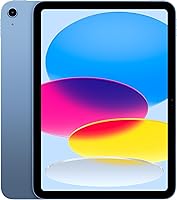
The Apple iPad 11-inch (A16, 128GB) suits someone who wants iPad apps and plans to connect at home. Its 11-inch Liquid Retina display provides space for reading and viewing photos, while Touch ID offers fingerprint access.
Skip this Wi-Fi-only version if you need direct mobile internet on regular outings and don't want to manage a phone hotspot. Adding a data plan later won't turn it into a cellular model.
Before choosing it for a relative, read whether an iPad is easy to use for seniors and consider who will help with account setup.
When is a cellular tablet worth choosing?
A cellular tablet is worth considering when you regularly need internet away from dependable Wi-Fi. It removes the extra step of connecting through your phone each time.
This suits someone who wants to check email during outings, join calls from different locations, or look up information while traveling. It still depends on carrier coverage and an active plan.
The Apple iPad 11-inch (A16, 5G) adds direct mobile connectivity to the iPad option above. Choose it for that independence, especially if you don't carry a suitable phone.
Skip the cellular version if your outings mostly involve downloaded books and saved photos. Cellular capability doesn't improve those offline activities, and home users may have little reason to activate it.
Before arranging service, check carrier compatibility, coverage in your usual locations, data limits, and cancellation terms. For travel abroad, check international service separately rather than assuming your home plan applies.
Can a tablet use your phone's hotspot?
A phone hotspot lets a Wi-Fi tablet use your phone's mobile internet. Your phone creates a wireless network, and the tablet joins it much like home Wi-Fi.
This is a sensible choice for occasional email checks or browsing away from home. Confirm that your phone plan permits hotspot use and whether it has a separate data allowance.
To connect:
- Turn on the phone's mobile data and hotspot feature.
- Find the hotspot's network name and password.
- Open the tablet's Wi-Fi settings and select that network.
- Enter the password and check that a web page loads.
Keep the phone nearby and charged, since the tablet loses internet if the hotspot stops. Use a strong hotspot password and turn the feature off when you're finished.
Skip this approach if you need the tablet to connect while your phone is elsewhere. Frequent long video calls may also make a separate tablet plan easier to manage.
How much storage matters for offline tablet use?
Storage matters more when you keep books, photos, and files on the device between internet connections. Plan around the saved items you want available for reading, recipes, and note taking.
The Samsung Galaxy Tab A11+ configuration here has 6GB RAM, 128GB storage, and microSD expansion. It suits an Android buyer who wants room for saved content and an 11-inch screen for reading or games.
Its quad speakers with Dolby Atmos are another feature to consider if family video calls are part of your routine. Skip this configuration if built-in mobile service is essential; its connections include Wi-Fi and Bluetooth.
A microSD card is sold separately, and apps differ in what they allow you to move to it. Internal storage also holds apps and system files, so don't plan to fill every bit with downloads.
Use our tablet storage guide to plan around your files. For broader device choices, see what to look for in a tablet computer and our iPad vs Android tablet guide.
How should you prepare a tablet before leaving Wi-Fi?
Prepare a tablet by finishing setup and checking offline access while you're still connected. The first account sign-in, app downloads, and software updates commonly need internet access.
Download your reading, recipes, and travel documents ahead of time. Then turn off Wi-Fi and cellular data briefly and open the items you expect to use.
For a cellular model, activate the plan and confirm that a page loads with Wi-Fi switched off. For a hotspot, practice connecting once so you aren't learning the steps during an outing.
Charge both devices if you'll rely on a phone hotspot. The Galaxy Tab A11+ requires a separate 25W wall charger for its fast-charging feature; Samsung advises using approved, undamaged charging equipment.
Reconnect periodically to sync notes, back up files, and install updates. If you're helping a relative, show them the difference between a downloaded file and one that still needs internet.
Which connection mistakes should you avoid?
Avoid assuming that Wi-Fi, internet access, and cellular service are the same thing. A tablet can join a wireless network even when that network's internet connection has stopped working.
Other common mistakes are easy to prevent:
- Buying the wrong model: Check whether the exact version includes cellular capability before ordering.
- Expecting free mobile service: Cellular hardware still needs a suitable plan for direct mobile internet.
- Relying on unfinished downloads: Open saved content offline before your trip.
- Ignoring data use: Video calls with family can use much more mobile data than email.
- Depending on public Wi-Fi: Some networks require a browser sign-in, have time limits, or may be unavailable.
If a call drops, check the connection before changing app settings. A full Wi-Fi symbol alone doesn't confirm that the internet is working.
Does a tablet need Wi-Fi for your daily routine?
A tablet doesn't need Wi-Fi if your main tasks work offline or you have another internet connection. Choose the connection method you can use reliably without extra steps you dislike.
Pick the Wi-Fi iPad for home use and downloaded content on outings. Choose the cellular iPad for frequent mobile internet without a nearby phone, or the Galaxy Tab A11+ for Android use with expandable storage.
A phone hotspot is the middle path for occasional online tasks away from home. Before buying, write down your 3 main activities and mark which need live internet.
Use our tablet selection guide to weigh screen size, controls, and app choices alongside that connection decision.
Frequently asked questions
Can you use a tablet without Wi-Fi?
Yes, a tablet can work without Wi-Fi for downloaded books, saved photos, local files, and apps with offline features. New web pages, email syncing, and online calls need internet access through another connection, such as a phone hotspot or a cellular tablet with an active plan.
Does a tablet need Wi-Fi for video calls?
No, video calls need internet access, but Wi-Fi isn't the only option. A cellular tablet with an active plan can use mobile data, while a Wi-Fi tablet can connect through a phone hotspot.
A weak signal or limited data allowance can make either option less useful.
Can you use an iPad without Wi-Fi?
Yes, an iPad can open downloaded content and use apps with offline features without Wi-Fi. For internet access away from a wireless network, connect to a phone hotspot or choose a cellular model with a suitable data plan; a Wi-Fi-only iPad cannot gain built-in cellular service through a software change.
What can you do on a tablet offline?
You can read downloaded books, view saved photos, write notes in apps that save locally, and use some games without internet. Open each app before leaving home and check its offline features, since downloads can expire and some apps still require occasional sign-ins.