Is an iPad Easy to Use for Seniors?
Yes, an iPad is often easy for seniors to use with larger text, a simple home screen, and practice with everyday tasks. Choose around the person's preferred apps, comfort holding the screen, and access to setup help.
On this page (8 sections)
- Is an iPad easy to use for seniors new to tablets?
- What can make an iPad easier to see and handle?
- How should you set up an iPad for an older adult?
- Is an iPad good for video calls and staying in touch?
- Which iPad or tablet should a senior consider?
- Which buying and setup mistakes should you avoid?
- How can you keep daily use simple?
- Is an iPad easy enough for the senior you're buying for?
Yes, an iPad can be easy for seniors to use when the screen is readable, everyday apps are easy to find, and someone helps with the first setup. Age alone doesn't tell you which tablet will fit a person.
Start with what they want to do: read books, see family, browse websites, or send photos. The right choice makes those tasks comfortable without adding controls and accessories they don't need.
Is an iPad easy to use for seniors new to tablets?
An iPad can be approachable for beginners who learn a few touch controls through familiar activities. Teach one useful task at a time instead of explaining every feature on the first day.
Begin with waking the screen, opening an app, and returning home. Let the person repeat those steps themselves, including recovering from an accidental tap.
An iPhone user may recognize parts of the layout and feel more comfortable asking for help. For someone used to another phone, our iPad and Android comparison provides a starting point for comparing systems.
What makes an iPad easier for seniors to learn?
A repeatable routine makes learning easier: use the same app, put it in the same place, and practice the same steps. A short paper guide with clear instructions can help between lessons.
Teach the difference between a tap, a swipe, and a long press using the task at hand. Avoid introducing several gestures during one lesson.
If a person struggles, find the exact sticking point before replacing the tablet. Small text, an awkward grip, or an unfamiliar password screen each needs a different solution.
What can make an iPad easier to see and handle?
Readable text and support for the screen matter more than choosing the largest tablet available. Check comfort in the chair and room where the person will actually use it.
Increase text size gradually, then open a message, a website, and the preferred reading app. Some page elements won't grow with the main text, so check whether buttons and menus remain usable.
Our guide to making text bigger on a tablet explains the next steps. Adjust brightness for the room and change the screen angle if a window or lamp causes glare.
Holding a tablet throughout a long call can become tiring. The Lamicall iPad Stand supports vertical and horizontal viewing, with an adjustable angle and rubber pads at its contact points.
Choose this stand for reading or calls at a table. The tablet and case together must be no thicker than 18 mm to fit its hooks.
Skip it if the person mainly uses the tablet in bed or on a soft lap surface. It needs a firm tabletop, and angle adjustment doesn't replace choosing a table at a comfortable height.
How should you set up an iPad for an older adult?
Set up accounts, reading comfort, and essential apps first, then practice everyday use before adding extras. Keep the person involved so they know how to get back in without relying on someone else.
Work through these steps:
- Connect to the usual home Wi-Fi. Confirm that a website opens where the tablet will be used.
- Set up account recovery. Check recovery details together and keep passwords in a secure place the person can access.
- Choose a usable passcode. Practice entering it even if fingerprint access will be the usual method.
- Adjust text and sound. Read a message and listen to a call alert from the normal seat.
- Simplify the home screen. Keep the main apps in clear positions and reduce unnecessary notifications.
- Add key contacts. Practice starting and answering a call with someone familiar.
Don't create an account using a helper's email simply to finish faster. The person should understand which account belongs to them and how to recover access.
Keep lessons short and leave the tablet ready for one enjoyable task. Reading a chapter or viewing family photos gives practice a purpose.
Is an iPad good for video calls and staying in touch?
An iPad is a useful choice for video calls, messages, and sharing photos when the family's preferred apps work on it. Confirm app compatibility before buying, especially if regular calls are the main reason for getting a tablet.
Put the calling app where it's easy to find and practice both outgoing and incoming calls. Explain the microphone, camera, and end-call buttons before a longer family conversation.
Our guide to video calling on a tablet covers the basics. Position the screen near eye level and keep a lamp or window in front of the caller rather than behind them.
The Amazon Fire HD 10 offers another route for Zoom calls and reading. It has a 10.1-inch Full HD screen, a 5 MP front camera, and Alexa support for tasks such as reading books aloud.
Choose the Fire for someone focused on reading, web browsing, and Zoom, once you've confirmed their required apps. This configuration has 32GB of storage, with microSD expansion available separately.
Skip it if the person expects the same apps and layout as an iPad without learning a different system. A familiar brand name matters less than finding the exact services they use.
Which iPad or tablet should a senior consider?
Choose the Apple iPad 11-inch for an Apple user, and consider Samsung for someone who prefers Android. Use the person's actual tasks to decide rather than comparing processor names alone.
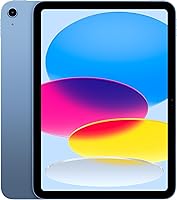
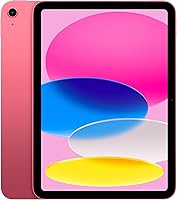
The Apple iPad 11-inch (A16, 128GB) has an 11-inch Liquid Retina display, Touch ID in the top button, and a USB-C connector. Its 12 MP Center Stage front camera suits a call-focused setup.
This is a sensible choice for someone who wants Apple apps and fingerprint access. Its A16 chip supports activities beyond basic reading, but extra processing power won't make small buttons easier to use.
Skip it if the person strongly prefers Android or finds this screen size awkward to hold. At 1.05 pounds before adding a case, it deserves a comfort check for anyone planning long reading sessions.
The Samsung Galaxy Tab A11+ configuration here has 6GB of RAM, 128GB of storage, and microSD expansion. Its 11-inch screen makes it worth considering for reading recipes or viewing photos at a table.
Choose Samsung for someone who prefers Android and stores photos locally. Leave optional features out of the first lessons so the person can focus on familiar apps.
Skip it if keeping the same system as an existing iPhone is the main priority. Its fast charging requires a compatible 25W wall charger sold separately, so include the charging setup in your decision.
Our complete guide to tablets for older adults helps match these choices to daily habits. If downloads will take up much of the device, see how much storage a tablet needs.
Which buying and setup mistakes should you avoid?
Avoid buying around age labels, extra features, or screen size alone. A tablet is only useful if the person can comfortably complete the tasks they care about.
- Assuming bigger is always easier: A larger screen creates more room for text, but can be harder to hold.
- Adding too many apps: Start with a few essentials and introduce others as needs arise.
- Buying accessories immediately: Confirm a need before adding a keyboard, pen, or holder.
- Ignoring app compatibility: Check the exact calling, reading, or other essential app before choosing a system.
- Doing every step for the person: Let them practice entering passwords, opening apps, and correcting mistakes.
Don't assume every activity requires a live internet connection. Downloads can help away from home, while calls and other online services need a connection; our tablet Wi-Fi guide explains the difference.
How can you keep daily use simple?
Keep a consistent charging spot and app layout so the tablet is ready and familiar each day. Avoid moving icons around after the person has learned their positions.
Route the charging cable where it won't catch on a chair or pull the tablet off a table. Replace damaged cables, keep liquids away, and clean the screen with a soft cloth using the device's care instructions.
Make a simple plan for unexpected messages: pause before opening unfamiliar links or granting account access. Show the person how to close a message and contact a trusted helper themselves.
Is an iPad easy enough for the senior you're buying for?
An iPad is easy enough for many seniors when their main tasks feel clear and comfortable. Before choosing, have the person practice opening an app, reading a page, returning home, and holding or positioning the screen.
Pick the iPad for Apple familiarity, Fire for a confirmed reading and family calling routine, or Samsung for Android preference and expandable storage. Add the Lamicall stand when tabletop use would make those activities more comfortable.
If the iPad fits those needs, our guide to the best iPads for seniors is the next step. If another system feels more familiar, use the iPad vs Android comparison to narrow the choice.
Frequently asked questions
Is an iPad easy for seniors who have never used a tablet?
Yes, an iPad can be easy for a beginner when lessons focus on useful tasks and leave time for practice. Start with opening one app, returning to the home screen, and answering a call, then let the person repeat each task without someone taking over.
Can you make an iPad easier to see?
Yes, larger text, bold text, and suitable brightness can make reading easier. Check the results inside each frequently used app because some controls and page elements may stay small, and use our guide to making text bigger on a tablet to work through the options.
Is an iPad or Android tablet better for older adults?
The better choice is the tablet that fits the person's habits, required apps, and available help. Someone familiar with an iPhone may prefer an iPad, while another person may prefer Android controls; our iPad vs Android tablet guide can help you compare the systems before choosing.
What accessories can make an iPad easier to use?
A tabletop stand can reduce the need to hold the screen during reading or calls, while a suitable case can make carrying it more comfortable. Check the combined thickness of the tablet and case before choosing a holder, and avoid accessories that cover buttons or make charging awkward.