5 Best iPads for Seniors (October 2026)
The best iPads for seniors include the Apple iPad 11-inch (A16 for everyday home use, the Apple iPad 11-inch (A16 for large offline libraries, and the Apple iPad Air 11-inch (M4) for creative app users.
On this page (7 sections)
The Apple iPad 11-inch (A16, 128GB) is the best iPad for most seniors who want to read, browse, check email and make video calls at home. Choose a different configuration when you need more offline storage, internet away from Wi-Fi or demanding creative apps.
Start with the person's daily routine, rather than their age. Someone who reads library books and calls family needs a different setup from someone who edits photos or writes long documents.
These picks include 4 tablets and 1 optional keyboard accessory. The keyboard belongs on your shortlist only after you choose a compatible iPad.
If you're deciding between Apple and Android, our guide to which is easier for seniors, an iPad or Android tablet explains the main differences. You can also read whether an iPad is easy to use for seniors before choosing.
Our picks at a glance
-
1
-
2

-
3

Which iPad is best for seniors?
The standard A16 iPad with 128GB is the best starting point for everyday home use. Move to another option only when you can name the task or situation that makes its extra features useful.
The best iPad for seniors who mainly stay home
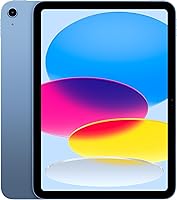
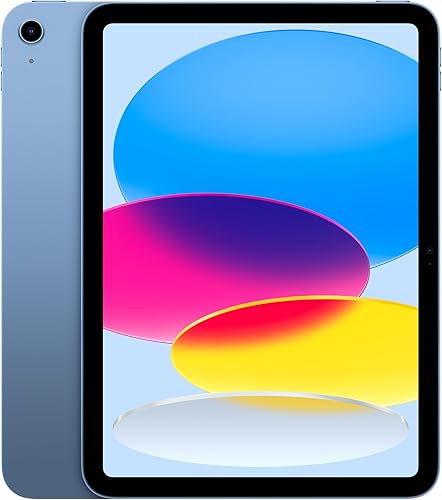
Apple iPad 11-inch (A16, 128GB)
- 11-inch Liquid Retina display with True Tone
- 128GB storage
- Touch ID
- 12MP Center Stage front camera
- Wi-Fi 6
The starting choice for calls, reading, browsing and email at home. Choose another configuration when you need more space for downloads or cellular access.
Pros
- Fingerprint access with Touch ID
- Center Stage front camera for calls
- USB-C connector
Cons
- No cellular connection in this configuration
- Less room for downloads than the 256GB option
Choose this iPad for a routine built around news, recipes, books, family calls and email. Its 11-inch Liquid Retina display gives those activities room without requiring a separate computer.
Touch ID sits in the top button, letting you use a fingerprint for device access and supported app sign-ins. You should still learn the passcode, since a fingerprint does not replace it in every situation.
The 12MP Center Stage front camera suits video calls, while True Tone adjusts the display to the room's color temperature. For calls, a stable stand and light facing you also make a practical difference.
This is the model to choose when you mostly use online services and keep a manageable collection of saved files. You don't need a faster chip simply because you plan to use the tablet every day.
Skip this configuration if you regularly need internet without Wi-Fi or already struggle with a large download library. Those needs point toward the cellular or higher-storage standard iPad.
More room for people who save books and photos
Apple iPad 11-inch (A16, 256GB)
- 11-inch Liquid Retina display with True Tone
- 256GB storage
- Touch ID
- 12MP Center Stage front camera
- Wi-Fi 6
Choose this version for a growing collection of downloaded books, photos, games and apps. Its main advantage over the standard Wi-Fi pick is storage.
Pros
- Twice the storage of the 128GB pick
- Same screen and cameras as the standard Wi-Fi pick
- Touch ID in the top button
Cons
- No cellular connection in this configuration
- Extra storage adds little for people who mainly browse the web
Choose the 256GB standard iPad when keeping content on the tablet is part of your routine. It suits someone who downloads several books before trips or likes to keep a growing collection of family photos and games nearby.
It has twice the storage of the first pick, with the same chip, display and cameras. The extra space changes what you can keep, rather than making text easier to read or calls easier to start.
Before choosing it, check the storage use on your current phone or tablet. Look at which apps and files occupy the most space, then consider what you want to move across.
This version is also useful for someone who dislikes regularly removing downloads. More room can reduce that chore, although it doesn't remove the need to organize files and keep backups.
Skip it if you mainly browse the web, read online and use a small set of apps. Choose it for a real storage need, rather than treating the larger number as a sign of an easier tablet.
The Air for creative work and demanding apps
Apple iPad Air 11-inch (M4)
- M4 chip
- 11-inch Liquid Retina display with P3 wide color and True Tone
- 128GB storage
- Wi-Fi 7 with Apple N1
- Touch ID
The Air suits people who draw, use demanding apps or regularly work across several windows. Its Pencil Pro support gives creative users a reason to move beyond the standard iPad.
Pros
- M4 chip for demanding apps
- Display with ultralow reflectivity
- Supports Apple Pencil Pro and Apple Pencil (USB-C)
Cons
- This configuration has less storage than the 256GB standard iPad
- The Magic Keyboard Folio below is not compatible
Choose the iPad Air with M4 if your plans include drawing, demanding creative apps or frequent work across several windows. Those activities give its performance features a clear purpose.
Its display adds P3 wide color and ultralow reflectivity, which are worth comparing if you work with images or often notice reflections. Screen placement still matters, so avoid facing a bright window toward the glass.
The Air supports Apple Pencil Pro and Apple Pencil (USB-C). Choose a stylus around the app and type of work you want to do, rather than assuming every iPad needs one.
Apple also includes Apple Intelligence features, but those shouldn't drive a basic reading-and-calls decision. A new feature only helps if you expect to use it and want to learn it.
Skip this configuration if your main concern is storing more files, since it has less space than the 256GB standard iPad. Also plan accessories separately: the Magic Keyboard Folio farther down this guide does not fit this Air.
Cellular access for regular trips beyond Wi-Fi
Apple iPad 11-inch (A16, 5G)

- 11-inch Liquid Retina display with True Tone
- 128GB storage
- Wi-Fi 6 and 5G cellular
- Touch ID
- 12MP Center Stage front camera
Choose this configuration when the iPad needs its own internet connection away from Wi-Fi. Cellular service requires a suitable data plan and coverage.
Pros
- Option to add a cellular data plan
- Also connects through Wi-Fi
- Same core screen and camera features as the standard iPad
Cons
- Cellular service adds an ongoing plan to manage
- Coverage affects where cellular access works
Choose the A16 iPad with 5G when the tablet needs its own internet connection outside the house. It suits regular travel, visits to places without reliable Wi-Fi and people who don't want to connect through a phone hotspot.
Its main difference from the first pick is cellular access. You retain the standard iPad's core features, so the reason to choose it should be where you use it.
A cellular-capable tablet still needs a suitable plan and network coverage. Before ordering, check coverage in the places you visit and how you will activate and manage the service.
If someone helps with setup, ask them to explain how to tell whether the iPad is using Wi-Fi or cellular data. That makes it easier to understand connection problems and data use later.
Skip this model for a tablet that stays beside the sofa or kitchen table on home Wi-Fi. Occasional offline reading also doesn't require cellular service if you download the books before leaving.
Physical keys for longer emails and documents
Apple Magic Keyboard Folio
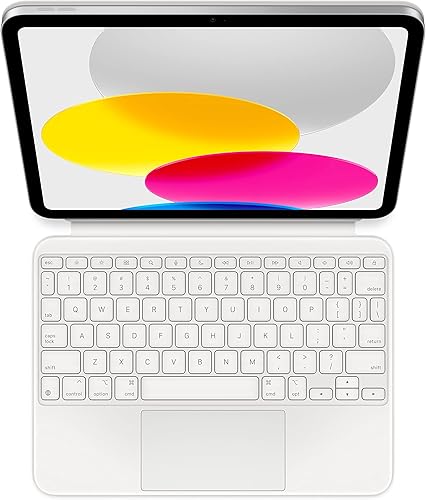
- Detachable two-piece design
- Built-in trackpad
- 14-key function row
- Adjustable stand
- Compatible with iPad (A16 and 10th generation)
An optional keyboard and case for longer emails and document work on a compatible iPad. It is an accessory, so you still need to choose the tablet separately.
Pros
- No charging or pairing required
- Detachable keyboard and protective back panel
- Adjustable stand and click-anywhere trackpad
Cons
- Not a tablet
- Does not fit the iPad Air in this guide
Choose the Magic Keyboard Folio if you prefer physical keys for longer emails, forms and document work. It works with the A16 and 10th-generation iPad, so confirm your tablet model before buying.
The keyboard and protective back panel attach magnetically, and the keyboard detaches when you want to read without it. There is no charging or pairing step to manage.
Its click-anywhere trackpad gives you a cursor, and the 14-key function row adds physical controls. The back panel's adjustable stand helps you position the screen on a table.
A desk or table gives this kind of setup a steady base. Consider where you usually type, because a keyboard arrangement that works at a table may feel awkward in a recliner.
Skip it if you mainly browse photos, read or send brief replies. If touching the screen feels easier than learning trackpad gestures, start with that familiar method and add a keyboard only when typing becomes a regular need.
How these iPads fit different daily routines
The main buying differences are storage, connectivity and creative features. We compared those needs alongside display, camera and input options, with everyday home use guiding the first recommendation.
These are closely related choices, so there is no need to study every technical term before deciding. The standard Wi-Fi configurations mainly separate people who save a little content from people who save a lot.
The Air serves a different purpose: more demanding work and creative input. The cellular model solves access away from Wi-Fi, while the Folio changes how you type.
Write down your 3 most common activities before comparing models. A shortlist such as “read books, call my sister, check email” points toward a simpler choice than “edit photos, draw, manage several work apps.”
What should you compare before buying an iPad?
Compare reading comfort, saved content, internet access and input needs before focusing on the chip. Each choice should solve a problem you expect to encounter.
Is an 11-inch screen comfortable to read and hold?
An 11-inch screen gives you space for books, web pages and calls, but comfort also depends on text size and how you support the tablet. A bigger page doesn't help much if the words remain too small.
Try increasing text size before deciding that you need to hold the screen closer. Our tablet text size guide explains the adjustments that can make daily reading easier.
Holding a tablet throughout a long reading session can become tiring. A stand lets you place it at a useful angle and keep your hands free.
Think about where it will sit: a bedside table, kitchen counter and lap each call for a different position. If glare is a problem, move the screen or lamp before raising brightness.
Should you choose 128GB or 256GB?
Choose 128GB for mostly online use and consider 256GB for a substantial offline collection. Downloaded games, large apps and saved photos usually deserve more attention than email or web bookmarks.
Make a rough list of what must remain available without internet. Books, photos, recipes and travel documents all count, but they don't all take up the same amount of space.
Leave room for future apps and system needs instead of planning to fill the tablet immediately. If your current device is nearly full, find out whether the cause is files you still want or downloads you forgot to remove.
For a closer look, read how much storage you need on a tablet. Remember that extra storage holds more files; a separate backup protects important files if the device is lost or damaged.
When does cellular access earn its place?
Choose cellular access for recurring internet needs away from Wi-Fi. It is most useful when connecting through a phone would be inconvenient or confusing.
A phone hotspot can be another option if your phone and plan support it. Consider whether you want to manage 2 devices and an extra connection step each time.
For occasional trips, downloading books and documents at home may cover your needs. Live calls, new messages and fresh web pages still require an internet connection.
Our guide to whether a tablet needs Wi-Fi explains the difference between online and offline activities. Check your likely routine before adding a cellular plan to it.
Do you need physical keys or a stylus?
Choose physical keys for frequent typing and a stylus for a clear writing or drawing purpose. Neither is required for basic calls, browsing or reading.
Try a short email with the on-screen keyboard before adding hardware. You may prefer voice dictation for some messages, though checking the text before sending remains useful.
If documents are central to your routine, see whether a tablet can replace a laptop. Confirm that your required apps and tasks fit a tablet before building a keyboard setup around one.
How should you set up an iPad for a senior?
Set up the iPad with the person who will use it, using their own preferences and account. The first goal is for them to repeat a few daily tasks without help.
Make the account and passcode manageable
Use an account the person can access, and record recovery details somewhere secure. If a family member helps, agree on how support will work without making the tablet dependent on that person's account.
Choose a passcode the user can remember without leaving it exposed on the case. Set up fingerprint access, then practice entering the passcode as well.
Discuss backups before transferring important photos or documents. Confirm where copies will be kept and who knows how to recover them.
Adjust text, sound and the Home Screen
Set text size and brightness while reading an actual article or message. A setting that looks fine on the Home Screen may still be uncomfortable inside a favorite app.
Check call volume and notification sounds in the room where the iPad will usually be used. Ask which alerts are helpful, then reduce alerts from apps that don't need attention.
Put the most useful apps on the first Home Screen and keep their positions steady. Start with a small group, such as calls, messages, photos, books and the browser.
Avoid rearranging everything during each visit to help. Consistent locations make it easier to remember the steps for opening an app.
Practice a complete call and reading session
Practice starting and answering a call, rather than stopping once the call app opens. Include finding a contact, adjusting volume, muting the microphone and ending the conversation.
Position the tablet on a stable surface with light facing the caller. Our guide to how to video call on a tablet walks through the wider setup.
Then open a book or article and practice returning to the Home Screen. Show how to change pages, find the current place and reopen the same app later.
Write a short instruction card in the user's own words if that helps. Keep it to the tasks they actually use, and avoid including account passwords.
How do you keep an iPad ready for daily use?
Use one charging spot, a steady support and a simple care routine. These habits make the tablet easier to find and keep ready for calls or reading.
Apple describes the tablets here as offering all-day battery life, but actual use varies. Video calls, brightness and other activities affect how often you need to charge.
Place the charging cable where it can be reached without stretching it across a walking path. Keep it away from chair mechanisms and avoid pulling the tablet by its cable.
Clean the screen with a soft, lint-free cloth and follow the device's care directions. Don't spray liquid directly onto the tablet or push debris into the charging port.
Keep food and drinks away from the charging area. A case can help with handling, but a protective cover doesn't make careless placement safe.
Leave time for software updates when the tablet isn't needed for a scheduled call. Keep account recovery information current, especially after changing a phone number or email address.
Review saved downloads occasionally, removing items you no longer want. Confirm important files have a backup before deleting them to make room.
Which iPad buying mistakes should you avoid?
Avoid paying for features without a daily use for them and skipping the setup that makes the tablet comfortable. The wrong accessory or account arrangement can create more trouble than choosing between similar chips.
Buying by age instead of routine
Ask what the person wants to do and how they prefer to do it. Some seniors want demanding creative apps; others want a short path to books and family calls.
Don't assume the simplest setup must stay simple forever. Begin with familiar tasks, then add useful apps as the person asks for them.
Confusing storage with internet access
More storage doesn't provide an internet connection, and cellular service doesn't create more room for files. Decide separately how much you will save and where you need to connect.
Also distinguish saved content from online access. A downloaded book takes local space but can be read offline, while opening a new web page needs a connection at the time you read.
Ordering accessories by screen size alone
An accessory needs to fit the exact iPad model, even when another tablet has the same screen size. The Folio in this guide fits the standard A16 iPad, not the Air.
Choose the tablet first, then confirm the case, keyboard or stylus compatibility. Add only the items that support an activity you expect to use.
Making the first week too complicated
Install the essential apps first and practice a few repeatable steps. Adding many accounts, widgets and accessories at once makes it harder to remember which tool does what.
If you're buying a gift, include time for setup and follow-up help. A tablet that arrives ready for the recipient's routine is more useful than a box full of unfamiliar accessories.
Which iPad should you choose for your routine?
Choose the A16 128GB model if your routine centers on home Wi-Fi, calls, reading and web browsing. It is the best iPad for seniors who want those daily tasks without a specific need for another configuration.
Pick the 256GB standard iPad when you want a larger offline library. Choose the Air for demanding creative apps, or the 5G model when regular trips require its own internet connection.
Add the Folio only if longer typing belongs in your routine and you have a compatible iPad. Before ordering, settle 3 practical details: where the tablet will sit, how it will connect and who will help with the first setup.
For a broader comparison across brands, read our guide to the best tablets for seniors.
| Product | Best for | Display | Storage | Connectivity | Our score |
|---|---|---|---|---|---|
| Apple iPad 11-inch (A16, 128GB) | everyday home use | 11-inch Liquid Retina with True Tone | 128GB | Wi-Fi 6 | 9.2 |
| Apple iPad 11-inch (A16, 256GB) | large offline libraries | 11-inch Liquid Retina with True Tone | 256GB | Wi-Fi 6 | 8.7 |
| Apple iPad Air 11-inch (M4) | creative app users | 11-inch Liquid Retina with P3 wide color and True Tone | 128GB | Wi-Fi 7 with Apple N1 | 8.5 |
| Apple iPad 11-inch (A16, 5G) | travel without Wi-Fi | 11-inch Liquid Retina with True Tone | 128GB | Wi-Fi 6 and 5G cellular | 8.2 |
| Apple Magic Keyboard Folio | long writing sessions | 7.8 |
Our top 3 picks at a glance
-
1
-
2
-
3
Frequently asked questions
Which iPad is easiest for seniors to use?
The Apple iPad 11-inch (A16, 128GB) is our starting choice for everyday use. A simple Home Screen, readable text and a familiar call app matter more than extra processing power.
Choose the model around the person's routine, then adjust it with them so they can practice common tasks.
Is 128GB enough storage for an iPad?
128GB is a sensible starting point for browsing, calls, reading and a modest app collection. Choose 256GB if you want many downloaded books, large games or a growing photo library.
Check how much space your current device uses, and remember that storage is separate from an online backup.
Do seniors need a cellular iPad?
A cellular iPad makes sense when you regularly need internet access away from Wi-Fi. It requires a suitable data plan and coverage where you use it.
For home use, Wi-Fi is usually enough, while downloaded books and other saved content can cover some activities during offline trips.
Which display features should seniors compare?
Start with readable text, comfortable viewing distance and glare in the room where you will use the tablet. All 4 tablets here have an 11-inch display with True Tone; the Air adds ultralow reflectivity.
For setup help, see how to make text bigger on a tablet.
Can you use a keyboard with an iPad?
Yes, a compatible keyboard can help with longer messages and documents. The Magic Keyboard Folio here fits the A16 and 10th-generation iPad, but not the Air.
Choose your tablet first, confirm the exact keyboard compatibility, and decide whether you prefer physical keys before adding another item to carry.