5 Best Tablets for Seniors (October 2026)
The best tablets for seniors and older adults include the Apple iPad 11-inch (A16 for everyday calls and apps, the Samsung Galaxy Tab A11+ for Android phone users, and the Amazon Fire HD 10 for Amazon book lovers.
On this page (9 sections)
- Which tablet is best for seniors?
- How to choose the best tablet for seniors
- Which features matter for family video calls?
- Is an iPad, Android or Fire tablet the better fit?
- How much storage and internet access will you need?
- How should you set up a tablet for a senior?
- What daily care keeps a tablet comfortable to use?
- Which buying mistakes should you avoid?
- Which tablet should you choose for daily use?
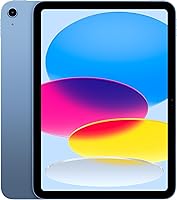
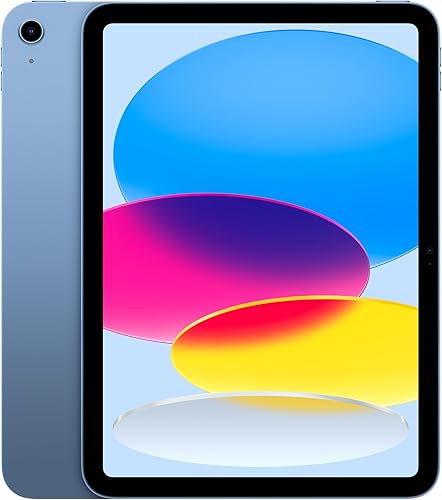
The Apple iPad 11-inch (A16, 128GB) is the best tablet for seniors who want a roomy screen, family video calls and a wide choice of apps.
Choose the Samsung Galaxy Tab A11+ if familiar Android software and expandable storage matter more. The Amazon Fire HD 10 fits Amazon reading and recipes, while the Lenovo Tab One puts lighter carrying first.
Start with the person's 3 main tasks, such as reading books, answering calls and checking email. A tablet that makes those tasks clear is a better choice than one bought for features they'll rarely use.
Our complete guide to tablets for older adults covers the broader choices. If Apple is already the favorite, read whether an iPad is easy to use for seniors before deciding.
Our picks at a glance
-
1
-
2

-
3

Which tablet is best for seniors?
The iPad is the strongest all-around choice here for calls, reading and varied apps. Each alternative has a clearer reason to choose it: Android familiarity, Amazon books, shared browsing or lower carrying weight.
We compared screen space, call features, storage and handling needs. The order favors flexible daily use, but someone who struggles to hold a larger tablet should give portability more weight than the overall score.
Apple iPad 11-inch (A16, 128GB)
- 11-inch Liquid Retina display
- 128GB storage
- 12MP Center Stage front camera
- Touch ID
Choose this iPad for family calls, reading and varied everyday apps. Touch ID adds fingerprint sign-in without making a keyboard or pen necessary.
Pros
- True Tone adjusts the display to room lighting
- 12MP Center Stage front camera for calls
- Touch ID in the top button
Cons
- Less compact than the Lenovo
- Apple Pencil and keyboard are optional extras for writing or typing
Choose the iPad for someone who wants one device for books, email, photos and regular family calls. Its 11-inch Liquid Retina display leaves room for larger text, while True Tone adjusts the display to the room's color temperature.
The 12MP Center Stage front camera makes calls a clear reason to choose it. Touch ID sits in the top button, offering fingerprint sign-in, though the person should still know and practice entering their passcode.
The A16 chip and 128GB storage support uses beyond basic browsing. Access to over a million apps designed for iPad also leaves room for new interests without choosing a tablet around a single activity.
Apple Pencil and Magic Keyboard Folio support matter if the person wants drawing, handwritten notes or longer typing sessions. Leave those extras out of the initial setup unless there's a clear need for them.
Skip it if carrying comfort is the main concern. At 1.05 pounds before a case, it deserves a seated holding check, especially if the person reads with the device raised rather than resting on a stand.
Samsung Galaxy Tab A11+
- 11-inch screen
- 6GB RAM and 128GB storage
- microSD expandable storage
- Quad Dolby Atmos speakers
A roomy Android choice for reading, family calls and keeping downloaded files. It suits someone who already feels comfortable using an Android phone.
Pros
- Screen refresh rate up to 90Hz
- microSD storage expansion
- Quad speakers with Dolby Atmos
Cons
- 25W wall charger for fast charging sold separately
- microSD card sold separately
Choose the Galaxy Tab A11+ for an Android phone user who wants a larger device for home use. Familiar habits can reduce the amount of new software they need to learn, though phone and tablet controls won't always match.
This configuration combines 6GB RAM and 128GB storage, with microSD expansion for compatible files. That makes sense for someone who keeps downloaded books or a growing photo collection available for offline use.
Its 11-inch screen supports a refresh rate up to 90Hz, and quad Dolby Atmos speakers suit family calls. The 5MP front camera covers those calls without making camera features the main reason to buy.
Plan the charging setup before handing it over. Samsung's fast charging requires a 25W wall charger sold separately, and Samsung advises using an approved charger and USB-C cable.
Skip it if the person already feels settled with Apple software and has no reason to switch. Extra storage flexibility is useful, but it shouldn't create a harder daily routine for someone who only wants a few familiar apps.
Amazon Fire HD 10
- 10.1-inch Full HD screen
- 4GB RAM and 32GB storage
- Alexa support
- microSD expansion up to 1TB
A focused choice for Amazon reading, recipes and Alexa. Confirm that every essential calling and everyday app works on it before choosing.
Pros
- 1080p display for books and photos
- Alexa can read books aloud
- Amazon claims 13-hour battery life
Cons
- 32GB internal storage in this configuration
- Essential app compatibility needs checking
Choose the Fire HD 10 when books, recipes and Alexa form most of the daily routine. Its 10.1-inch Full HD display suits that focused role without requiring the buyer to plan around drawing or keyboard accessories.
Alexa can read books aloud and help with recipes or compatible smart home devices. Voice control can offer another way to start a task, but the person should also feel comfortable using the screen.
This version has 4GB RAM and 32GB internal storage, with microSD expansion up to 1TB. Amazon claims 13-hour battery life, though actual charging needs will depend on brightness, apps and use.
The 5MP front camera supports calls through apps such as Zoom. Before buying, check the exact apps needed for family calls, email and any essential services instead of assuming every tablet offers the same choices.
Skip it if one required app isn't compatible. A tablet bought mainly for calls loses its purpose if the family's chosen service can't run on it, even when its reading and recipe features fit well.
Samsung Galaxy Tab A9+

- 11-inch 90Hz display
- Quad speakers with Dolby Atmos
- Multi-window apps
- Expandable storage
A shared household option for photos, browsing and email. Multi-window support also suits someone who wants compatible apps visible side by side.
Pros
- Large display for sharing photos
- Can show multiple apps at once
- microSD expansion up to 1TB
Cons
- 64GB internal storage in this configuration
- Some apps don't support multi-window use
Choose the Galaxy Tab A9+ for a household that wants a shared screen for photos, web browsing and occasional email. Its 11-inch display and quad Dolby Atmos speakers fit a tablet that often sits on a table.
The screen has 1920 x 1200 resolution and a 90Hz refresh rate. This configuration includes 4GB RAM and 64GB storage, with microSD expansion up to 1TB for compatible files.
Multi-window support is useful for someone who wants to refer to one app while working in another. Some apps don't support it, so treat it as a helpful option rather than a requirement for every task.
For a new tablet user, start with one app filling the screen. Introduce side-by-side use only after opening, closing and switching apps feel comfortable.
Skip it if the tablet needs to remain a private, predictable personal device. Sharing means agreeing on app placement, sign-ins and downloads, and the A11+ above provides more internal storage in the configuration compared here.
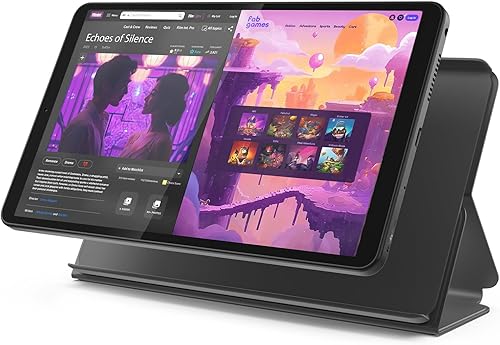
Lenovo Tab One
- 8.7-inch HD display
- Weighs 11.2 oz
- Folio case with built-in stand
- 64GB storage
Choose this smaller tablet when carrying weight matters most. The included folio stand also lets you set it down for reading or browsing.
Pros
- Weighs less than a pound
- Folio case with built-in stand included
- microSD support
Cons
- Less screen space for large text and controls
- 1340 x 800 resolution is below the larger picks
Choose the Lenovo Tab One when a tablet needs to move between rooms or travel in a bag. Its 11.2 oz weight makes portability a stronger reason to buy than the amount of content it can show at once.
The 8.7-inch HD display has 1340 x 800 resolution. Larger text will take up more of that screen, so expect more scrolling than on the larger tablets in this group.
The included folio case has a built-in stand, which is useful for setting the tablet down during reading or browsing. It also avoids having to choose a separate case before the first day of use.
Storage is 64GB with microSD support, and Lenovo claims up to 12.5 hours of video playback. That figure describes a particular activity rather than every possible daily routine.
Skip it if large controls and a spacious reading view are the priority. A small tablet can be easier to carry yet harder to read, especially when a keyboard or several on-screen controls take up part of the display.
How to choose the best tablet for seniors
Choose by reading comfort, familiar controls and the tasks that matter every day. Screen size and storage help narrow the choices, but they can't tell you whether the person can comfortably answer a call or find a book.
What makes a tablet for seniors easy to use?
An easy tablet lets the person repeat common tasks with few decisions. Ask them to open a book, return to the home screen, adjust the volume and find a contact.
Watch where they pause without taking over immediately. A missed button may call for larger controls, while trouble returning home may call for a clearer explanation of gestures or navigation buttons.
Include the person who will use the tablet in the choice. A family member's favorite system is useful only if its controls also make sense to the intended user.
Choose screen space and support together
A larger screen helps when text needs to be enlarged, but it also takes more space to hold and carry. Consider the tablet, case and stand as one setup rather than choosing the screen alone.
For mostly seated use, a stand can matter more than a small weight difference. It lets the screen stay raised without asking the person to hold it throughout a book chapter or call.
For carrying around the house, check whether the device fits securely in the person's hand or bag. Our guide to choosing a tablet size for reading and calls explains that trade-off in more detail.
Check the exact apps before choosing a system
Write down the names of essential apps, including the family's call service and any library, email or account apps. Check compatibility before buying, especially if replacing a device that already handles those tasks.
Also check how the person signs in. If an account sends a code to a phone, that phone needs to remain available during setup and future sign-ins.
Avoid switching several familiar services at once. Learning a new tablet is easier when the email account, contacts and regular activities stay recognizable.
Make reading comfortable in the apps that matter
Start with text size, then look at display scaling, contrast and magnification options. Reading apps may have their own font, spacing and background settings separate from the tablet's main controls.
Try an email, a book page and a website. A setting that improves one may leave another unchanged or push buttons farther down the screen.
Ask the person to read a full paragraph rather than judge a settings preview. Our guide to making text bigger on a tablet walks through the adjustments to check.
Which features matter for family video calls?
A compatible calling app, a steady position and clear sound matter more than choosing by camera resolution alone. The iPad is our first choice for regular calls, with the A11+ and Fire offering alternatives for different software preferences.
Place the tablet near eye level and face toward a light source. A window behind the caller can make their face harder to see, while holding the screen below the chin creates an awkward angle.
Check volume during an actual conversation. More speakers don't guarantee that every voice will be easy to understand, especially with a nearby conversation or other noise.
Practice answering as well as placing calls. The person needs to recognize the incoming call screen, turn the microphone on if muted and end the call without help.
Agree on one main calling app with family members. Our guide to making video calls on a tablet covers the setup steps and common controls.
Is an iPad, Android or Fire tablet the better fit?
Choose familiar software first, then check the few features that could change the decision. An iPhone user may prefer the iPad, while an Android phone user may feel more comfortable starting with Samsung or Lenovo.
Family support matters too. Someone nearby who understands the chosen system can help with sign-ins, downloads and confusing prompts, but the tablet should still suit the person using it.
The iPad's fingerprint sign-in is a useful convenience. The Samsung options' expandable storage is more relevant to someone who keeps files locally, so these benefits solve different problems.
A Fire tablet makes sense when Amazon books, recipes and Alexa already match the routine. Read whether a Fire tablet is good for seniors if that is the leading choice.
Don't buy a different system solely to make it match a relative's device. First confirm that both people can use the same calling service and share the content they actually want.
How much storage and internet access will you need?
Choose more internal storage for many apps and offline downloads; choose reliable internet access for web browsing and calls. Memory and storage are different: RAM supports running apps, while storage holds apps, photos and files.
Books and a few everyday apps create a different storage need from a large photo collection. Make a short list of what must remain available away from home before choosing a capacity.
Some storage is used by the system and installed content. A microSD card can add space for compatible files, but don't assume it replaces internal storage for every app.
Move or remove downloads you no longer need rather than keeping every finished book on the device. See how much storage you need on a tablet for help estimating your use.
Downloads can make some activities available offline, but calls and web browsing need an internet connection. Our guide to whether a tablet needs Wi-Fi explains what can still work without it.
How should you set up a tablet for a senior?
Set up a small, familiar home screen with the intended user present. The goal is for them to understand their own tablet, including the passcode, charging routine and route back to the main screen.
Start with accounts and essential apps
Use the person's own account for their tablet and record recovery details somewhere secure. Avoid making their everyday access depend on a helper's private password or phone.
Install only the apps needed for the first few tasks. Put reading, calls and email in consistent places, and remove unnecessary shortcuts from the main screen where possible.
Reduce optional notifications while keeping useful call alerts. Too many sounds and banners make it harder to tell which message needs attention.
Adjust controls before teaching routines
Set comfortable text size, brightness and sound levels before explaining app controls. Check that any case leaves buttons, speakers and the charging port easy to reach.
Practice a short sequence together: wake the tablet, sign in, open an app and return home. Repeat it with the person doing the actions rather than watching a helper.
If useful, write a short paper guide with the app names and simple steps. Avoid filling it with every feature, since a quick reminder should be easy to scan.
Explain purchases, prompts and account recovery
Show how to close an unwanted pop-up and leave an unfamiliar page. Explain that an unexpected message asking for a password or payment should be checked before acting.
Set purchase approval or authentication controls where appropriate and with the user's agreement. Also show where legitimate app updates appear so routine maintenance doesn't become a surprise.
Keep the passcode available through a secure method the person understands. Fingerprint sign-in is convenient, but it doesn't remove the need to remember account and recovery details.
What daily care keeps a tablet comfortable to use?
Use a stable stand, a clear charging spot and gentle cleaning to keep the tablet ready for daily use. A simple routine is easier to maintain than charging wherever a spare outlet happens to be.
Keep the charging cable within easy reach without stretching it across a walking path. Check that the plug is easy to insert, and replace damaged cables rather than continuing to bend them into position.
Clean the screen with a soft, lint-free cloth, following the device's care guidance. Don't spray liquid directly onto the screen or charging port.
Avoid leaving the tablet in direct sun or a hot parked car. Keep it on a firm surface while charging rather than under bedding or cushions.
If holding it becomes tiring, change the support or position before assuming a new tablet is needed. A stand can also keep the camera steady and free both hands during calls.
Which buying mistakes should you avoid?
Avoid buying for age alone or paying for features without a clear daily use. Seniors vary in experience, eyesight, hand comfort and interests, so the right choice begins with the individual.
- Choosing the smallest model for easier handling. It may be lighter, but enlarged text leaves less room for the rest of the page.
- Buying accessories before choosing activities. A pen or keyboard can wait until writing or typing becomes a regular need.
- Assuming expandable storage solves everything. Check which files can use the card and leave room internally for apps.
- Changing the home screen during every visit. Consistent app positions help the person build a routine.
- Sharing without clear boundaries. Agree before moving apps, adding accounts or leaving private information signed in.
- Judging battery claims as identical measures. Games, calls, brightness and standby time create different demands.
Before buying, confirm the exact configuration, essential app support and return terms. After setup, use that return period to check real daily tasks and holding comfort while there's still time to change the choice.
Which tablet should you choose for daily use?
The best tablet for seniors is the one that fits their main routine without creating new obstacles. Choose from these needs rather than buying the highest-scoring model automatically.
- Choose the Apple iPad for a flexible personal tablet built around reading, family calls and varied apps.
- Choose the Galaxy Tab A11+ for an Android user who wants room for downloads and everyday browsing.
- Choose the Fire HD 10 for Amazon books, recipes and Alexa after confirming essential apps.
- Choose the Galaxy Tab A9+ for shared home browsing and occasional side-by-side tasks.
- Choose the Lenovo Tab One when lighter carrying matters more than a spacious screen.
For a tablet that mostly stays on a table, favor screen comfort and a stable stand. For one that travels in a bag, check the full carrying weight with its case.
If software is the remaining decision, use our iPad vs Android tablet guide for seniors to compare the everyday habits each choice needs.
Our top 3 picks at a glance
-
1
-
2
-
3
Frequently asked questions
What is the easiest tablet for a senior to use?
The easiest tablet is the one the person can use for their main tasks without repeated help. Start with familiar software, then check reading comfort, opening apps and answering calls.
A simple home screen and a clear charging routine often matter more than extra features.
Is an iPad or Android tablet better for seniors?
Choose an iPad for someone who prefers Apple's software and wants this model's Touch ID and broad app choice. Choose Android when the person already understands an Android phone or wants the Samsung models' expandable storage.
Let the intended user compare everyday tasks before deciding.
What size tablet is best for older adults?
An 11-inch tablet is a sensible starting point for home reading and calls because it leaves room for larger text and controls. A smaller model suits carrying and shorter reading sessions.
Compare both while seated, using the text size and case you expect to use.
Can seniors make video calls on these tablets?
Yes, a tablet can handle family video calls when it supports the chosen calling app and has an internet connection. The iPad, Galaxy Tab A11+ and Fire HD 10 have front cameras intended for calls.
Confirm app compatibility, add contacts and practice answering before relying on it.
How can I make a tablet easier to read?
Increase text size first, then check display scaling, contrast and the reading controls inside each app. Try email, a book and a web page because they may respond differently.
Our guide to making text bigger on a tablet explains which settings to check.