How to Make Text Bigger on a Tablet
To make text bigger on a tablet, increase font size in Settings. Use an app's reading controls for books and websites, or display size if buttons also need enlarging.
On this page (10 sections)
- How to make text bigger on a tablet in Settings
- What is the difference between font size and display size?
- How do you enlarge text inside a book or reading app?
- When should you use magnification instead of larger text?
- How do you make text bigger on an iPad?
- How do you make text bigger on a Samsung tablet?
- How do you make text bigger on an Amazon Fire tablet?
- What if text stays small or buttons disappear?
- How do you choose a tablet for larger text?
- What should you adjust or buy first?
To make text bigger on a tablet, increase font size in Settings, then check your usual apps. If only a book or website is hard to read, use its reading controls first.
You usually don't need a new tablet to get larger letters. Start with the device you have, and consider a replacement only if enlarged text leaves too little room or the tablet is uncomfortable to hold.
How to make text bigger on a tablet in Settings
Find the font-size control in Settings and increase it a little at a time. Search for “font size,” “text size,” or “accessibility” if you don't see an obvious option.
Menu names vary by model and software version. Look under Display or Accessibility, and use the tablet's built-in help if needed.
- Open Settings and find the text-size control.
- Move the slider up 1 or 2 steps.
- Open a message, a contact, and a web page.
- Check that you can still reach buttons and read labels.
- Adjust again until you can read at your normal distance.
Change one control at a time. Moving several sliders together makes it harder to work out which adjustment helped or caused a cramped screen.
What is the difference between font size and display size?
Font size enlarges supported text, while display size or display zoom can enlarge buttons, icons, and other parts of the interface. Start with font size if words are the main problem.
Try display size when controls are also too small to tap comfortably. Larger controls take more space, so expect fewer items on some screens.
Neither option necessarily changes every app. A book's reading font, words in an image, and a website's layout may need separate adjustments.
How to make text bigger on a tablet without enlarging everything
Use text-only controls before changing display size. For a single reading app, change the book or article font rather than the whole tablet.
Bold text can also help letters stand out where that option is available. Contrast settings change how text stands out from its background, rather than making the letters larger.
How do you enlarge text inside a book or reading app?
Open the book and look for “Aa,” Appearance, or reading settings. These controls often let you change text size, spacing, and page color without affecting other apps.
Tap near the middle of a page to reveal hidden controls. If nothing appears, check the app's menu or help.
Increase the font before changing spacing. Once the letters are comfortable, adjust line spacing or margins so you can follow the next line without losing your place.
For websites, try a browser's reading view when available. It can simplify an article, while browser zoom helps pages that still have small text.
Our guide to the best tablets for reading covers device choices for frequent readers. For broader buying help, see what to look for in a tablet computer.
When should you use magnification instead of larger text?
Use temporary magnification for small details that font controls cannot change, such as a diagram or text inside a picture. Keep ordinary text sizing as your starting point for daily reading.
Magnification enlarges only part of the screen at once. You may need to move the view to find a button or read the rest of a line.
Learn the exit gesture or shortcut before increasing magnification. Practice turning it on and off on a familiar screen so you can return to the full view easily.
Pinching outward can enlarge some photos and web pages, but it won't work everywhere. For long articles, text that reflows into readable lines is easier to use than a page that needs constant sideways scrolling.
How do you make text bigger on an iPad?
Search Settings for Text Size or Larger Text, then check the result in your reading and messaging apps. Some apps follow the system setting, while others provide their own controls.
If the first slider isn't enough, look in Accessibility for additional text options. Adjust gradually and check that menus still fit.
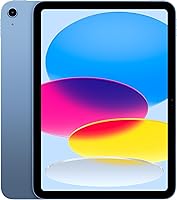
The Apple iPad 11-inch (A16, 128GB) suits someone who wants reading alongside document work and video calls. Its 12MP Center Stage front camera supports that broader use, while True Tone adjusts the display's color temperature to the room.
Skip it if your current tablet becomes comfortable after a font adjustment and you don't need another device. True Tone changes the screen's color appearance; it doesn't enlarge words.
Read is an iPad easy to use for seniors? for everyday setup considerations. Our guide to the best iPads for seniors helps if you've already chosen Apple's platform.
How do you make text bigger on a Samsung tablet?
Search Settings for Font size and adjust that before trying screen zoom. Check a full-screen app after each change, since split-screen views leave less room for enlarged text.
For either Samsung model below, use the reading app's controls when only books need larger letters.
The Samsung Galaxy Tab A11+ suits a shared household tablet that will hold reading apps, photos, and entertainment. This configuration has 6GB RAM and expandable storage, making it worth considering when those uses extend beyond reading.
Skip it if you're replacing a working tablet solely to enlarge text. More memory and storage don't make letters bigger.
The Samsung Galaxy Tab A9+ suits someone who wants reading plus occasional side-by-side apps. Its multi-window feature can help with checking an email beside another app, though app support varies.
Skip it if you expect enlarged text to stay spacious in several windows at once. Use one app full screen for longer reading, and consider storage needs if you plan to keep many files offline.
How do you make text bigger on an Amazon Fire tablet?
Look under Display or Accessibility in Settings, then adjust books separately in their reading menu. Use Settings search or built-in help if the labels differ on your device.
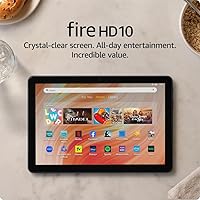
The Amazon Fire HD 10 suits someone focused on books, articles, and entertainment. Alexa can also read a book aloud, offering another way to follow a story when you want a break from the screen.
Skip it if your decision depends on a particular app until you've confirmed that app is available for Fire tablets. Screen size alone won't resolve an app mismatch.
What if text stays small or buttons disappear?
Compare the problem app with Settings to find out whether the issue is system-wide or limited to one app. If Settings text grew but the app did not, check that app's appearance or reading controls.
Reopen the app after changing a setting. If only one website remains difficult, try reading view or browser zoom.
Text inside a scanned document or picture won't respond like normal typed text. Zoom can enlarge it, but a clearer original or a text-based version may be easier to read.
If buttons disappear, reduce display scaling or font size by one step. Turning the tablet sideways may give a wide menu more room, but it can also make lines longer.
Avoid leaving maximum magnification on by mistake. A cropped view can make it seem as though controls have vanished when they're simply outside the visible area.
How do you choose a tablet for larger text?
Choose for usable space at your preferred font size, then consider weight and app availability. A larger screen helps only if you can hold or support it comfortably.
If you can try a device before buying, open a page similar to what you read at home. Enlarge the words, scroll, and check a menu rather than judging the home screen alone.
A screen measured diagonally doesn't tell you how a particular app will arrange its text. Compare portrait and landscape views, especially if you read documents as well as books.
Our guide to what size tablet to buy for reading and calls explains that tradeoff. A stand or supported case can also make a larger tablet easier to use at a steady reading distance.
Keep the screen free of fingerprints with a clean microfiber cloth. Reduce reflections by changing your position or the light source, and set brightness for the room rather than leaving it at maximum.
Our guide to tablets for older adults and home use covers common tasks and setup needs. Compare the best tablets for seniors when you're ready to choose a replacement.
What should you adjust or buy first?
The first step in making text bigger on a tablet is a font adjustment on your current device. Add app-specific reading controls next, and change display size if buttons also need to grow.
Choose the Fire HD 10 for a reading and entertainment routine, or the iPad for reading alongside documents and video calls. Consider the Galaxy Tab A11+ for shared use and storage needs, or the A9+ for occasional multi-window tasks.
Buy a larger device only when your preferred text size needs more room. For help setting up a tablet around daily reading and calls, follow our older-adult tablet guide.
Frequently asked questions
How do I make text bigger on my tablet?
Increase font size in Settings, then open a message and a web page to check the result. Search Settings for text size, font size, or accessibility if you cannot find the control.
Books and some apps use separate reading settings, so adjust those inside the app.
Can I make text bigger without enlarging everything?
Yes, a font-size control usually changes supported text without enlarging the whole screen. Leave display size or screen zoom unchanged at first.
If only a book or article needs larger letters, use its reading controls instead, which can preserve your usual menus and home screen layout.
Why is text still small in some apps?
Some apps use their own text settings, and words inside images cannot grow through a font-size slider. Compare the app with Settings to see where the change worked.
Try the app's appearance menu, browser zoom, or temporary magnification for content that stays small after a system adjustment.
Does a larger tablet make text bigger?
A larger tablet provides more space, but it does not automatically display larger letters. Font size and display scaling still matter.
Before replacing your tablet, adjust those controls and check your usual apps, then decide whether you need more room around the larger text or a different way to hold it.