6 Best Tablets for Reading (October 2026)
The best tablets for reading include the Apple iPad 11-inch (A16 for reading across apps, the Samsung Galaxy Tab A11+ for shared family reading, and the Amazon Fire HD 10 for books and browsing.
On this page (9 sections)
- Which is the best tablet for reading your books and documents?
- Is a bigger tablet better for reading?
- Which book apps and files should you check first?
- How much storage do reading tablets need?
- How should you set up a tablet for comfortable reading?
- Should you choose a tablet or an e-ink reader?
- Which buying mistakes make tablet reading harder?
- How do you care for a tablet used for reading?
- Which tablet should you choose for reading?
The best tablet for reading for most people is the Apple iPad 11-inch (A16, 128GB), thanks to its True Tone display and support for reading across apps. Choose the Lenovo Idea Tab Plus for full-page documents at a desk, or the Amazon Fire HD 10 for books mixed with web browsing.
Your reading material should drive the choice. A novel lets you resize the words, while a scanned textbook may keep every label, diagram and footnote fixed in place.
Start with your book services, then consider screen size and how you'll support the tablet. Extra storage and pen features matter most when your reading includes large downloads or written notes.
Our picks at a glance
-
1
-
2

-
3

Which is the best tablet for reading your books and documents?
The iPad is the strongest general-purpose choice, but the right alternative depends on what makes reading difficult on your current device. Pick more page space for cramped PDFs, storage expansion for large offline collections, or pen support for active study.
CheeryDeck compared screen size, storage, weight and writing features for those uses. Scores reflect each tablet's fit for reading alongside everyday tasks.
Check app access before comparing hardware. A tablet that cannot open your library books or preserve the annotations you need is the wrong choice, regardless of its screen.
| Product | Best for | Display | Storage | Weight | Our score |
|---|---|---|---|---|---|
| Apple iPad 11-inch (A16, 128GB) | reading across apps | 11-inch Liquid Retina | 128GB | 1.05 lb | 9.2 |
| Samsung Galaxy Tab A11+ | shared family reading | 11-inch LCD | 128GB, expandable | 1.1 lb | 8.9 |
| Amazon Fire HD 10 | books and browsing | 10.1-inch 1080p Full HD | 32GB, expandable up to 1TB | 8.4 | |
| Samsung Galaxy Tab S10 Lite | readers taking notes | 10.9-inch LCD | 128GB configuration, expandable | 8.1 | |
| Lenovo Idea Tab 11 | students building libraries | 11-inch 2.5K IPS | 256GB | 1.1 lb | 8.0 |
| Lenovo Idea Tab Plus | desk-based PDF reading | 12.1-inch 2.5K IPS | 128GB | 1.2 lb | 7.7 |
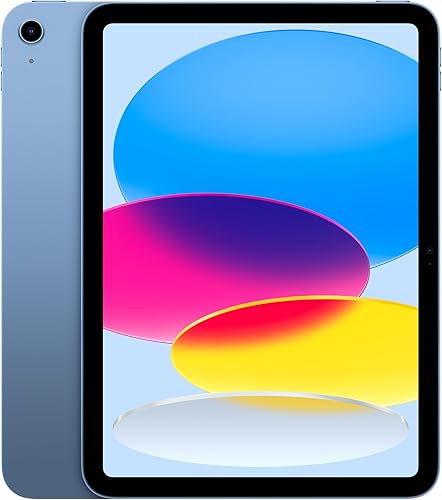
Apple iPad 11-inch (A16, 128GB)
- 11-inch Liquid Retina display
- True Tone color adjustment
- 128GB storage
- iPadOS multitasking
A flexible pick for readers who move between books, browser articles and documents. True Tone adjusts the display's color temperature to match the room.
Pros
- True Tone color adjustment
- Supports multiple apps at once
- Compatible with Apple Pencil
Cons
- Large body for one-handed reading
- A case adds to its carrying weight
The iPad suits readers who switch between several kinds of content rather than staying inside one book app. You can move from a chapter to a browser reference or use multiple apps while working through a document.
True Tone adjusts the screen's color temperature to the room. That can be useful as you move between daylight and indoor lighting, though you should still set brightness and text size yourself.
Apple Pencil compatibility gives you a route into handwritten notes if your chosen app supports them. Check the app's tools first: writing in a separate notebook and marking directly on a PDF are different tasks.
Choose this iPad if you want reading to sit alongside browsing, writing and other daily activities. Its broad purpose makes more sense when you'll use those extras several times a week.
Skip it if your main aim is to hold a novel in one hand for hours. Its tablet-sized body needs support, and a smaller dedicated reader may fit that habit better.
For full-page documents that stay on a table, the larger Lenovo option below deserves more attention.
Samsung Galaxy Tab A11+
- 11-inch LCD
- 6GB RAM and 128GB storage
- MicroSD expansion
- 90Hz refresh rate
An everyday family tablet for reading, browsing and email. Expandable storage gives a shared device room for more downloaded files.
Pros
- Expandable storage
- Quad Dolby Atmos speakers
- Roomy screen for web pages
Cons
- MicroSD card sold separately
- Fast charging requires a separate 25W charger
The Galaxy Tab A11+ suits a household sharing one reading and browsing device. It covers books, web browsing and email without making handwritten study the main reason to buy it.
Its 6GB RAM and 128GB configuration gives you a starting point for apps and downloads. MicroSD expansion adds room for files, which helps when reading material competes with other family downloads.
Decide how the shared device will work before filling it. Separate reading accounts where your services allow them, and check which account controls purchases so bookmarks and book access don't become confusing.
The 90Hz refresh rate concerns motion as you scroll; it does not make a stationary page larger. For reading, font controls and a well-sized page matter more than smooth animation alone.
Choose it for a mix of family uses with room to grow your offline collection. Skip it if handwritten annotations are central to your reading, since the pen-focused choices below address that need more directly.
If you're also comparing ease of use for an older reader, see our guide to whether an iPad is easy to use for seniors.
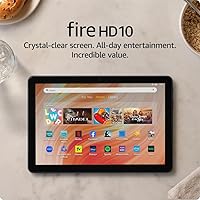
Amazon Fire HD 10
- 10.1-inch 1080p Full HD display
- 4GB RAM and 32GB storage
- MicroSD expansion up to 1TB
- Alexa reading feature
A fit for reading breaks mixed with web browsing and email. Confirm access to your book services before choosing it.
Pros
- Expandable storage up to 1TB
- Alexa can read your last book
- Amazon Kids parental controls
Cons
- Less internal storage than the other picks
- MicroSD card and stylus sold separately
The Fire HD 10 fits readers who want books and web browsing on the same device. Its 10.1-inch Full HD screen is the smallest in this group, though it still belongs to the large-tablet category.
This configuration has 4GB RAM and 32GB internal storage. You can add up to 1TB through a separately sold microSD card, but check where each reading app stores its downloads before relying on removable space.
Amazon claims up to 13 hours of battery life. Use that as a planning reference, with charging time available when your day includes games, brighter screen settings or other demanding activities.
Alexa can read your last book aloud, and Amazon Kids provides parental controls. Those features make the Fire worth considering for a device that serves several roles around the home.
Choose it after confirming that your book services, borrowed titles and documents work with its available apps. Skip it if one essential app or annotation feature is unavailable.
Our guide to whether you can read books on a tablet explains the format and app choices to settle before buying.
Samsung Galaxy Tab S10 Lite

- 10.9-inch LCD
- S Pen support
- 6GB RAM and 128GB configuration
- Vision Booster brightness adjustment
Choose this Samsung option when reading regularly leads to handwritten notes. Vision Booster adjusts brightness to your surroundings.
Pros
- S Pen support
- MicroSD expansion up to 2TB
- Environment-based brightness adjustment
Cons
- Pen features add little for reading-only use
- Fast charging requires a separate 45W charger
The Galaxy Tab S10 Lite suits readers who regularly turn a page into notes. S Pen support is useful when you want to write a question, sketch a diagram or summarize an argument in your own words.
Match the software to the task before choosing it. A pen alone doesn't ensure that an app lets you annotate borrowed books, export marked documents or search your handwriting.
Vision Booster adjusts brightness to your surroundings. Keep manual brightness controls within reach too, since a level suited to a bright room may feel excessive beside a bed.
Samsung claims up to 16 hours under its specified local video playback conditions. That figure is not a reading-time promise; screen settings, connected services and your mix of apps affect a day's use.
Choose this model if you want a Samsung tablet with writing features that you'll use often. Skip it if your usual reading involves only page turns and occasional typed highlights.
For coursework, decide how you'll save notes outside the tablet. A tidy folder of exported notes is easier to revisit than important points scattered across several apps.
Lenovo Idea Tab 11
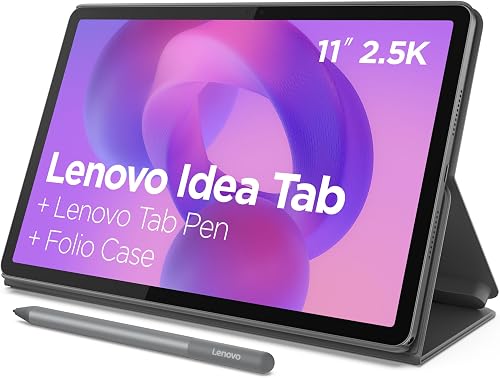
- 11-inch 2.5K IPS touchscreen
- 256GB storage
- Tab Pen included
- Folio case included
A study-focused package with a pen, a folio stand and room for downloaded course files. It suits readers who move between a text and handwritten notes.
Pros
- Tab Pen and folio case included
- 256GB internal storage
- 2560 x 1600 display resolution
Cons
- Pen may be unnecessary for novels
- Folio adds weight for handheld reading
The Lenovo Idea Tab 11 suits students collecting course files and writing alongside them. The package includes a Tab Pen and folio case, so you can plan around both handwriting and a supported reading position.
Its 256GB internal storage is useful when you want documents available without managing a separate card. Keep course folders organized by subject or term so that extra room doesn't become a pile of duplicate downloads.
The 2.5K display has a resolution of 2560 x 1600. That provides detail for text and diagrams, though a dense full-page document may still need zooming on this screen size.
Use the folio stand when reading at a desk, then change the angle if overhead lighting reflects across the page. The case supports the tablet, but its added bulk still counts when you carry or hold it.
Choose it when the pen, case and file capacity all serve your study routine. Skip it if you're buying only for novels and would leave the writing tools unused.
For textbooks with tiny captions, compare page area as well as resolution before deciding between this model and the Plus.
Lenovo Idea Tab Plus

- 12.1-inch 2.5K IPS touchscreen
- 128GB storage
- Tab Pen included
- Folio case with stand included
The largest screen here gives fixed-layout pages more room. Its included folio stand suits reading at a table, where you don't need to hold the tablet.
Pros
- Largest display in this group
- Tab Pen and folio case included
- 2560 x 1600 display resolution
Cons
- Larger body for travel and one-handed reading
- Less internal storage than the Idea Tab 11
The Lenovo Idea Tab Plus is the clearest fit for fixed-layout reading at a desk. Its 12.1-inch screen gives PDFs, magazines and diagram-heavy pages more room than the other tablets here.
It shares the Idea Tab 11's 2560 x 1600 resolution, spread across a larger panel. The benefit is a physically larger page, rather than a higher pixel count.
The included Tab Pen and folio case suit reading followed by notes. Prop it up for a document review, then use a suitable writing position when you need to mark or summarize material.
At 1.2 lb before the folio, this is a tablet to support during long sessions. A large screen loses its appeal if you keep shifting your grip or holding it above your face.
Lenovo claims up to 13 hours of rated battery life, which is not a reading-time promise. Keep your charging routine based on how you use it.
Choose the Plus for page space and table use. Skip it for frequent standing commutes or cramped bags, where the larger body can become a daily nuisance.
Is a bigger tablet better for reading?
A bigger screen helps most with pages that cannot reflow. For ordinary ebooks, adjustable text can make a smaller screen just as readable, with more frequent page turns.
Match the best reading tablet to your page format
For novels and other reflowable books, the app rearranges words when you change font size. You can usually trade the amount of text on each page for larger print without losing content.
Fixed-layout PDFs and scanned books behave differently. Enlarging them often means moving around the page, which can interrupt reading when you need to follow columns, tables or footnotes.
Comics and magazines also depend on the whole page. Think about whether you'll read them panel by panel or want the full layout visible at once.
Match the body to your reading position
Choose for the place you'll read most often. A large tablet can work well on a desk but feel awkward when you're standing on public transport.
Before buying, use a book or piece of cardboard near the tablet's dimensions to judge its footprint. This helps with bag fit and hand position, though it won't reproduce the device's weight.
Our guide to what size tablet you should buy covers the tradeoffs. If print size is the main issue, first learn how to make text bigger on a tablet.
Which book apps and files should you check first?
Check access to your existing books before choosing a platform. Account access, borrowing rules and file support can matter more than a modest difference in screen size.
Make a short list of where your reading comes from: a book store, public library, workplace, school or your own document folders. Confirm the required apps are available for the tablet you're considering.
Check offline access separately from online access. Being able to view a book in a browser does not always mean you can download it for a trip.
For documents, look beyond whether a file opens. You may need bookmarks, search, handwriting, text highlights or an export option that preserves your notes.
Borrowed books and protected files can restrict copying or annotation. Don't assume a pen or a different tablet removes those limits.
If travel is part of your plan, our guide to whether a tablet needs Wi-Fi explains which activities depend on a connection.
How much storage do reading tablets need?
Plan storage around large offline files and photos, rather than the number of book titles alone. Text-based ebooks generally take less room than image-heavy scans, audiobooks and photo collections.
Start with what you need available at the same time. A few current books create a different need from a semester of scanned textbooks plus games for a long trip.
Leave room for the operating system, apps and future downloads. The advertised capacity is not all available for your own files.
Expandable storage helps only where your apps and files can use it. A memory card doesn't automatically increase the space available to every app or move an existing library without extra steps.
Keep original documents and important annotations backed up elsewhere. A downloaded copy is convenient for reading, but the tablet should not be the only place your work exists.
Our tablet storage guide explains how to balance internal capacity, removable storage and downloads you can replace.
How should you set up a tablet for comfortable reading?
Set up text size, brightness and physical support before adding accessories. Small changes inside the reading app can matter more than a hardware upgrade.
- Adjust the words first. Increase font size until you can read without leaning toward the screen, then change spacing and margins if the app allows it.
- Set brightness in your usual room. Aim for a page that is clear without looking much brighter than its surroundings.
- Try the available page colors. A light, warm or dark background can suit different rooms and preferences; keep the one that makes the text easiest to follow.
- Support the tablet. Rest it on your lap or use a stable stand so your hands don't carry it through every chapter.
- Reduce interruptions. Silence avoidable notifications and keep unrelated apps out of your reading routine.
- Confirm offline access. Open a downloaded book with Wi-Fi off before depending on it away from home.
For PDFs, try landscape orientation or a page-width view if portrait mode makes the text too small. Use bookmarks to return to references instead of repeatedly scrolling through a long document.
Automatic color and brightness features don't replace readable text. Our tablet text-size guide covers settings worth adjusting inside apps and across the device.
Take short breaks to change position during long sessions. A comfortable setup should let you sit naturally rather than bend over a tablet lying flat on a low table.
Should you choose a tablet or an e-ink reader?
Choose a tablet for varied content, color pages and apps; consider an e-ink reader when long stretches of book reading are the main job. These picks are general-purpose tablets, so their extra uses come with extra distractions.
A tablet makes sense when your routine includes web articles, documents, recipes or notes. It can keep several reading tasks on one device, provided the apps support your material.
A dedicated reader deserves a separate comparison if you mostly read novels outdoors or want a device focused on books. Check its file and library support just as carefully.
Don't buy more tablet than your routine needs. Our guide to what to look for in a tablet computer helps put reading alongside the other jobs you expect it to do.
Which buying mistakes make tablet reading harder?
The most common mistake is choosing a spec before defining the reading task. Decide what you read, where you sit and which app you need before comparing extras.
- Buying the biggest screen for novels. Adjustable ebook text may solve the problem without adding a larger device to your bag.
- Treating refresh rate as text clarity. Motion smoothness and the detail of a still page are different qualities.
- Choosing a pen without checking the app. Confirm that your actual books or documents allow the marks you want to make.
- Planning storage around books alone. Photos, scanned pages, games and saved documents can change your needs.
- Using battery claims as equal measurements. Different activities and conditions prevent a simple hour-for-hour comparison.
- Forgetting the case and stand. Include their weight and carrying space in your decision.
- Assuming every download is backed up. Check that notes and annotations can be recovered before deleting an app or changing devices.
On a shared tablet, also agree on when it will be available. A capable family device is little help for evening reading if someone else needs it at the same time.
How do you care for a tablet used for reading?
Keep the screen clean, charging gear sound and files backed up. Those habits protect the parts of the device you rely on every time you open a book.
Use a clean, soft cloth and follow the brand's cleaning instructions. Avoid spraying liquid directly onto the screen or letting moisture enter the charging port.
Carry the tablet in a suitable case or protected bag compartment. Keep pens, keys and other hard objects away from the display.
Charge on a stable surface with suitable equipment, and replace damaged cables. Avoid leaving the tablet in direct sun or inside a hot parked car.
Check downloaded books before a journey and sync important notes while connected. For documents you've marked up, export a copy periodically if your app provides that option.
Which tablet should you choose for reading?
The best tablet for reading is the one that solves your main reading problem. Use these decision rules to make the final choice:
- Choose the Apple iPad when you read across apps and want a general-purpose device for books, documents and daily tasks.
- Choose the Galaxy Tab A11+ for shared family reading, browsing and an expandable offline collection.
- Choose the Fire HD 10 for books mixed with web browsing, once you've confirmed access to your reading services.
- Choose the Galaxy Tab S10 Lite when handwritten notes are a regular part of reading.
- Choose the Lenovo Idea Tab 11 for a study package with included writing tools and more internal file space.
- Choose the Lenovo Idea Tab Plus when larger fixed-layout pages and desk use matter most.
Before ordering, settle the one issue hardware can't fix later: access to your books and files. Start with whether you can read books on a tablet if you're unsure about formats.
If writing matters as much as reading, compare the best tablets for note taking before making your choice.
Our top 3 picks at a glance
-
1
-
2
-
3
Frequently asked questions
Is an iPad or Android tablet better for reading?
Choose the platform that supports your book services and reading files. An iPad suits readers who want iPadOS apps, while Android options here offer expandable storage.
Check library access, annotation tools and offline downloads before deciding, especially if you already have books tied to an account.
What screen size is best for reading on a tablet?
A 10- or 11-inch screen is a useful starting point for books and articles. Larger screens help with fixed-layout PDFs and magazines, but take more space in your hands and bag.
Our guide to choosing a tablet size explains how to match the screen to your reading position.
Can you read books on a Fire tablet?
Yes, the Amazon Fire HD 10 supports reading, and Alexa can read your last book aloud. Choose it if reading shares time with web browsing, after confirming your book services and file formats work with its available apps.
Download a book before traveling so you can open it without Wi-Fi.
How much storage do I need for reading?
Text-based books usually need less space than scanned PDFs, comics, audiobooks or photo collections. Plan around the files you keep offline, plus room for apps and system files.
Our guide to tablet storage needs explains why internal capacity and removable storage serve different needs.
Is a tablet comfortable for long reading sessions?
A tablet can suit long reading sessions when the text, screen brightness and support match your position. Use a stand or rest the device on your lap rather than holding it up throughout a chapter.
You can also make text bigger on a tablet before considering a larger screen.