5 Best Tablets for Video Calls (October 2026)
The best tablets for video calls include the Apple iPad 11-inch (A16 for regular family calls, the Samsung Galaxy Tab A11+ for shared family use, and the Apple iPad Air 11-inch (M4) for demanding workdays.
On this page (8 sections)
- How we chose tablets for video calls
- The best tablets for video calls by daily routine
- What should you check before buying a video call tablet?
- Which tablet is easiest to set up for family calls?
- How should you position a tablet for clearer calls?
- How should you manage charging and care between calls?
- What mistakes should you avoid when choosing a call tablet?
- Which tablet should you choose for video calls?
The best tablet for video calls for most people is the Apple iPad 11-inch (A16, 128GB), with its 12MP Center Stage front camera and useful everyday features. Choose another model when shared storage, Zoom chats or study tools matter more to your routine.
Start with the service your family, school or workplace uses. A tablet earns its place by making that conversation easy to join, hear and see, rather than by having the most powerful processor.
For setup steps, see how to video call on a tablet. If you're choosing for an older family member, our guide to tablets for older adults covers ease of use and other home tasks.
Our picks at a glance
-
1
-
2

-
3

How we chose tablets for video calls
We compared front cameras, screens, app requirements and practical extras to identify a clear role for each tablet. A good choice should handle the call routine you have and remain useful between conversations.
Front-camera features carry more weight here than rear-camera features. Screen space matters for group calls, while a stand, familiar controls and sensible storage can make the tablet easier to live with.
These picks serve different buyers: regular family callers, households sharing one device, people doing demanding work, Zoom users and students. Choose by that role before comparing smaller feature differences.
A tablet's overall score also covers its wider usefulness. The product advice below explains when that broader appeal helps a caller and when another pick fits better.
| Product | Best for | Front camera | Display | Wireless | Our score |
|---|---|---|---|---|---|
| Apple iPad 11-inch (A16, 128GB) | regular family calls | 12MP Center Stage | 11-inch Liquid Retina | Wi-Fi 6 | 9.2 |
| Samsung Galaxy Tab A11+ | shared family use | 5MP | 11-inch LCD | Wi-Fi | 8.9 |
| Apple iPad Air 11-inch (M4) | demanding workdays | 12MP Center Stage | 11-inch Liquid Retina | Wi-Fi 7 | 8.5 |
| Amazon Fire HD 10 | Zoom family chats | 5MP | 10.1-inch Full HD | 8.4 | |
| Lenovo Idea Tab 11 | students taking notes | 11-inch 2.5K IPS touchscreen | Wi-Fi | 8.0 |
The best tablets for video calls by daily routine
The standard iPad is the first choice for regular calls, while the other picks address more specific needs. Read the skip advice as closely as the reasons to buy, especially if calls will be the tablet's main job.
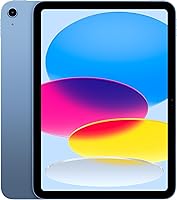
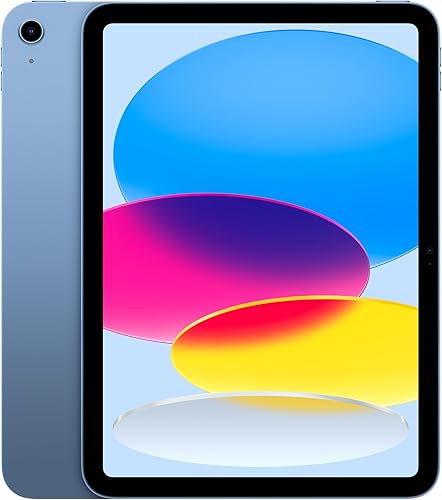
Apple iPad 11-inch (A16, 128GB)
- 12MP Center Stage front camera
- 11-inch Liquid Retina display
- Wi-Fi 6
- Touch ID
Choose this iPad for regular family conversations and everyday tasks. Its front camera makes calls a clear reason to buy without requiring the Air's extra processing power.
Pros
- Center Stage front camera
- Fingerprint access with Touch ID
- 128GB for apps and everyday files
Cons
- Storage cannot be expanded with a microSD card
- Keyboard and drawing accessories are separate purchases
The Apple iPad 11-inch (A16, 128GB) suits someone who wants family conversations, browsing and everyday apps on one device. Its Center Stage front camera makes it the clearest starting point when calls drive the purchase.
The 11-inch Liquid Retina display gives you space for faces and controls without moving to a much larger tablet. Touch ID in the top button also provides fingerprint access, which can simplify getting into the device.
The A16 chip makes this a general-purpose choice rather than a dedicated calling screen. You don't need to move up to the Air merely because you expect to make calls every day.
Choose it when you want an iPad and have no clear need for demanding creative apps. Skip it if your main goal is a study bundle with a pen and stand case, since Lenovo includes those extras.
Before buying for someone else, check their preferred service and account access. For a wider view of that choice, read iPad vs Android tablet for older adults.
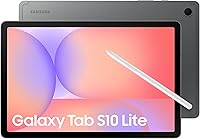
Samsung Galaxy Tab A11+
- 5MP front camera
- 11-inch screen
- 6GB RAM and 128GB storage
- Expandable storage
A practical choice for a household that wants calls, entertainment and space for family files on one tablet. Expandable storage helps when photos and downloads build up.
Pros
- Expandable storage
- Quad speakers with Dolby Atmos
- Fast charging support
Cons
- Lower front-camera resolution than the iPads here
- 25W wall charger is sold separately
The Samsung Galaxy Tab A11+ fits a shared household tablet that moves between calls, videos, reading and family files. Its expandable storage is useful when several people keep downloads or photos on the same device.
This configuration has 6GB of RAM and 128GB of storage, alongside a 5MP front camera. Its quad speakers with Dolby Atmos also serve entertainment between calls, though speaker features don't remove background noise from a conversation.
Fast charging requires a separate 25W wall charger. Include that in your accessory plan if the tablet will move between family members and have short breaks near an outlet.
Choose Samsung when flexible file storage matters more than having the highest front-camera resolution here. Skip it if camera features are your main reason for replacing an existing tablet; the standard iPad makes a stronger case for that buyer.
For other options from the same brand, use our Samsung tablet guide.
Apple iPad Air 11-inch (M4)
- 12MP Center Stage front camera
- 11-inch Liquid Retina display
- Wi-Fi 7
- M4 chip
Choose the Air when calls share your day with demanding apps and creative work. Its extra processing power is the reason to step up from the standard iPad.
Pros
- M4 chip for demanding apps
- Display with ultralow reflectivity
- Apple Pencil Pro support
Cons
- Extra processing power adds little to a basic call routine
- Keyboard and drawing accessories are separate purchases
The Apple iPad Air 11-inch (M4) belongs on your shortlist when work between calls is demanding. The M4 chip is the reason to choose it over the standard iPad, especially for complex apps and creative tasks.
Its front camera has the same resolution and Center Stage feature as the standard model. That gives little reason to step up solely for family conversations.
The display includes P3 wide color, True Tone and ultralow reflectivity. Those features have broader appeal for viewing and creative work, while Apple Pencil Pro support suits buyers who also draw or write.
Wi-Fi 7 with Apple N1 adds newer wireless capability, but your router and internet service still affect the connection. Don't choose the Air expecting it to solve weak coverage in a distant room.
Buy it when you can name the non-call work that needs its extra power. Skip it when your routine is calls, email, reading and browsing; the standard iPad is the more direct match.
Amazon Fire HD 10

- 5MP front-facing camera
- 10.1-inch Full HD screen
- Amazon claims 13-hour battery life
- 4GB RAM and 32GB storage
A focused option for Zoom conversations, reading and entertainment. Check any other required calling services before choosing it for school or work.
Pros
- Zoom support
- Expandable storage up to 1TB
- Parental controls through Amazon Kids
Cons
- Other required calling apps need a compatibility check
- 32GB requires closer management of apps and downloads
The Amazon Fire HD 10 suits a Zoom-centered family routine with reading and entertainment between chats. Amazon specifically names Zoom for calls, giving this model a clear role when everyone agrees on that service.
The 10.1-inch Full HD screen and 5MP front-facing camera cover the basic hardware needs. This version has 4GB of RAM and 32GB of storage, so downloaded videos and other large files need more attention.
A separate microSD card can add file space, with expansion up to 1TB. Extra storage won't add support for a missing calling app, so settle that question before choosing accessories.
Buy it if your required service fits and the tablet will spend much of its time on books and shows. Skip it if work or school requires several calling services that you haven't confirmed will work.
Our Fire tablet guide for seniors covers more home-use considerations.
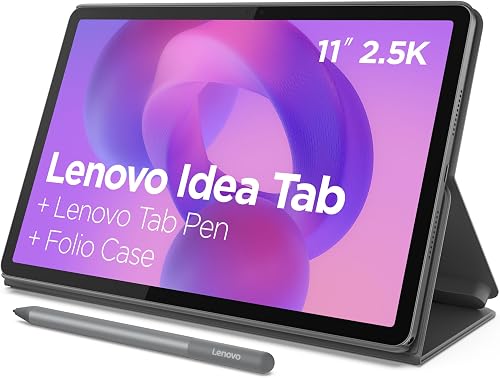
Lenovo Idea Tab 11
- 11-inch 2.5K IPS touchscreen
- 90Hz refresh rate
- Included folio case and Tab Pen
- Quad Dolby Atmos-tuned speakers
The included stand case and pen suit students who want one tablet for calls and handwritten notes. Confirm its front-camera details before making camera quality the deciding factor.
Pros
- Included folio case with stand
- Included Lenovo Tab Pen
- 256GB storage for study files
Cons
- Front-camera details need confirmation for camera-focused buyers
- Pen and learning tools offer less value for calls alone
The Lenovo Idea Tab 11 is the pick for students who need notes and calls together. Its included folio case has a stand, and the included Tab Pen gives the bundle a useful role away from meetings.
The 11-inch 2.5K IPS touchscreen, 8GB of memory and 256GB of storage suit a tablet carrying notes, apps and study files. Learning tools include Lenovo AI Note, Squid, Nebo and MyScript Calculator.
For calls, the stand case is the most immediate benefit: it frees your hands and keeps the tablet upright. Confirm the front-camera details before buying if how you appear on screen is your highest priority.
Choose Lenovo when a study setup would otherwise require separate accessory purchases. Skip it for a call-only role, where the pen and learning apps won't add much to your day.
For a broader platform comparison, see our best Android tablets for everyday use.
What should you check before buying a video call tablet?
Check service compatibility first, then camera, screen and placement. Those choices determine whether you can join the right people and stay comfortable through the conversation.
Which front camera matters on the best tablet for video calls?
Prioritize the front-facing camera, since that is normally the camera showing your face. A high-resolution rear camera helps with photos or documents but shouldn't lead this decision.
Megapixels describe image resolution, not the whole call experience. A bright window behind you can leave your face dark, and a limited connection can reduce the detail sent to the other person.
Think about framing as well as detail. If 2 people will share the screen, plan enough space to sit together and check that both faces fit before settling on a permanent stand position.
Don't judge your outgoing image by how sharp the tablet's display looks. The screen shows the other caller's video, while your camera and connection affect what they receive.
Will your calling app and account work?
Confirm the exact service and sign-in method you need. Being able to install an app is only part of the job if school or work controls access.
Ask the organizer whether you need an account, can join from an invitation, or must use an approved device. If screen sharing matters, check that feature on the tablet version of the app too.
For family use, agree on one service before buying for several people. A familiar contact list and a repeatable way to answer calls are more useful than keeping several rarely used apps.
Our tablet video call setup guide explains the basic steps once you've chosen a service.
What screen size works for calls?
Choose a screen you can read comfortably at the distance it will sit, rather than only considering how it feels in your hands. Group-call tiles and control buttons get harder to see when the tablet is farther away.
The models here occupy a similar size range. Their placement, text settings and the app's layout may affect comfort more than a small difference in screen size.
For a shared call from a table, leave space for a stand and charging cable. For sofa use, consider how you'll support the tablet without holding it at an awkward angle.
Our tablet size guide for reading and calls covers those trade-offs in more detail.
How much storage does a calling tablet need?
Base storage needs on what you save between calls, especially downloaded videos, photos and school files. A basic conversation doesn't require a large collection of locally stored files.
Recordings can change that calculation, but recording access and storage location depend on the service and account. Find out whether recordings stay online or download to your tablet before choosing capacity.
Expandable storage helps with compatible files; it doesn't automatically increase space available to every app. Our guide to how much storage you need on a tablet helps you plan for your wider routine.
Which tablet is easiest to set up for family calls?
The easiest setup uses one familiar service, saved contacts and a stable stand. Arrange those before handing the tablet to someone who wants to answer calls with as few steps as possible.
Start by setting up the account with the intended user's details. Make sure they can recover access if they forget a password, and keep recovery information somewhere they can find it safely.
Put the calling app in a clear spot on the home screen. Remove unnecessary shortcuts from that area so the person doesn't have to search through similar icons.
Allow camera and microphone access when the app asks. Check notification settings too, since a working camera won't help someone notice an incoming call if alerts are silent.
Make a short practice call that includes both placing and answering a call. Have the user find mute, switch the camera off and end the conversation without help.
For an older adult, adjust text and explain the controls at their pace. See making text bigger on a tablet and our overview of tablets for older adults for related setup help.
If the device is shared, decide whose account will receive calls. Keep private messages and meeting invitations in mind before leaving a signed-in tablet in a common room.
How should you position a tablet for clearer calls?
Set the tablet near eye level, facing soft light, with the microphone and speakers clear. This improves the basic call setup without requiring a different device.
Use a stable stand and check the camera edge
Place the tablet on a firm surface and choose an angle that shows your face without pointing up from your lap. Leave enough room around the stand that an arm or cable won't easily knock it over.
Rotate the tablet before the call and check the preview. Landscape can work well for people sitting together, while another orientation may fit a one-person conversation better.
Keep fingers, case edges and sticky notes away from the camera. Check that the case doesn't cover microphone openings or press against controls.
Light your face and reduce room noise
Face a window or put a lamp in front of you and slightly to one side. Avoid sitting with a bright window directly behind your head.
Move away from fans, running water and a television when possible. Turn down excessive speaker volume if the other person hears an echo.
Headphones can help you hear speech in a busy room. If you use a separate microphone or headset, confirm that the app has selected it before the conversation starts.
Check the connection where you actually sit
Make your practice call from the usual calling spot. A connection that works beside the router may behave differently across the house.
If video freezes, move closer to the router and pause large downloads on other devices. Newer Wi-Fi hardware still depends on the network around it.
For travel, arrange internet access before a scheduled call rather than assuming a tablet will connect anywhere. Our guide to whether a tablet needs Wi-Fi explains the basic connection choices.
How should you manage charging and care between calls?
Keep the tablet charged, clean and ready in its usual place. A simple routine helps prevent missed calls and rushed setup.
Battery claims for general use aren't call-duration promises. Video conversations use the camera, display, microphone and network together, so leave a charging margin before a long appointment.
Keep a suitable charger within reach and route its cable away from feet and chair legs. Avoid tension on the connector, especially when a tablet is resting in a stand.
Use a soft, clean cloth for fingerprints and the camera area, following the brand's cleaning instructions. Don't spray liquid directly onto the tablet or push debris into its openings.
Keep vents and openings clear, and avoid leaving the device under blankets or in direct sun during a call. A stable table also reduces the chance of spills reaching it.
Install system and app updates with time to spare before an important meeting. Open the calling app afterward so a sign-in request or permission prompt doesn't surprise you at the start.
What mistakes should you avoid when choosing a call tablet?
Avoid buying around one impressive specification while overlooking the call routine. The most common mismatches involve app access, room setup and features that won't get used.
- Buying for the rear camera. Compare the camera that will face you during calls.
- Paying for unused processing power. Choose a faster chip because your other apps need it, rather than expecting clearer speech from it.
- Ignoring invitation links. Practice opening a real meeting invitation, especially for work or school.
- Assuming every feature carries over. Check screen sharing, recording and other required tools in the tablet app.
- Skipping the stand. Holding a tablet through a long conversation makes framing harder and ties up your hands.
- Using 2 nearby devices with sound on. This can cause echo; keep only the intended device's microphone and speakers active.
- Confusing display sharpness with outgoing video. The front camera, light and connection affect what others see.
- Forgetting accessories. Plan for the case, stand, charger or headphones your routine requires.
For an occasional call, improving the room and placement may solve the main problem with a tablet you already have. Replace the device when compatibility, damaged hardware or your broader needs make the current setup unsuitable.
Which tablet should you choose for video calls?
Choose the best tablet for video calls by its main daily job. Before ordering, name the service you'll use, where the tablet will sit and what it must do between conversations.
Pick the Apple iPad 11-inch (A16, 128GB) when regular calls and everyday iPad use are the priority. It's the default choice for someone without a more specific need.
Choose Samsung Galaxy Tab A11+ for a shared family device with expandable file storage. Choose Amazon Fire HD 10 when Zoom is the agreed service and reading or entertainment fills the rest of the day.
Move to iPad Air 11-inch (M4) when demanding apps justify its extra power. Choose Lenovo Idea Tab 11 when the included pen and stand case support a study routine, after confirming the camera meets your needs.
Then prepare the first conversation: arrange the stand, check account access and follow how to video call on a tablet.
Our top 3 picks at a glance
-
1
-
2
-
3
Frequently asked questions
What camera resolution is good for tablet video calls?
A 5MP front camera can be enough for everyday conversations, while more pixels alone don't guarantee a better call. Light your face from the front and use a steady connection.
The calling app can reduce video detail when bandwidth is limited, regardless of the camera's resolution.
Is an iPad or Android tablet better for video calls?
Choose the platform that supports your required calling service and feels familiar to the person using it. Check account sign-in, meeting links and any work or school restrictions before buying.
For a family tablet, easy access to the right contacts matters more than choosing one operating system over another.
Can you video call on an Amazon Fire tablet?
Yes, the Amazon Fire HD 10 supports Zoom calls and has a front-facing camera. That makes it a useful option when your family agrees to use Zoom.
Check other required services separately, including how you'll join invitations and sign in, before relying on it for work or school.
How can I make a tablet easier to use for calls?
Use a stable stand, clear app placement and readable controls to simplify calls. Set up the account, save key contacts and make a practice call before handing over the tablet.
Our guide to making text bigger on a tablet explains display changes that can help with reading.