Amazon Fire HD 10 Tablet Review: Worth It? (October 2026)
This Fire HD 10 review recommends it for home browsing, reading and casual games if your essential apps are available. Choose Samsung for multi-window work or Lenovo for easier carrying.
On this page (10 sections)
- Fire HD 10 review: what makes it worth choosing?
- Who should buy the Fire HD 10, and who should skip it?
- How much storage should you plan for?
- What should you check about apps, Alexa and family controls?
- How should you set up the Fire HD 10?
- Is the Fire HD 10 useful for calls and handwritten notes?
- Fire HD 10 vs. Samsung Galaxy Tab A9+ and Lenovo Tab One
- How can you get more useful time between charges?
- What buying mistakes should you avoid?
- Fire HD 10 review verdict: which tablet should you choose?
The Amazon Fire HD 10 is a good fit for home browsing, reading and casual games, provided it supports the apps you need. This Fire HD 10 review recommends it for everyday home use first, with Samsung and Lenovo offering clearer reasons to switch for multitasking or travel.
Its main appeal is a roomy screen paired with Amazon's family controls and Alexa. The main buying checks are app access, offline storage and whether you need accessories beyond the tablet.
Fire HD 10 review: what makes it worth choosing?
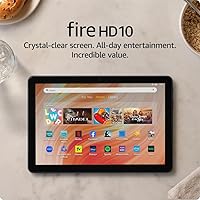
The Fire HD 10 earns its place as an everyday tablet for home use. Its 10.1-inch 1080p Full HD display gives photos, illustrated books and web pages more room than a compact tablet.
Amazon Fire HD 10

- 10.1-inch 1080p Full HD screen
- 4 GB RAM and 32 GB storage
- MicroSD expansion up to 1 TB
- Amazon claims up to 13 hours of battery life
A home tablet pick for readers and families who want a roomy screen, Alexa and Amazon Kids controls. Check essential apps before buying, and allow for a separate memory card or stylus if needed.
Pros
- Full HD screen for photos and illustrated pages
- Expandable storage for supported content
- Amazon Kids parental controls
- Supports a pressure-sensitive stylus sold separately
Cons
- 32 GB built-in storage needs planning for offline content
- MicroSD card and stylus cost extra
- Less compact than the Lenovo alternative
This configuration pairs an octa-core processor with 4 GB of RAM. Amazon says performance is 25% faster than the previous generation, but that comparison alone isn't a reason to replace a tablet that already handles your routine.
The stronger reason to buy is that your current screen feels cramped or you want a separate device for leisure. A tablet beside the couch can keep reading and browsing away from the phone you use for messages.
Amazon uses strengthened aluminosilicate glass and describes the design as lightweight and durable. Add a protective case if the tablet will move between rooms or family members, since strengthened glass still needs care.
The Fire HD 10 review trade-off: leisure or work?
Choose Fire when one main activity at a time describes your day. Reading a novel, browsing recipes or joining a family call is a different job from managing documents while checking email and taking notes.
For work, write down the exact apps and file types you need before buying. Don't assume that a tablet suitable for reading and games will also fit a school portal, office system or specialist app.
The optional pen adds another way to use the screen, but it doesn't settle those software questions. If handwriting is your main purpose, compare app tools and file sharing as carefully as the pen itself.
Who should buy the Fire HD 10, and who should skip it?
Buy the Fire HD 10 if you want a shared home screen or a personal leisure tablet and Amazon's features match your habits. Skip it if compact carrying, frequent side-by-side work or an unconfirmed essential app leads your decision.
For someone who mainly browses recipes at a table or on a stand, the larger format is useful. For someone who reads while holding a device above a pillow, the same size can become a burden.
Readers who enlarge text also need to think beyond the tablet's outer size. Bigger text reduces how much fits on each page, so extra screen area can mean fewer page turns or less scrolling.
For older adults, choose around familiar apps, readable controls and the help available during setup. Our guide to whether a Fire tablet is good for seniors explains those choices in more detail.
A shared family tablet needs a different plan from a personal one. Decide who manages accounts, approves content and removes old downloads before everyone starts adding apps.
How much storage should you plan for?
Plan storage around what you need offline, rather than the largest capacity you can add. This Fire configuration has 32 GB built in and supports a separately sold microSD card of up to 1 TB.
Web browsing at home puts less pressure on storage than carrying a large collection of saved photos. Games, app files, photos and attachments can fill space even when your books take relatively little room.
A memory card isn't the same as more built-in storage. Apps and services control what can move to a card, so check their download settings before relying on expansion for a large offline collection.
Make a simple list of what must stay on the tablet: current books, a few photo albums, favorite games and essential apps. Keep the rest available to download later instead of storing everything at once.
The tablet storage guide can help you estimate a sensible capacity. Leave some free space and remove finished downloads regularly rather than waiting until a new app won't fit.
What should you check about apps, Alexa and family controls?
Check your must-have apps first, then decide whether Alexa and Amazon Kids add enough value to choose Fire. A screen can fit your needs perfectly while the wrong app access still makes the tablet a poor buy.
Use exact app names in your checklist, including the service you use for books, photos, calls and email. Check account sign-in, subscriptions and any feature you depend on, such as offline downloads.
Alexa can help with recipes, jokes, reading and smart home controls. Think of those as useful extras if you already want voice control, rather than a reason to accept a tablet that misses an essential app.
Amazon also includes tools for polishing email, summarizing webpages and creating wallpapers. Read generated summaries against the original when details matter, and review an email before sending it.
Amazon Kids parental controls and Amazon Kids+ serve different roles. Kids+ is a separate subscription offering books, apps and games.
Start with the controls your household needs before choosing extra content. Set limits and purchase permissions, then review them as the child's interests and reading level change.
How should you set up the Fire HD 10?
Set up accounts, updates and your daily apps before adding a large collection of downloads. A short, focused first session makes it easier to spot a problem while the setup is still simple.
- Connect to your home Wi-Fi and complete the device's setup prompts.
- Install available software and app updates.
- Set a screen lock and review account recovery details.
- Add your essential reading, browsing and calling apps.
- Adjust text size and brightness for the room where you'll use it.
- Set family controls and review purchase permissions if the tablet will be shared.
For someone who needs help with technology, keep the first routine small. Show them how to open a book, return to the main screen and answer a call before introducing extra features.
Download a small sample of content before preparing for a trip. Open it with Wi-Fi disconnected so you know the download is complete and the app allows offline use.
Some services need a connection for sign-in checks or certain features even when other content works offline. Our guide to whether a tablet needs Wi-Fi explains what to prepare before leaving home.
Is the Fire HD 10 useful for calls and handwritten notes?
The Fire HD 10 can handle family Zoom calls and optional pen input, making it useful beyond browsing and reading. Choose it for those extras only after checking the apps and accessories your routine requires.
Its 5 MP front-facing camera supports calls with family and friends. Put the tablet near eye level, face a window or lamp and avoid having a bright window behind you.
A stable stand also leaves your hands free and keeps the camera angle steady. Before an important call, check sound, camera permissions and the selected microphone using the app's preview controls.
For step-by-step help, read how to video call on a tablet. Connection quality, room noise and lighting all affect a call, so camera resolution shouldn't decide the purchase on its own.
The separately sold Made for Amazon Stylus Pen offers 4,096 pressure levels for writing and sketching, including in OneNote. Before buying it, decide whether you want quick lists, annotated documents or organized study notes.
Those jobs place different demands on the software. Our guide to tablets for note taking helps you compare handwriting, document work and note organization.
Fire HD 10 vs. Samsung Galaxy Tab A9+ and Lenovo Tab One
Choose Samsung for supported side-by-side tasks, Lenovo for carrying, and Fire for everyday home use with Amazon features. These differences matter more than small gaps between advertised battery figures.
| Tablet | Strongest reason to choose it | Reason to choose another |
|---|---|---|
| Amazon Fire HD 10 | Everyday home use with Alexa and Amazon Kids | Your main task needs an app you haven't confirmed |
| Samsung Galaxy Tab A9+ | Supported apps side by side and more built-in storage | You want a compact device for a small bag |
| Lenovo Tab One | Easy carrying with a stand case included | You need roomy pages or larger text |
Samsung Galaxy Tab A9+: for switching between tasks
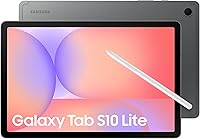
The Samsung is the stronger alternative for browsing while checking email or keeping supported apps open together. Its multi-window feature gives that use a clear purpose, though some apps don't support it.
Its 11-inch, 1920 x 1200 screen runs at 90Hz, and quad speakers support Dolby Atmos. The 64 GB configuration also provides twice the Fire's built-in storage, with expansion available up to 1 TB.
Choose it if these features match tasks you'll actually do. Skip it if you want the smallest possible reading companion or if you're buying mainly for Amazon's voice and family features.
Lenovo Tab One: for a tablet that travels easily
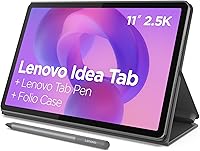
The Lenovo is the better fit when bag space and holding comfort matter more than a roomy display. Its 8.7-inch HD screen sits in a tablet weighing 11.2 ounces, with 64 GB of storage.
The included folio protects the tablet and folds into a stand for reading recipes or making family calls. That makes it a practical option for carrying between home, a waiting room and a travel bag without choosing a separate stand case.
Skip it if you often enlarge text in full-page documents or want more room for illustrated books. A smaller screen can make those tasks involve more zooming and scrolling.
For a closer brand comparison, see Lenovo vs. Samsung tablets.
Our best Android tablets guide also covers options for everyday use.
How can you get more useful time between charges?
Reduce unneeded screen brightness and background activity before changing how you use the tablet. Brightness, calls, games and browsing habits can all affect how long a charge lasts.
Amazon claims up to 13 hours of battery life for Fire, while Lenovo claims up to 12.5 hours of rated battery life for Tab One. These figures describe different usage conditions and don't establish a direct battery ranking.
For travel, download permitted content over home Wi-Fi and charge before leaving. Keep a suitable charging cable accessible instead of relying on a nearly empty battery to last through an uncertain journey.
Protect the tablet from heat, including a parked car or direct sunlight on a windowsill. If a case traps heat during charging, follow the device and case care instructions.
Clean the screen with a soft microfiber cloth and keep liquid away from openings. Place it on a stable surface, especially when a charging cable could catch on a passing hand.
What buying mistakes should you avoid?
Avoid choosing by screen size or storage alone. The right tablet needs to fit your apps, your usual holding position and the accessories you expect to use.
Don't buy a stylus just because you might write notes someday. Choose a note app and a real task first, then decide whether pen input helps.
Don't fill the tablet with downloads during the first setup. Add essential apps, confirm they work and build your offline library gradually.
Also, don't mistake a larger display for easier use in every setting. It helps with page space, but a case or stand may matter more if holding the tablet is tiring.
Finally, compare the whole setup. A memory card, pen and suitable case can change which tablet makes the most sense, even when the devices appear close at first.
Fire HD 10 review verdict: which tablet should you choose?
Choose the Fire HD 10 for a home leisure routine built around web browsing, reading and casual games. Confirm your essential apps, plan your offline storage and buy accessories for tasks you already expect to do.
Choose Samsung if compatible apps side by side would make daily tasks easier. Choose Lenovo if you'll carry the tablet often and value a compact screen with a stand case included.
The decision from this Fire HD 10 review is to match the tablet to your most frequent activity. If that activity is books, use our guide to reading books on a tablet to decide how screen size, text settings and holding position should shape your choice.
Frequently asked questions
Is the Amazon Fire HD 10 good for everyday use?
The Fire HD 10 suits everyday home use, including web browsing, reading, casual games and Zoom calls. Choose it when those jobs cover most of your needs and your essential apps are available.
For frequent work across several apps, the Samsung Galaxy Tab A9+ has a clearer advantage through its multi-window support.
Can you use a stylus with the Fire HD 10?
Yes, the separately sold Made for Amazon Stylus Pen supports 4,096 pressure levels for handwriting and sketching, including use in OneNote. Check your preferred app's pen features and export options before buying.
A compatible pen helps with input, but your app still determines how you organize, search and share notes.
Can you video call on the Fire HD 10?
Yes, Amazon supports Zoom use with the Fire HD 10's front-facing camera. Set the tablet on a stable stand, face a light source and check microphone and camera permissions before your first call.
If your family uses another calling service, confirm that exact app works before choosing the tablet.
Is the Fire HD 10 better than a smaller tablet?
The Fire HD 10 is better for roomy pages and browsing at home, while a smaller tablet is easier to carry and hold for long stretches. Choose the Lenovo Tab One if bag space and portability lead your decision.
Choose Fire if enlarged text, illustrated books and photos take priority.