Samsung Galaxy Tab A11+ Review: Worth It? (October 2026)
Our Galaxy Tab A11+ review recommends it for family browsing, reading and video calls. Choose the Lenovo Idea Tab 11 for handwritten notes with an included pen, or consider the Galaxy Tab A9+ for light tasks using its multi-window feature.
On this page (9 sections)
- Galaxy Tab A11+ review: who should buy it?
- How does the A11+ screen suit photos and reading?
- Is the built-in storage enough for your household?
- How should you set up the A11+ for video calls?
- When is the Lenovo Idea Tab 11 the better choice?
- When does the Galaxy Tab A9+ make sense?
- What should you do during the first setup?
- How should you charge and care for the A11+?
- Galaxy Tab A11+ review: which tablet should you choose?
The Samsung Galaxy Tab A11+ is a good choice for everyday family use, especially browsing, reading and video calls. This Galaxy Tab A11+ review recommends it for households that want a shared screen, while students who write notes should look closely at the Lenovo alternative below.
The main decision is how you'll use the tablet each day. Browsing photos, reading recipes and calling relatives make a different shopping list from marking up lecture notes or replacing a work computer.
If you're comparing Samsung models first, our Galaxy Tab A9+ review explains the other Samsung option covered here.
Galaxy Tab A11+ review: who should buy it?
Buy the A11+ if you want a general home tablet for reading, web pages and calls. Skip it as your default choice if handwritten notes are the main reason you're buying a tablet.
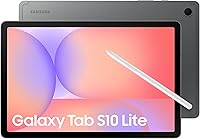
Samsung Galaxy Tab A11+

- 11-inch LCD
- 6GB RAM and 128GB storage
- Expandable microSD storage
- 5 MP front camera
A good fit for a shared home tablet used for reading, web browsing and family calls. Choose this configuration if you want room for apps without making handwritten notes your main task.
Pros
- 128GB built-in storage
- microSD expansion for compatible files
- Quad speakers with Dolby Atmos
- 5 MP front camera
Cons
- 25W wall charger sold separately for fast charging
- microSD card sold separately
This configuration pairs 6GB RAM with 128GB of built-in storage. Memory helps with running apps, while storage holds the apps and files themselves, so those numbers serve different jobs.
Samsung says the upgraded chipset improves performance over the Galaxy Tab A9+. That makes the A11+ worth considering for mixed daily use, but it doesn't establish how a particular demanding game or specialist app will run.
For a shared household device, the useful question is who gets the screen and when. A tablet that moves between a kitchen counter, sofa and desk needs an easy place to charge and a stand that suits those locations.
Does this Galaxy Tab A11+ review recommend it for work?
Choose it for light tasks that fit tablet apps, such as email, web forms and reading documents. Before buying it for work, check your required apps, file formats and any keyboard or accessory needs.
A touchscreen can handle a short reply well, but writing long documents and moving files between several services can call for a different setup. Our guide to whether a tablet can replace a laptop helps you assess those tasks before committing.
Don't choose it solely for AI features. Google Gemini and Circle to Search can help with some tasks, but Gemini requires internet access and has account, age, language and country restrictions; check its answers before relying on them.
How does the A11+ screen suit photos and reading?
The A11+ suits tabletop use and larger text, with an 11-inch LCD, 1920 x 1200 resolution and a refresh rate up to 90Hz. Quad speakers with Dolby Atmos provide audio for family calls without separate speakers.
The refresh rate concerns how often the display redraws the image. It can help scrolling look fluid, but it doesn't improve a low-quality photo or make a slow internet connection faster.
For reading, choose your text size before judging how much fits on the screen. Larger type, suitable line spacing and comfortable brightness often matter more than fitting the maximum number of words on a page.
Use our guide to making text bigger on a tablet if menus or article text feel too small. For books, our guide to reading books on a tablet explains the choices beyond screen size.
At 1.1 lb, the A11+ is better suited to supported reading than holding it above your face for a long chapter. Rest it on a stand, cushion or table so your hands don't carry the whole load.
For family calls, place the screen where everyone can see without turning the volume up to cover room noise. Headphones are the more considerate option in a shared bedroom or quiet room.
Is the built-in storage enough for your household?
The built-in capacity is a sensible starting point for mixed home use, provided you manage large downloads. Expandable microSD storage is useful for compatible files, but a card doesn't replace internal space for every app.
Start with your offline habits. Reading web pages and deleting an occasional download is a lighter storage pattern than keeping large photo collections, large games and a document library on the tablet.
Some space is occupied by existing content, so the full capacity won't be available for your files. Leave room for app updates rather than filling the device to its limit.
A microSD card is sold separately, and apps differ in whether they can save downloads to it. Check the storage settings inside your most-used reading and photo apps before buying a card for that purpose.
Avoid the common mistake of treating a card as extra memory. It adds file capacity; it doesn't add RAM or make heavy multitasking easier.
Our tablet storage guide can help you estimate your needs. Start with essential apps and files, then add a card when you have a clear use for it.
How should you set up the A11+ for video calls?
Set the A11+ on a stable surface near eye level, with light facing you. Its 5 MP front camera is useful for calls, but positioning and connection quality still affect what the other person sees.
A bright window behind your head can make your face look dark. Turn toward the window or use a lamp in front of you, keeping harsh reflections off the screen.
Install the calling app your family already uses, sign in and allow camera and microphone access. Make a short practice call so you can check framing, volume and where to tap to answer.
For an older relative, place the calling app on the main home screen and remove nearby shortcuts that cause confusion. Agree on who calls whom, especially if the tablet is usually left in another room.
If sound echoes, lower the speaker volume or move away from another device connected to the same call. Our guide on how to video call on a tablet walks through the basic setup.
When is the Lenovo Idea Tab 11 the better choice?
Choose the Lenovo for regular handwritten notes and study material. Its included Tab Pen and folio case give it a clearer purpose for students who plan to write, sketch and prop up the tablet during study sessions.
The Lenovo combines an 11-inch 2.5K IPS display with 8GB memory and 256GB storage. Its 2560 x 1600 resolution provides more image detail than the A11+, which matters most when viewing dense documents or small text.
The supplied learning apps include Squid, Nebo and MyScript Calculator, alongside Lenovo's note tools. Choose based on the tasks you need, then check any account or paid-feature requirements before building your study routine around an app.
A pen is useful when your work involves diagrams, equations or handwritten annotations. It contributes much less if you mainly type short messages and read web pages, so don't let an accessory bundle decide the whole purchase.
Students should also decide how notes will leave the tablet. Check export formats, keep a backup and use clear folder names so a useful notebook doesn't become hard to search later.
Skip the Lenovo as a pen-focused purchase if you prefer typing all your notes. For a closer look at writing priorities, see our best tablets for note taking.
When does the Galaxy Tab A9+ make sense?
Consider the A9+ for light tasks in supported apps, especially when you want its multi-window feature. This configuration has less built-in storage than the A11+, so it suits households that keep most photos and documents online.
Multi-window use can help with checking a web page while writing an email or referring to information while taking a short note. Some apps don't support it, so start with the specific pair of apps you expect to use together.
The 64GB configuration here has 4GB RAM and supports microSD expansion. Choose it for a modest app library rather than a household that wants to install every large game or save extensive offline photo collections.
Samsung Kids is included, making the A9+ worth considering for a tablet shared with children. Set it up with an adult present and review access and account settings before handing over the device.
Don't buy it purely because multi-window appears in its feature list. Confirm that your main apps work the way you need, and weigh that use against the A11+'s larger internal storage.
The Galaxy Tab A11+ vs iPad A16 comparison is useful if you're also weighing an iPad. For other Samsung choices, see our best Samsung tablets guide.
What should you do during the first setup?
Finish updates, account security and app setup before copying every file to the A11+. A simple home screen is easier to use than one crowded with apps nobody needs.
Connect to your home Wi-Fi, install available system updates and add a screen lock. Keep account recovery details somewhere secure outside the tablet so a forgotten password doesn't block access to everything.
Install the few apps you use each day first. Sign in, check notifications and download a small sample of any books or documents you expect to use away from home.
For a shared tablet, decide whose account handles app downloads and payments. Review saved payment methods and purchase controls before children use it.
Set text size and brightness for the main user, then arrange key apps where they're easy to find. Place less-used tools in folders instead of spreading them across several home screens.
Download important travel material while you still have a reliable connection. Open it once in the app to confirm it's available offline rather than assuming that saving a shortcut saved the content.
How should you charge and care for the A11+?
Plan for a separate wall charger if you need fast charging, and keep the tablet away from heat and moisture. Samsung specifies a 25W wall charger and Samsung-approved charging equipment for the fast-charge setup.
A data cable is included, but that doesn't mean every charger you already own will provide the intended charging performance. Check compatibility before relying on an old adapter.
Samsung describes the battery as long-lasting without a fixed runtime in the details supplied here. Build your charging routine around your own screen time, downloads and calls instead of expecting a set number of hours.
For cleaning, unplug the tablet and use a soft, lint-free cloth. Apply any suitable screen-cleaning fluid to the cloth rather than spraying the device, and keep moisture away from openings.
Avoid leaving it in a hot car, on a sunny windowsill or under bedding while charging. Keep the charging area clear, and stop using a cable if its jacket splits or its connector becomes damaged.
Back up photos and documents you can't replace. A microSD card inside the same tablet is extra storage, so keep a separate copy elsewhere for protection against loss or damage.
Galaxy Tab A11+ review: which tablet should you choose?
Choose the A11+ if your priorities are family reading, browsing and calls, and its internal storage fits your apps and downloads. Before ordering, check your charging equipment and decide where you'll support the screen during longer sessions.
Pick the Lenovo if writing on the screen is central to your routine. Consider the A9+ if a smaller app library and supported multi-window tasks describe your use.
The decision from this Galaxy Tab A11+ review is to buy for your main daily task first. For help deciding whether Samsung fits your wider home routine, read our guide to Samsung tablets for everyday use.
Frequently asked questions
Is the Samsung Galaxy Tab A11+ good for everyday use?
Yes, the Galaxy Tab A11+ suits browsing, email, reading and family video calls. Choose it when you want a shared home screen rather than a device built around handwritten notes.
A stand or supportive case is useful if you expect long reading sessions or frequent calls.
How much storage does the Galaxy Tab A11+ have?
This configuration has 128GB of built-in storage, with some space occupied by existing content, plus microSD expansion. Buy a card when you know what files you need to store.
Extra card capacity does not add RAM, and apps vary in what they allow you to save outside internal storage.
Can you video call on the Galaxy Tab A11+?
Yes, its 5 MP front camera supports video calls through a compatible calling app. For a clearer picture, face a light source and keep the tablet steady near eye level.
Before an important call, check camera and microphone permissions, speaker volume and your Wi-Fi connection.
Does the Galaxy Tab A11+ include a fast charger?
No, the 25W wall charger required for fast charging is sold separately. A data cable is included, and Samsung specifies a Samsung-approved charger and USB-C cable.
Check your existing charging equipment before ordering accessories, and replace worn or damaged cables rather than continuing to use them.